Introduction
The ZappySys Send HTML Email Task is an SSIS task that sends HTML-formatted emails through any SMTP server, using a user name, password, port, and SSL. This article explains when to use the task, how to create the SMTP connection, and how to send a basic email with variables and attachments.
Prerequisites
- Download and install the ZappySys SSIS PowerPack.
When to use the Send HTML Email Task
- You need formatted emails (headings, bold text, colors, tables). The native SSIS Send Mail Task sends plain text only.
- Your SMTP server requires a user name and password, a custom port, or SSL, for example Office 365, Gmail, Amazon SES, or SendGrid.
- You want to send notifications from your ETL packages that include values from SSIS variables, such as row counts or package names.
Steps
-
Drag the ZS Send HTML Email Task from the SSIS Toolbox onto the Control Flow and double-click it to edit.
-
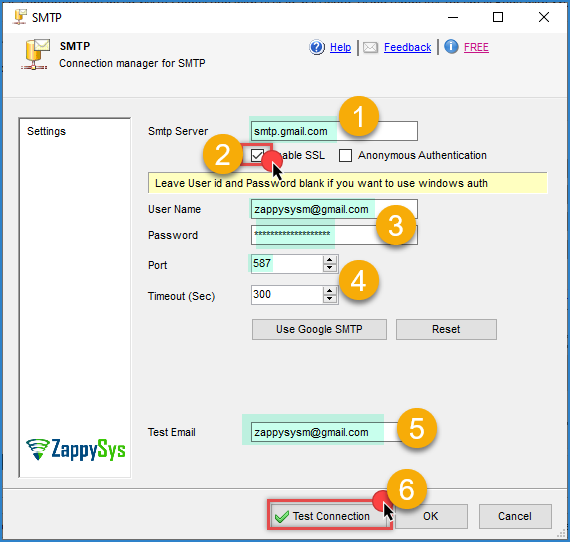
Next to the SMTP connection field, click New to create a ZS-SMTP connection, and configure it:
- SMTP server: for example
smtp.office365.comorsmtp.gmail.com. - Port: most providers use
587. Check your provider documentation. - SSL: enable it if your server requires an encrypted connection (most public providers do).
- Uncheck Anonymous Authentication and enter your User Name and Password.
- SMTP server: for example
-
Enter a Test Email address and click Test Connection.
-
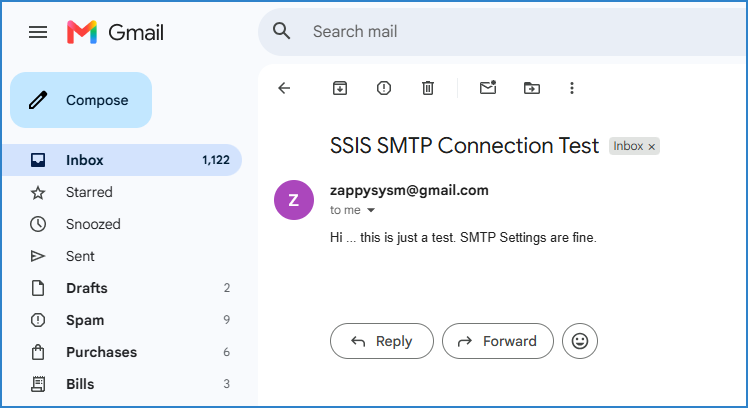
Confirm the test message arrives in the test mailbox, then click OK.
-
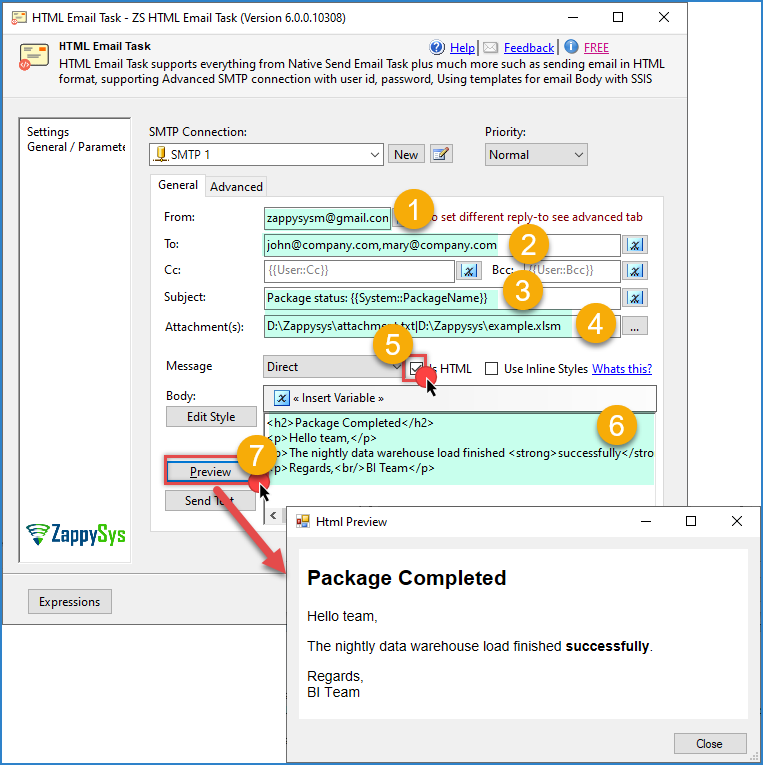
Back in the task, fill in From, To, and optionally Cc and Bcc. Separate multiple addresses with commas:
john@company.com,mary@company.com
- Enter the Subject, for example
Package completed, and make sure the email is set to HTML format (IsHtmlEmail = True). - In the body, paste your HTML:
<h2>Package Completed</h2>
<p>Hello team,</p>
<p>The nightly data warehouse load finished <strong>successfully</strong>.</p>
<p>Regards,<br/>BI Team</p>
-
Click Preview to see how the email will look.
-
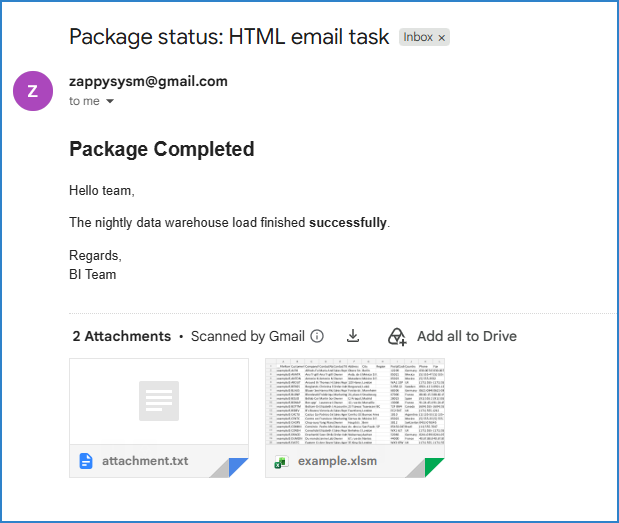
Click OK to save the configuration, then run the package and check your inbox.
Using SSIS variables in the subject and body
You do not need to write SSIS expressions. Type the variable name inside double curly braces, and the task replaces it with the value at runtime.
Subject example:
ETL Load Completed - {{User::TableName}}
Body example:
<p>Table <strong>{{User::TableName}}</strong> was loaded.</p>
<p>Rows loaded: <strong>{{User::RowsLoaded}}</strong></p>
<p>Package: {{System::PackageName}} | Machine: {{System::MachineName}}</p>
User::TableNameandUser::RowsLoadedare regular SSIS variables set by a previous task, for example a Data Flow with a Row Count transformation.- System variables such as
System::PackageNameandSystem::MachineNametell the reader which package and server sent the message. - Placeholders insert the value as-is. To show a date or currency in a specific format, prepare a formatted string variable first. See How to format date and currency in HTML emails.
Adding attachments
Use the Attachments property to send files such as CSV, Excel, or PDF reports. Separate multiple files with a vertical bar (|):
C:\Reports\SalesReport.xlsx|C:\Reports\SalesReport.pdf
If the file names change at runtime, store each path in a variable and build the list with an expression:
@[User::File1] + "|" + @[User::File2]
For more details, see How to send multiple attachments using Send HTML Email Task.
Notes
-
Always send the first runs only to yourself, then add the real distribution list.
-
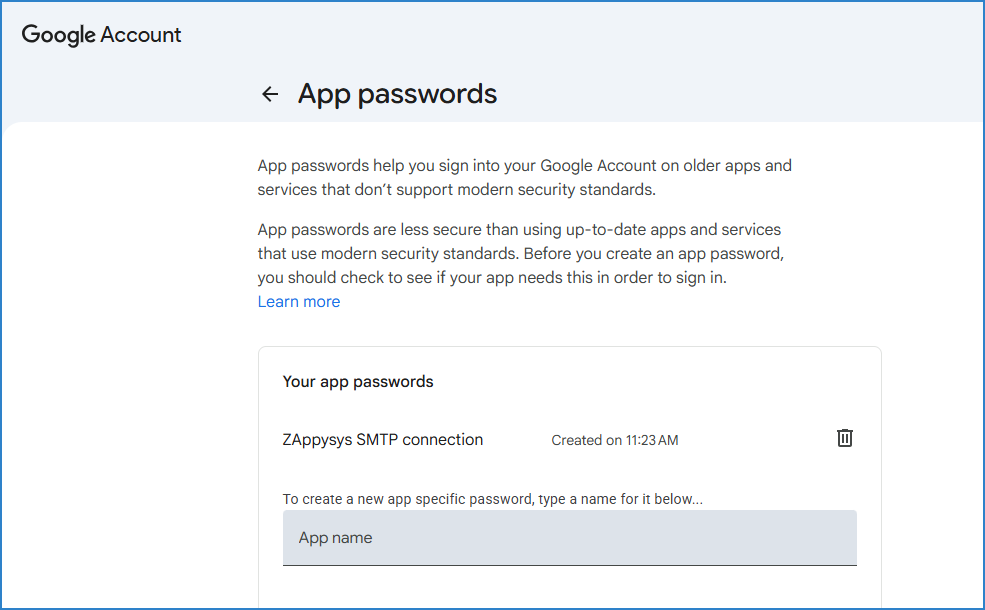
Many providers, such as Gmail with 2-Step Verification, require an app password instead of your normal password. In Microsoft 365, the mailbox must have SMTP AUTH enabled by your administrator.
-
If the test fails with
5.7.0 Must issue a STARTTLS command first, the server requires an encrypted connection. Check the SSL option and use port587. Avoid port465, which expects SSL from the first byte and usually times out. -
If the test fails with
5.7.8 Username and Password not accepted(Gmail), use an app password instead of your account password. -
If the connection times out, check the server name and port, and make sure the firewall on the SSIS server allows outbound traffic on that port.
-
If the email arrives as raw HTML code, confirm that IsHtmlEmail is set to True.
-
If a placeholder appears literally in the email, check the variable name, namespace, and case.
-
Attachment paths must be valid on the machine that runs the package, not only on your development machine.
-
For more details about the task, see the help page.
Video Tutorial
Conclusion
The Send HTML Email Task sends formatted emails from SSIS without writing code. Create an SMTP connection with your credentials, add recipients and an HTML body, and use {{User::Variable}} placeholders for dynamic values. Use it for ETL notifications and alerts that need more than plain text.
Still need help?
If you need assistance using the Send HTML Email Task, please get in touch with our support team:
- Live Chat: Open the chat widget (bottom right of this page)
- Email: support@zappysys.com
- Support Center: https://zappysys.com/support/