Introduction
API Connection Managers support SSIS Expressions, allowing you to dynamically change connection settings at runtime without manually editing the connection.
This is especially useful when deploying packages across multiple environments (Development, QA, Production), switching between different accounts or API instances, or storing sensitive information in SSIS variables instead of hardcoding it.
Most API providers share a common set of properties, such as:
- ClientId
- ClientSecret
- UserName
- Password
- ServiceUrl
However, each provider also exposes its own provider-specific settings, such as:
- Scope
- SiteId
- SpreadSheetId
- TenantId
- DriveId
- BucketName
- WorkspaceId
- API Version
- and many others.
Prerequisites
- Download and install the ZappySys SSIS PowerPack.
Steps
Configure the API Connection
- Create a new API Connection Manager.
- Select the desired API Provider.
- Fill in all required connection settings, such as Client ID, Client Secret, authentication settings, and any provider-specific fields.
- Save the connection.
Initialise the parameters property
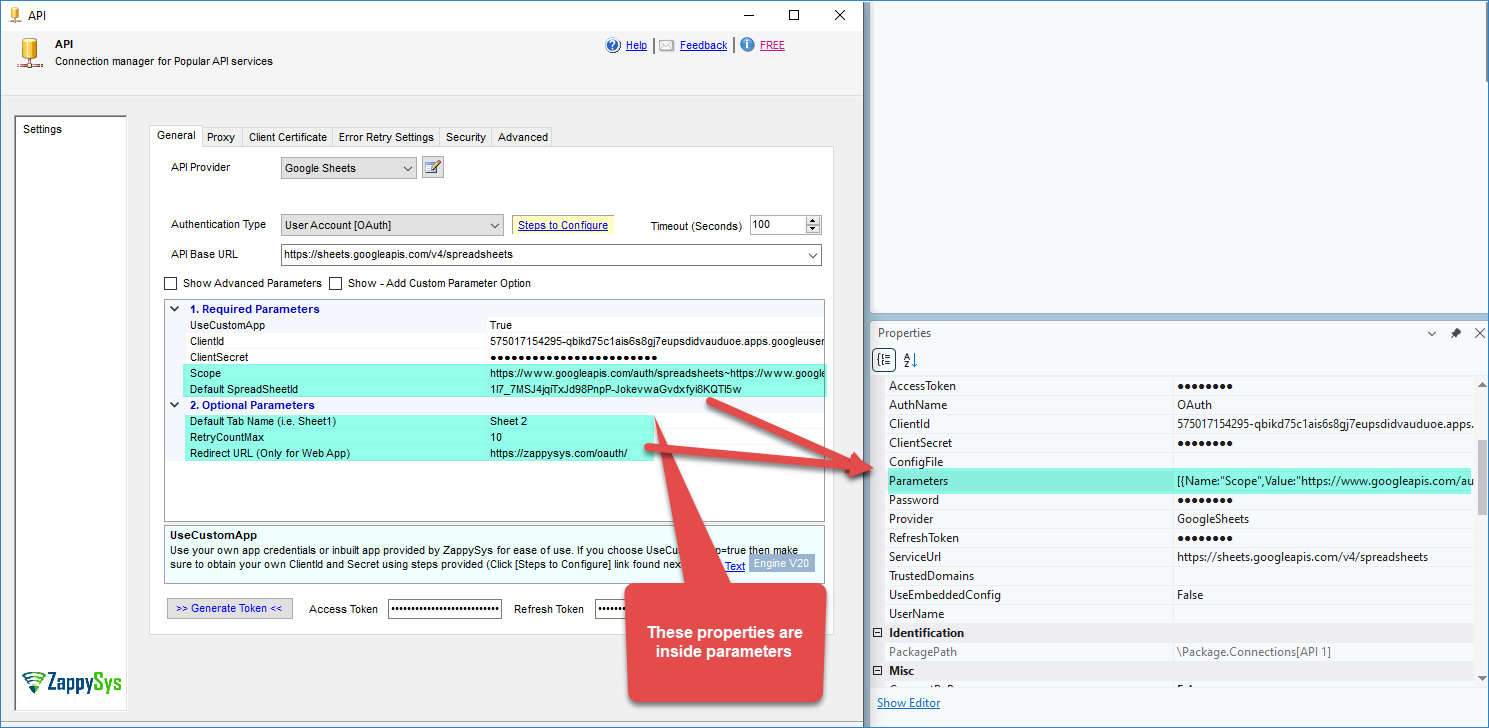
Some provider-specific settings are added to the Parameters property only after they have been assigned or modified. If a field such as Scope is left empty, it may not appear in Parameters yet.
- Open the field you need (e.g. Scope, SpreadSheetId, SiteId, DriveId).
- Enter a value or modify the existing one.
- Save the connection.
- The field will now appear as an entry inside the Parameters property, ready to be targeted with an expression.
Assign an expression to a standard property
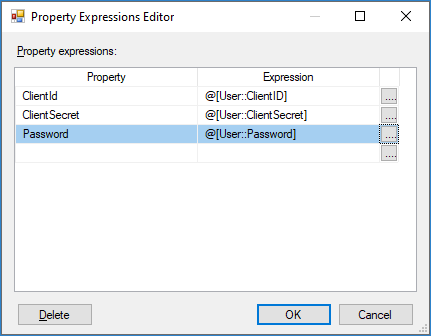
Common properties such as ClientId, ClientSecret, UserName, and Password can be assigned directly using an SSIS Expression. This is the recommended approach whenever the property exists individually in the Properties window.
-
Select the API Connection Manager.
-
Open the Expressions editor.
-
Assign the property, for example ClientSecret, to an SSIS variable:
@[User::ClientSecret] -
Save the configuration. For more information, check this article
Assign an expression to the Parameters property
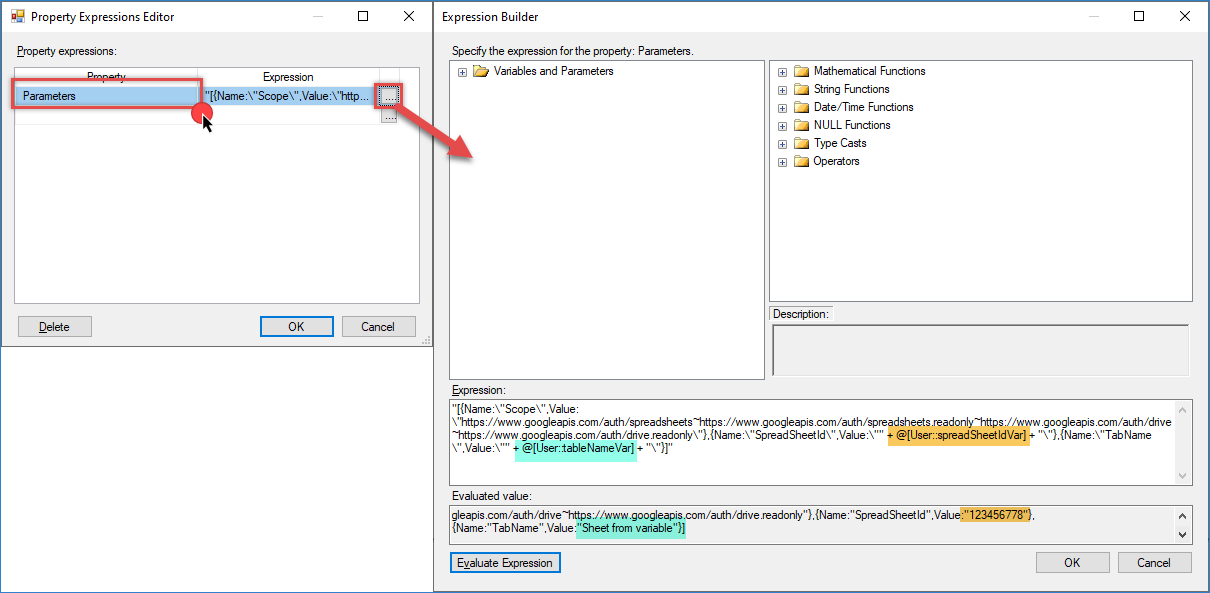
Provider-specific settings such as SpreadSheetId or TabName are stored inside the Parameters property as a JSON array.
- Open the Expressions editor for the connection.
- Select the Parameters property.
- Replace the fixed value with an SSIS expression that concatenates the JSON literal with your variable(s), for example:
"[{Name:\"Scope\",Value:\"https://www.googleapis.com/auth/spreadsheets~https://www.googleapis.com/auth/spreadsheets.readonly~https://www.googleapis.com/auth/drive~https://www.googleapis.com/auth/drive.readonly\"},{Name:\"SpreadSheetId\",Value:\"" + @[User::spreadSheetIdVar] + "\"},{Name:\"TabName\",Value:\"" + @[User::tableNameVar] + "\"}]"
-
Evaluate the expression and save the configuration.
-
At runtime, SSIS replaces the variable value before the API request is executed.
Conclusion
Common properties such as ClientId and ClientSecret can be configured directly using SSIS Expressions, while provider-specific settings can be customised through the Parameters property.
By combining SSIS variables with expressions, you can easily switch credentials, resources, and provider-specific settings at runtime without modifying the Connection Manager. This approach simplifies package deployment across multiple environments and makes your SSIS solutions easier to maintain.
Still need help?
If you need assistance configuring expressions for your API Connection Manager, please contact our support team:
- Live Chat: Open the chat widget (bottom right of this page)
- Email: support@zappysys.com
- Support Center: Support | ZappySys