Introduction
The ZappySys SSIS PowerPack offers a range of components to address various data integration scenarios. If you need to retrieve or send JSON data to an API, you can use the JSON Source component. Similarly, for XML or CSV formats, we offer the XML Source and CSV Source components.
However, when working with popular technologies like SharePoint, Google, Amazon, Zendesk, and others, our OAuth and HTTP connectors, along with the API Connector, offer a much more streamlined solution. In this article, we will compare our API Connector to our JSON/CSV/XML Source components and explain why the API Connector is often the better choice for many use cases.
Comparison
With our professional components (JSON, XML, CSV), you can make basic requests using methods such as GET, POST, and PUT via HTTP or OAuth. However, the real advantage of our API Connector is the ability to connect seamlessly to popular services and APIs directly, offering a much richer set of options for both source and destination operations.
In the following example, we’ll show you how to retrieve a value from a Google Sheet using both the API Source (via the API Connector) and the JSON Source with the OAuth connection.
API connector
For detailed guidance, we recommend checking out this article on how to connect to Google Sheets in SSIS. Here’s a quick summary of the process:
- Go to the Google Cloud Console and select or create a project.
- Enable the Google Sheets API for that project.
- Create credentials and save your Client ID and Secret ID.
- Drag and drop the API Source into your Data Flow.
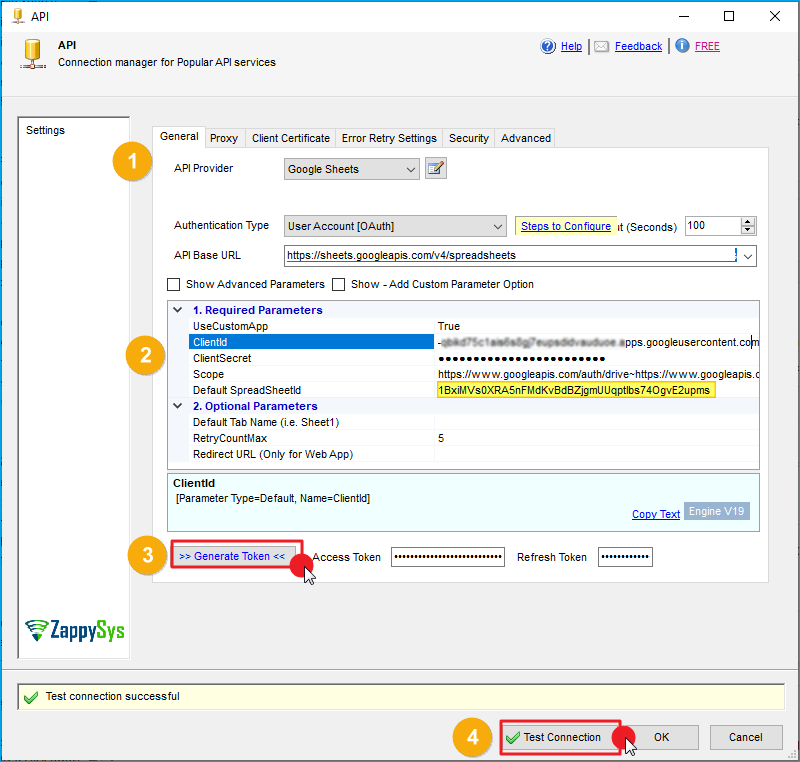
- In the API Source, create a new connection and select the Google Sheets connector.
- Enter your Client ID, Secret ID, and Spreadsheet ID, and generate the token. Click OK to save the configuration.
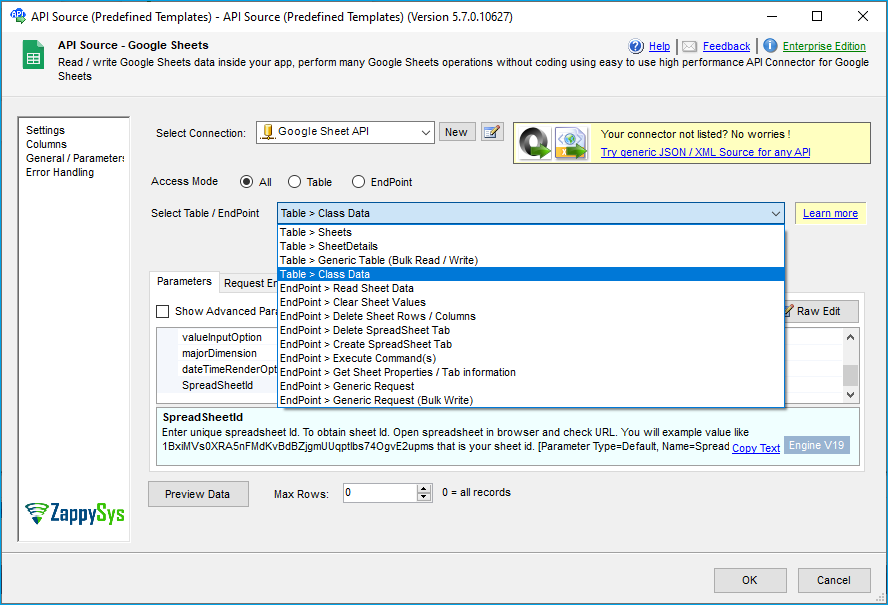
- You can now view the list of your sheets, and take actions like delete, create, and more.
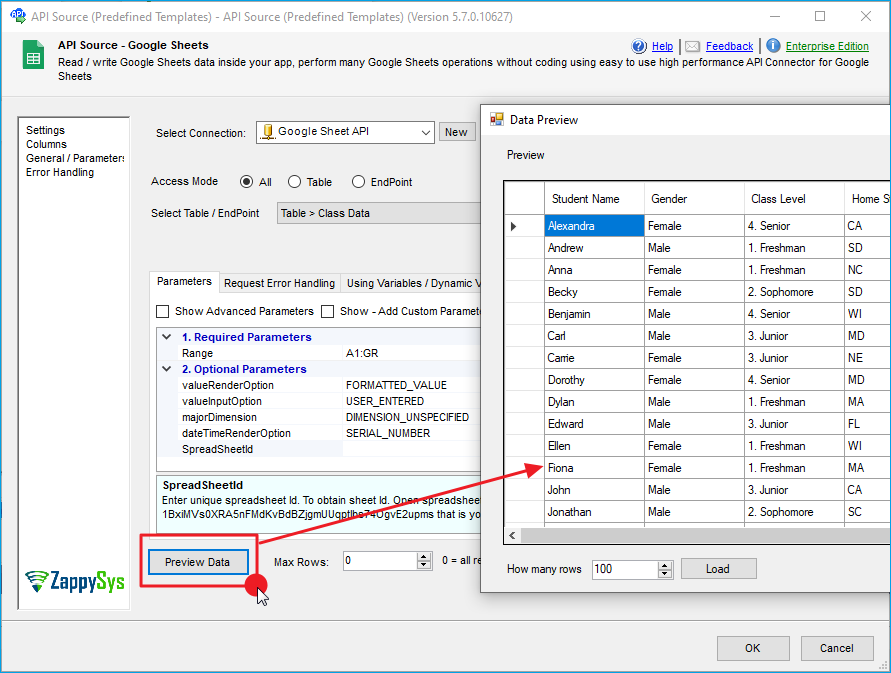
- Preview the data to confirm that the correct sheet data is returned. You can also edit the parameters if needed.
OAuth connection
For working with Google Sheets using OAuth authentication, check out our article on reading and writing to Google Sheets using SSIS. Here’s a summary of the steps:
-
Go to Google Cloud Console and create/select a project.
-
Enable the Google Sheets API for the project.
-
Create credentials and save your Client ID and Secret ID.
-
Drag and drop the JSON Source component into your Data Flow.
-
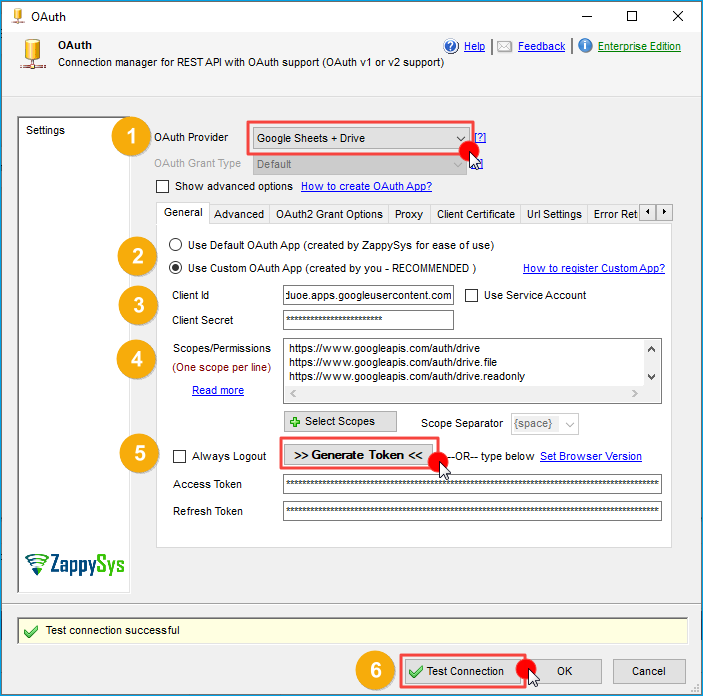
Create an OAuth connection within the component, selecting Google Sheets + Drive.
-
Use the default OAuth app or Custom OAuth app (which requires the Client and Secret ID).
-
Enter the necessary scopes for access and generate the token to test the connection.
-
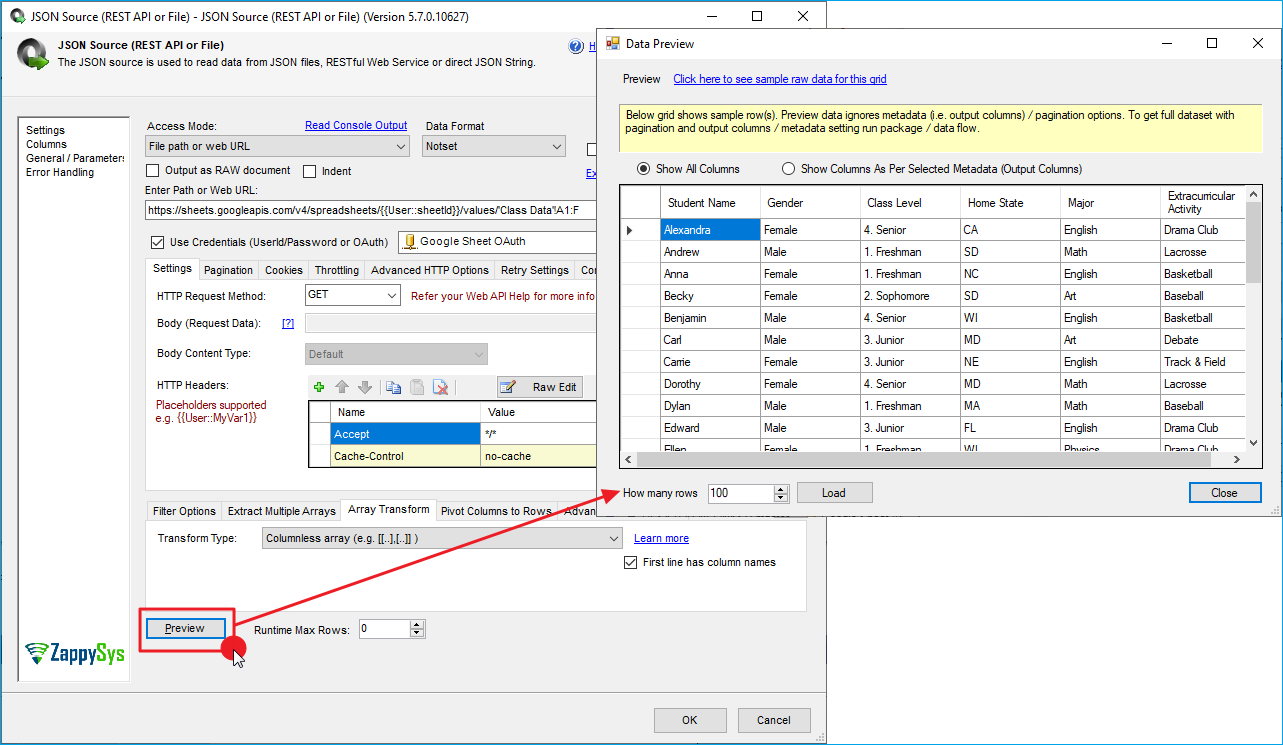
In the JSON Source, use the URL format with the sheet ID, sheet name, and the desired cell range:
https://sheets.googleapis.com/v4/spreadsheets/{your-sheet-id}/values/{cell-range} -
Use the filter
$.values[*]to extract the data, then proceed to the Array Transform tab to configure the Columnless Array option. -
Preview the data to confirm the values are returned.
API connector for data upload
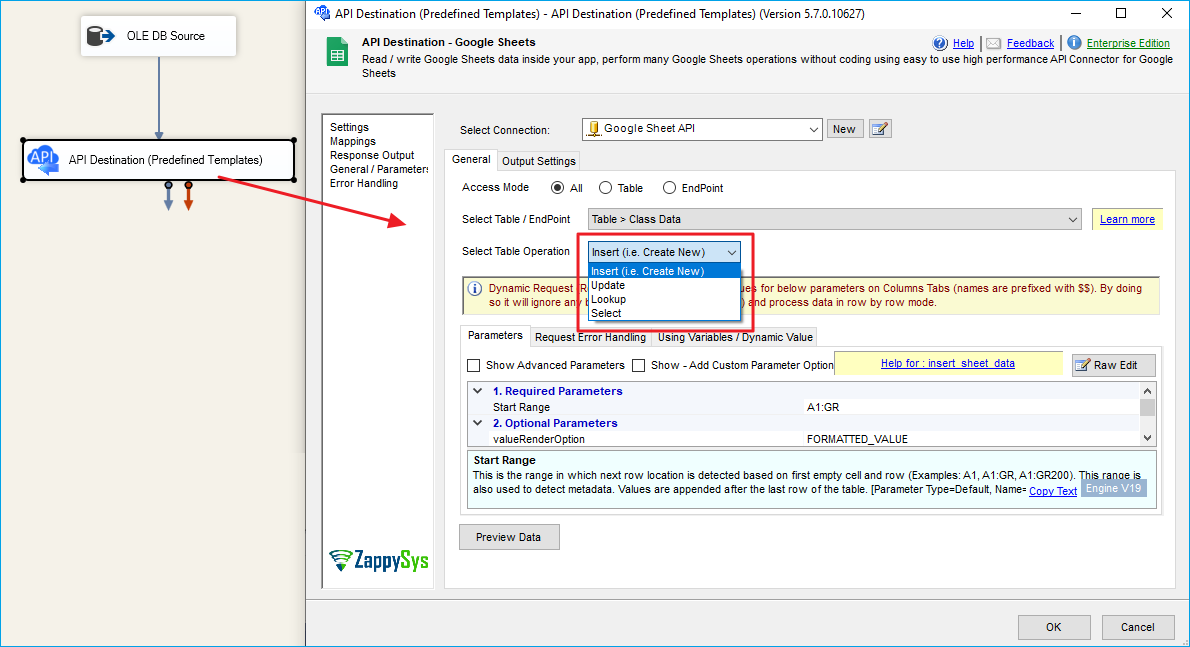
For uploading data to Google Sheets, you can use the API Destination. To connect it, you can use the OLE DB Source component. In the API Destination, choose your previous connection, select the Google Sheet, and configure the action (Insert, Update, etc.).
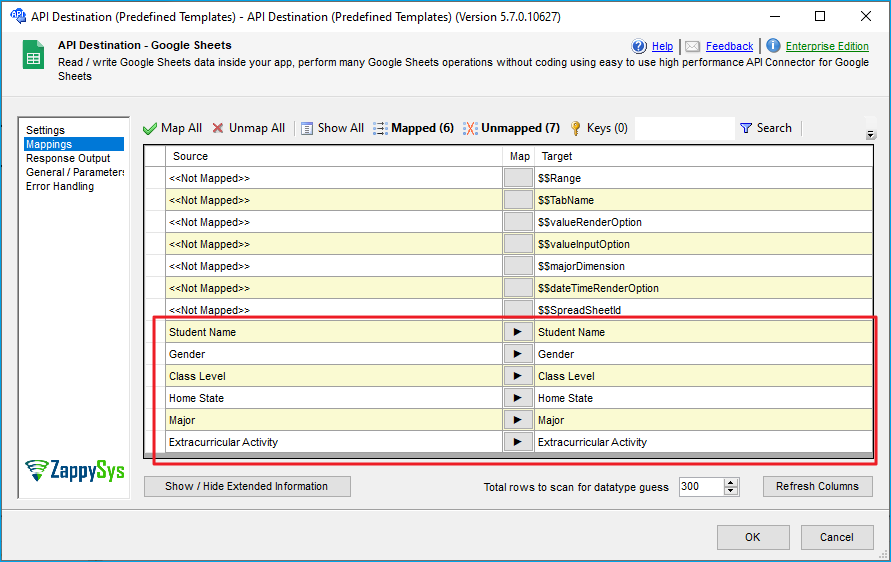
Next, use the Mapping tab to map source and destination columns. If they match, the mapping will be automatic.
OAuth connector for data upload
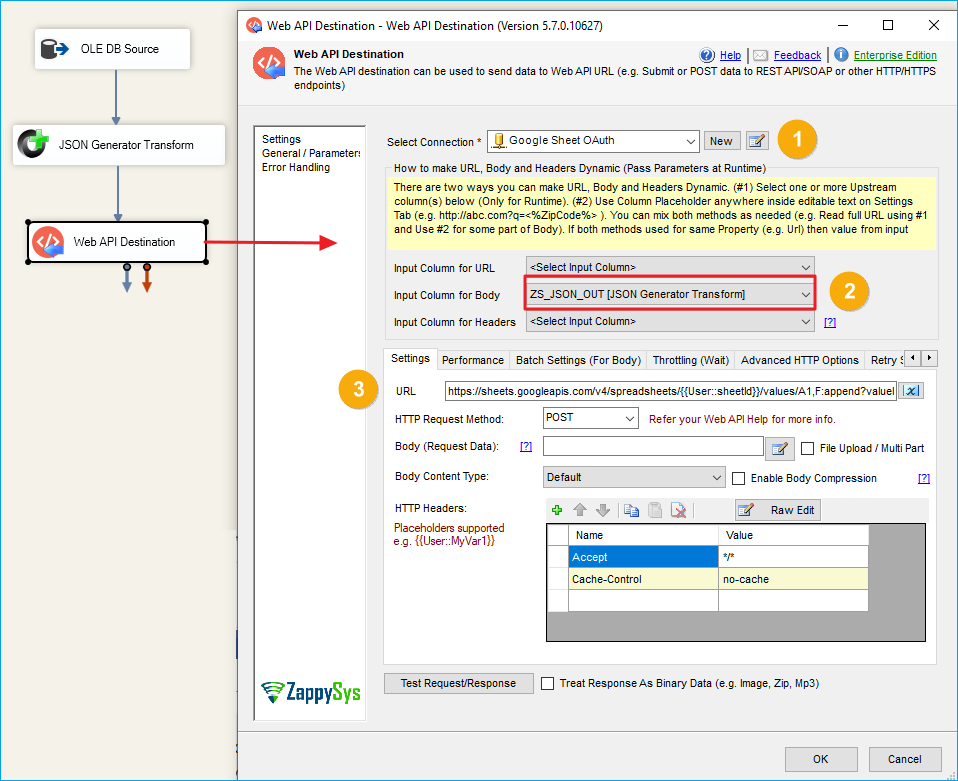
For this case, you can check our article on here. This is a summary: transform the data into JSON format with the JSON generator transform from the OLE DB source, then use the Web API Destination component, and configure a POST request to update the Google Sheet:
https://sheets.googleapis.com/v4/spreadsheets/{spreadsheetId}/values/{range}:append?valueInputOption=RAW
Final result
In this example, the API Connector streamlines the process by providing a straightforward, pre-configured connection to Google Sheets, making data retrieval and manipulation significantly easier than with the JSON Source, which requires manual setup and more complex configuration for tasks such as uploading or downloading files. The API Connector works similarly with other popular services like Amazon, Asana, Dropbox, Google Drive, Mailchimp, Zendesk, Zoho CRM, and many more. You can explore the full list here.
Conslusion
While JSON, XML, and CSV sources offer flexible ways to work with raw data, they often require more manual configuration and a deeper understanding of API endpoints, authentication, and data transformations. These components are ideal for lesser-known services or custom APIs that may not yet have a dedicated connector.
The API Connector, by contrast, abstracts much of this complexity for popular services, providing pre-built connections, built-in authentication, automatic pagination, and simplified data mapping. Using the API Connector speeds up development, reduces errors, and simplifies maintenance.
Explore our SSIS PowerPack for more information and download and install it to start building smarter, faster, and more scalable solutions.
References
- API Source
- API Source documentation
- API Destination
- API Destinationdocumentation
- Blog articles
- SSIS PowerPack
Contact us
If you encounter any issues or have specific questions, reach out to our support team via live chat or support ticket using our email support@zappysys.com.