Introduction
Some integration scenarios require connecting to Salesforce using OAuth 2.0 without user interaction. Unlike the Authorisation Code flow, which requires a user to sign in through a browser, non-interactive authentication allows applications to obtain access tokens automatically.
Salesforce supports several OAuth 2.0 flows for server-to-server authentication. In this tutorial, we will configure the OAuth 2.0 Client Credentials flow using an External Client App, allowing ZappySys connectors to authenticate without user interaction.
Prerequisites
- Download and install the ZappySys ODBC PowerPack or ZappySys SSIS PowerPack
- A Salesforce account
Steps
Create an External Client App in Salesforce
-
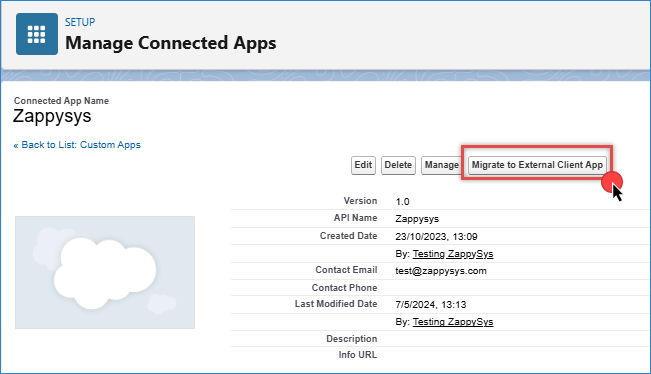
If you already have a Connected App, you can migrate it to an External Client App.
-
Go to Setup > Apps > App Manager.
-
Select the application you want to migrate.
-
Click Migrate to External Client App.
-
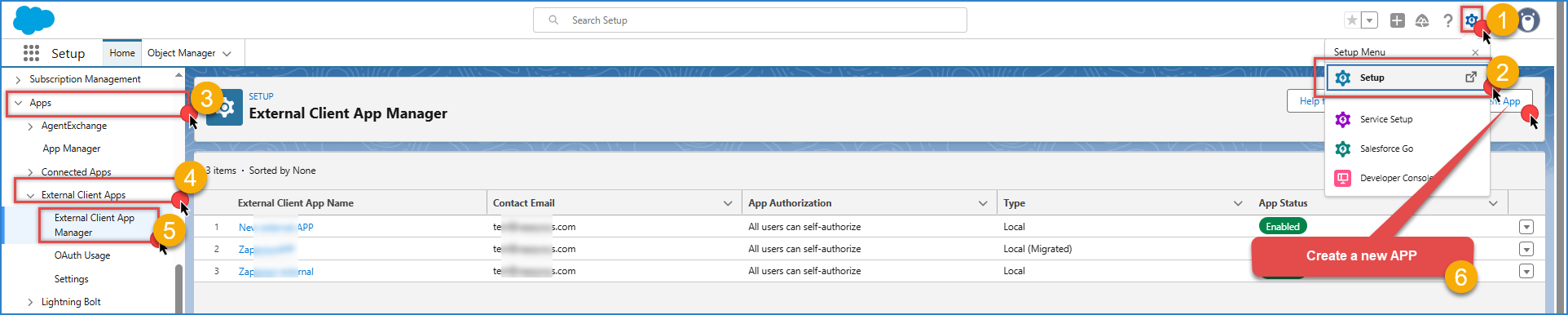
If you prefer to create a new application, go to Setup > External Client Apps > External Client App Manager.
-
Click New External Client App, complete the required fields, and create the application.
Configure the Settings tab
-
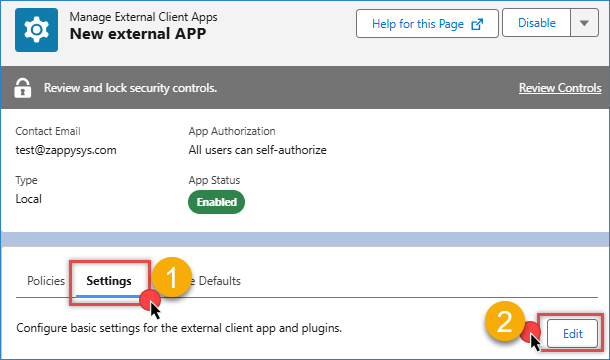
Open your External Client App and go to the Settings tab.
-
Click Edit.
-
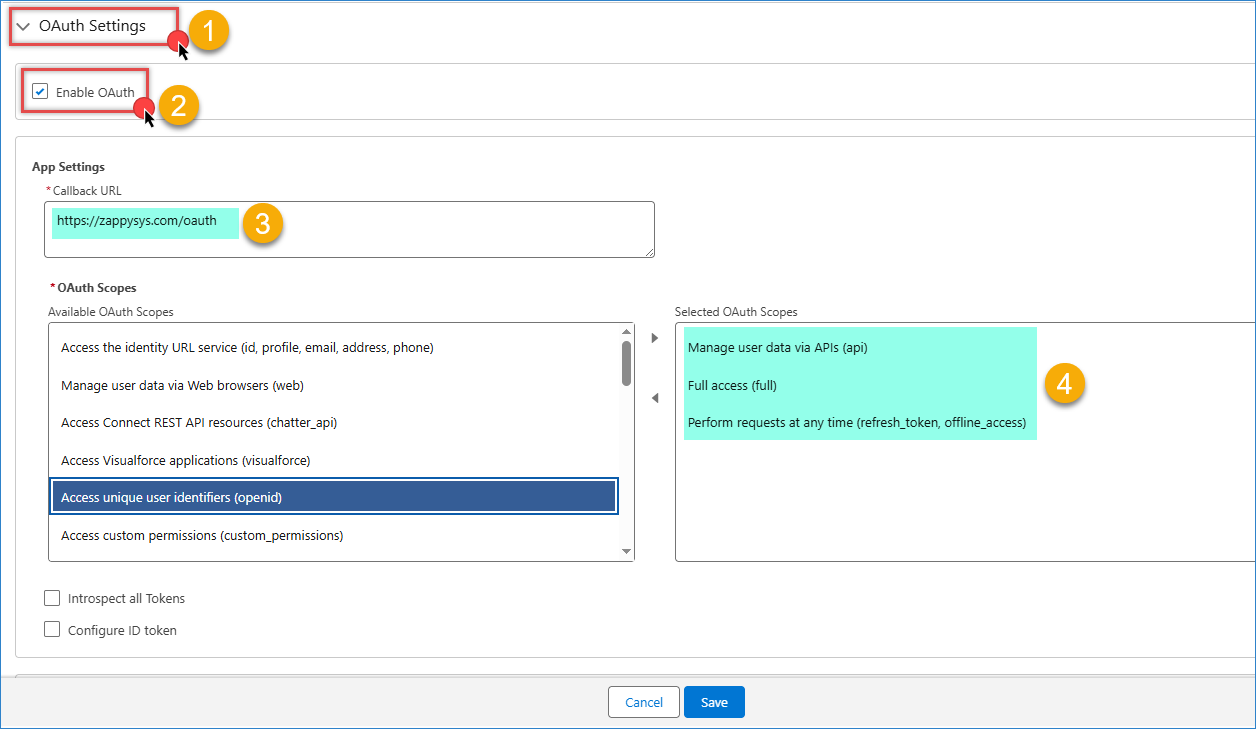
Under OAuth Settings, enable OAuth.
-
Enter a Callback URL. For this example, use:
https://zappysys.com/oauth
-
Select the OAuth scopes required by your application. You will use these same scopes later when configuring the Salesforce connection.
-
Save the configuration.
Configure the Policies tab
-
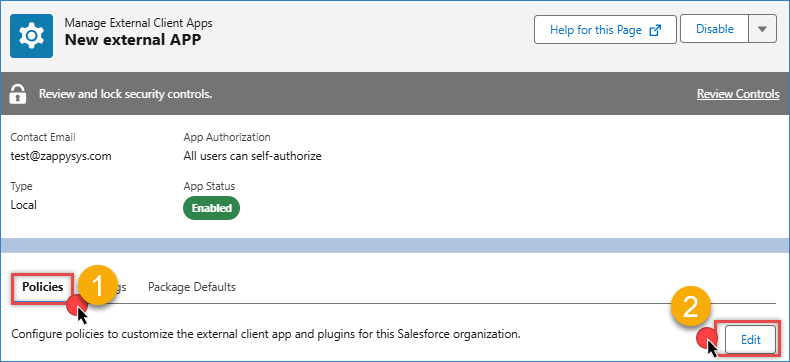
Open the Policies tab and click Edit.
-
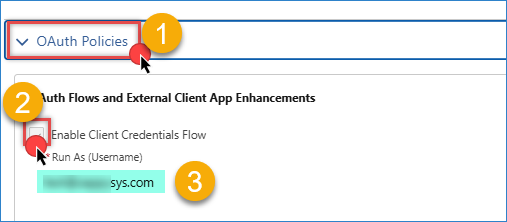
Enable Client Credentials Flow.
-
Specify the Salesforce user in the Run As field.
-
Save the configuration.
Generate the Consumer Key and Secret
- Return to the Settings tab.
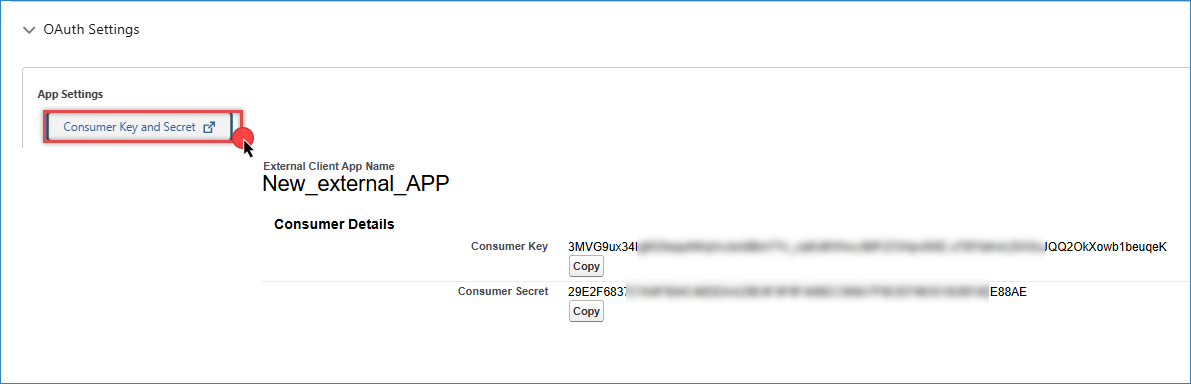
- Under OAuth Settings, click Consumer Key and Secret.
- Salesforce will send a verification code to your registered email address.
- After verification, copy the Consumer Key and Consumer Secret. You will need these values when configuring the connector.
Configure the Salesforce connection
-
Go to your Salesforce Connection
-
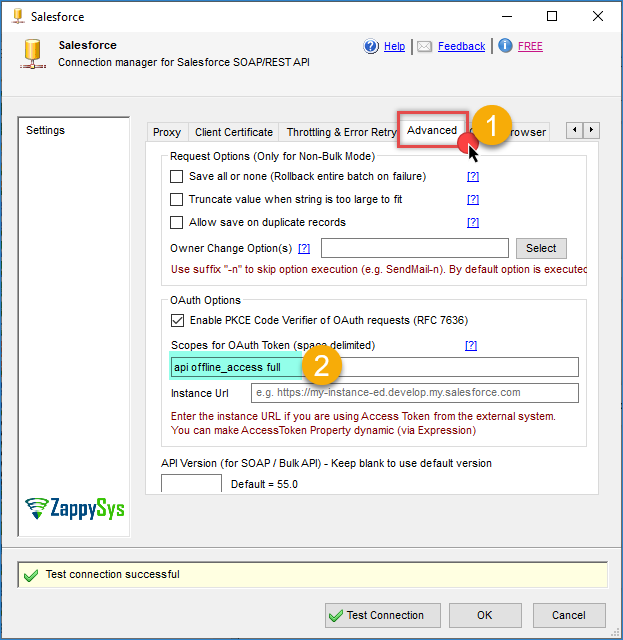
Open the Advanced tab.
-
In Scopes for OAuth Token, enter the same OAuth scopes configured in your Salesforce External Client App.
-
Return to the General tab.
-
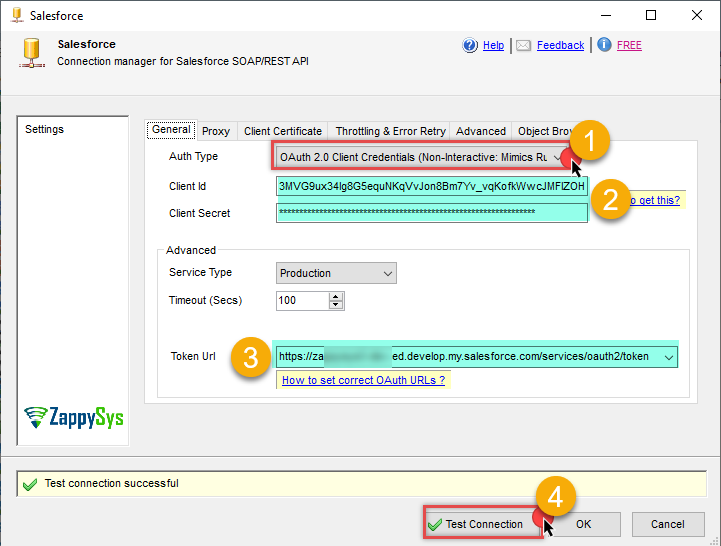
Select OAuth 2.0 Client Credentials (Non-Interactive) as the authentication method.
-
Enter the Consumer Key and Consumer Secret obtained in the previous step.
-
In the Advanced section, configure the appropriate Service Type and Token URL. For the correct Token URL, see the following article.
-
Click Test Connection.
-
If the connection succeeds, click OK to save the configuration.
Conclusion
The OAuth 2.0 Client Credentials flow provides a secure and fully automated way to authenticate with Salesforce without requiring user interaction. This makes it ideal for scheduled jobs, server-side applications, SSIS packages, ODBC connections, and other unattended integration scenarios.
Once your External Client App is configured and the Consumer Key, Consumer Secret, OAuth scopes, and Token URL are specified, ZappySys connectors can automatically obtain and refresh access tokens, enabling secure and reliable access to Salesforce APIs without browser-based authentication.
Still need help?
If you encounter any issues or have questions, please get in touch with our support team:
- Live Chat: Open the chat widget (bottom right of this page)
- Email: support@zappysys.com
- Support Center: Support | ZappySys