Problem
When using the ZappySys SharePoint Online connector (for example, SharePoint Online Source), selecting a table/endpoint or previewing data fails with a 401 error like this:
The remote server returned an error: (401) Unauthorized.
Response Url: https://graph.microsoft.com/v1.0/sites/<site-id>/lists

Status Code: Unauthorized

Response Body: {"error":{"code":"InvalidAuthenticationToken","message":"Invalid token lifetime.","innerError":{...}}}
Cause
The request reaches Microsoft Graph, but the token used by the connection does not have the right permissions to access the SharePoint site:
- The app registration used in the SharePoint connection is missing the required Microsoft Graph permissions.
- Only one of the two permissions needed was added (for example,
Sites.SelectedwithoutSites.Read.AllorSites.ReadWrite.All). - The permissions were added but admin consent was not granted, or the connection is still using a token generated before the permissions were changed.
Solution
Configure one of the following permission models in the app registration used by your SharePoint connection.
Option 1: Read and write access
Add these permissions:
Sites.ReadWrite.All + Sites.Selected
Option 2: Read-only access
Add these permissions:
Sites.Read.All + Sites.Selected
Apply the change
-
Open your app registration in the Azure portal (Microsoft Entra ID).
-
Go to API permissions and add the permissions from the option you chose, under Microsoft Graph.
-
Click Grant admin consent so the permissions become active.
-
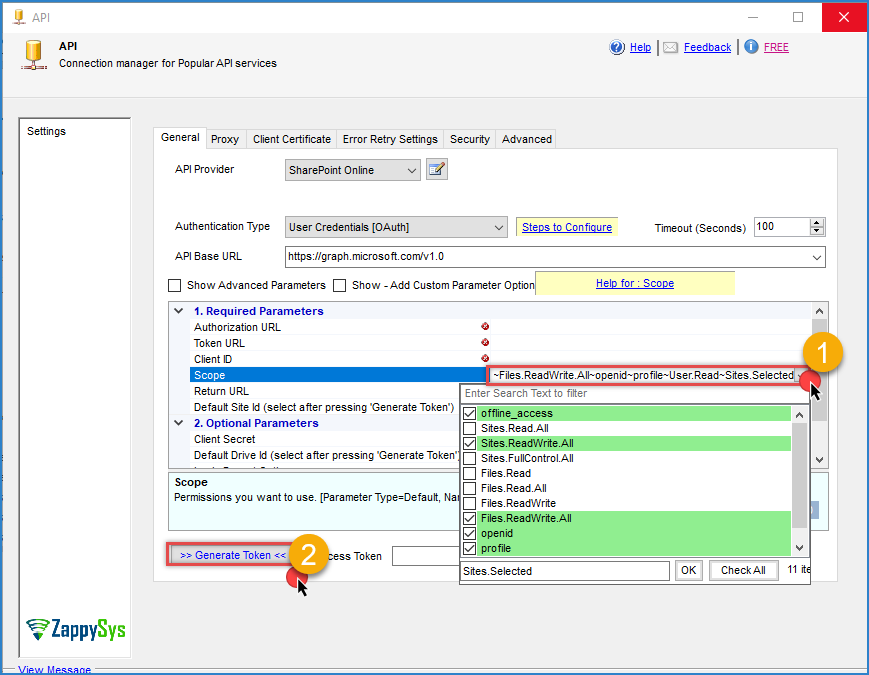
In the SSIS SharePoint connection manager, check your scopes, generate a new token (or reconnect) so the connection stops using the old token.
-
Open the SharePoint Online Source again and click Preview Data to confirm the error is gone.
Best practice
To avoid recurring issues:
- Use Read permissions (
Sites.Read.All) when you only need to read data, and Read/Write only when you also need to upload or update files and list items. - Always grant admin consent after adding or changing permissions.
- Generate a new token after any permission change, since the old token keeps the old permissions.
- If the error still shows “Invalid token lifetime” after fixing permissions, also check that the system clock of the machine running the package is correct, since a time difference can invalidate tokens.
Need more help?
If the issue persists, contact ZappySys Support:
- Live Chat: Use the chat widget (bottom-right corner)
- Email: support@zappysys.com
- Support Center: Support | ZappySys