Problem
When loading data in SSIS (ZappySys source components and Upsert Destination), you may see one of these errors:
Source component truncation error:
[CSV Source (Web API or File) [2]] Error: System.Exception: Truncation error with column [ColumnName] (Read full >> copy to notepad)

Error: The value is too large to fit in the column data area of the buffer. >> Source: ColumnName, Actual Length: 100, Value: XXXXXXXX

---> Microsoft.SqlServer.Dts.Pipeline.DoesNotFitBufferException: The value is too large to fit in the column data area of the buffer.
Destination conversion error:
[Upsert Destination (Insert, Update, Delete) [206]] Error: System.Exception: Exception has been thrown by the target of an invocation.
The given value 'XXXXXXXX' of type String from the data source cannot be converted to type nvarchar for Column 3 [ColumnName].
Cause
Both errors are usually caused by metadata mismatch:
- Source column length is too small for actual incoming data.
- Source/destination data type does not match the expected type.
- Metadata was scanned with a narrow sample and produced a smaller string length.
- Destination
nvarchar(n)size is smaller than incoming text.
Solution
Use one of these two methods to fix source truncation errors.
Method 1: Increase length/datatype in source component
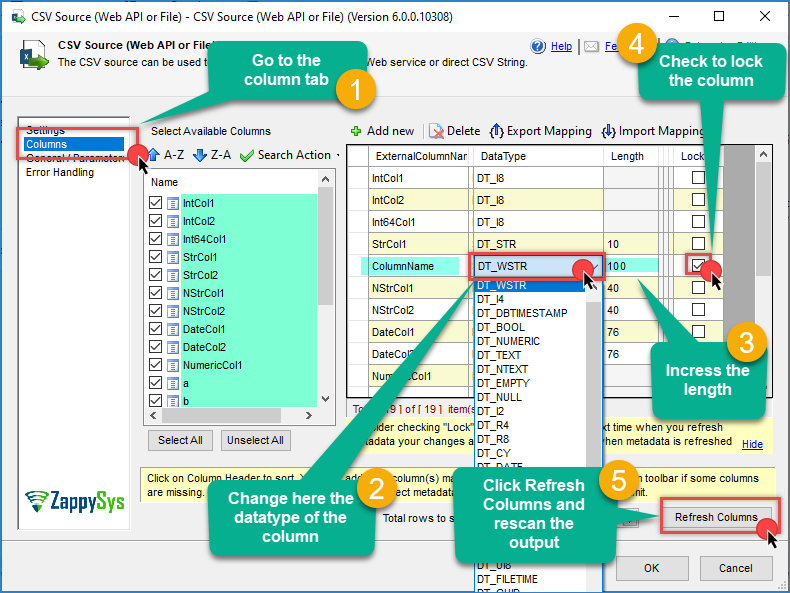
- In Data Flow, double-click the source component that failed.
- Go to the Columns tab.
- Increase column length and/or change data type for affected columns (for example,
ColumnName). - After adjusting metadata, enable Lock for columns you changed so future refresh does not undo your manual settings.
- Optional: Click Refresh Columns and rescan using a wider Metadata Scan Mode.
Method 2: Redirect error rows (or ignore)
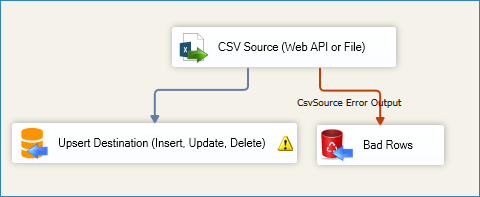
- Drag the red error output arrow from the source component to another downstream component.
- When prompted, set Truncation Action to Redirect to capture failing rows.
- If you do not need those rows, you can set Truncation Action to Ignore.
- For more information, check our article about handling metadata Issues
Solution (Upsert Destination)
- Check the target table column definition (
ColumnName) and confirm datatype/size. - Increase destination length if source values are larger.
- If required, adjust source output datatype to match destination.
- Refresh metadata/mappings in Upsert Destination after schema changes.
- Retest with sample rows, then run full load.
Example SQL to increase destination column size:
ALTER TABLE dbo.YourTableName

ALTER COLUMN ColumnName NVARCHAR(200);
Best practice
To avoid recurring issues:
- Use wider metadata scan mode when source data is variable.
- Lock important source columns after manual datatype/length changes.
- Keep source and destination data types aligned.
- Redirect error output during testing to quickly isolate bad rows.
Need more help?
If the issue persists, contact ZappySys Support:
- Live Chat: Use the chat widget (bottom-right corner)
- Email: support@zappysys.com
- Support Center: Support | ZappySys