Introduction
By default, Excel Destination writes a header row with column names before the data. If you need to load data into Excel without that header row, for example, to append to a template that already has its own headers or starts at a specific cell, you can turn it off using the Headerless property in the Advanced Editor. This article explains how to configure it, including how to write to a specific starting cell.
Prerequisites
- Download and install the ZappySys SSIS PowerPack.
Steps
-
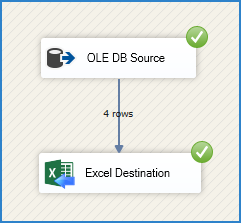
Drag an Excel Destination onto the Data Flow and connect your source (e.g., OLE DB Source) to it.
-
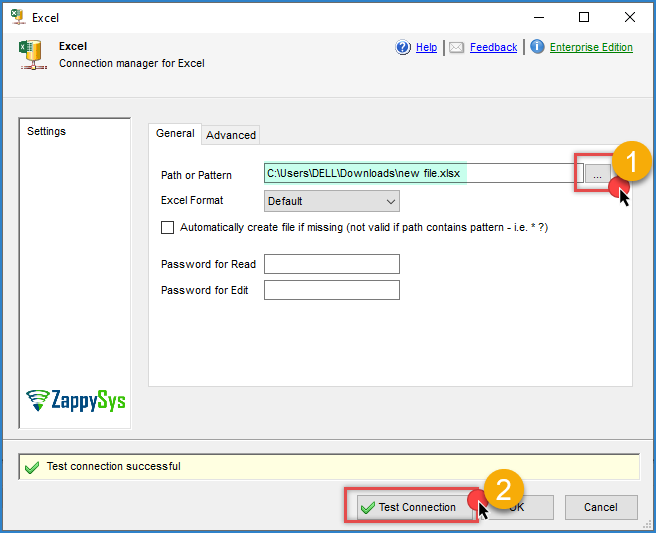
Create or select a ZS-Excel Connection in Connection Managers, pointing to your target Excel file.
-
Right-click the Excel Destination, select your Excel connection, and choose Show Advanced Editor.
-
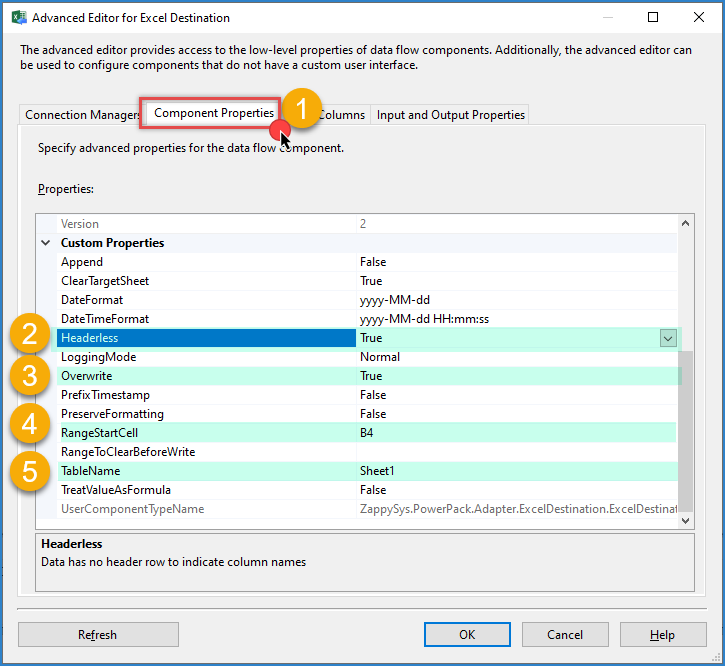
Go to the Component Properties tab and set the following under Custom Properties:
- Headerless:
True, this removes the column name row from the output. - Overwrite:
True(orFalse, depending on whether you want to replace the existing file or write into it as-is). - RangeStartCell: the cell where the data should start, for example
B4. - TableName: the sheet to write to, for example
$first_sheet$or (or a specific sheet/namedSheet1).
- Headerless:
-
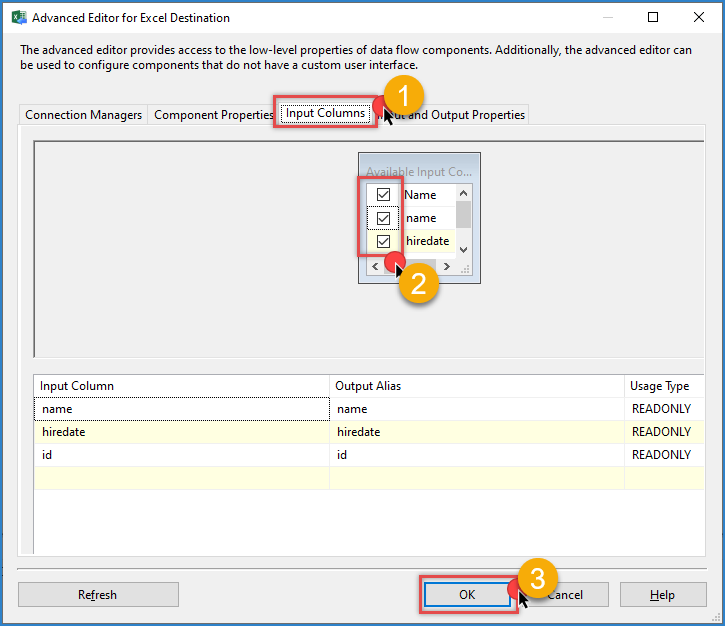
Go to the Input Columns tab and select the fields you want to write to Excel, or select all if you want every column from the source.
-
Click OK to save the configuration.
-
Run the package and open the Excel file to confirm the data starts at the specified cell, with no header row.
Conclusion
Setting Headerless to True in the Excel Destination’s Advanced Editor removes the column-name row from the output, and combining it with RangeStartCell lets you write data starting at any specific cell, such as B4, instead of the top-left corner of the sheet.
Still need help?
If you need assistance configuring Excel Destination to write without headers or at a specific cell, please get in touch with our support team:
- Live Chat: Open the chat widget (bottom right of this page)
- Email: support@zappysys.com
- Support Center: Support | ZappySys