Introduction
The Upsert Destination component in ZappySys performs an insert-or-update operation against a target, but sometimes you also need to know which rows were inserted and which were updated — for example, to log them, audit them, or route them to different downstream processes. The Upsert Destination exposes two additional outputs for exactly this purpose: New Records Output and Updated Records Output.
Prerequisites
- Download and install the ZappySys SSIS PowerPack.
Steps
-
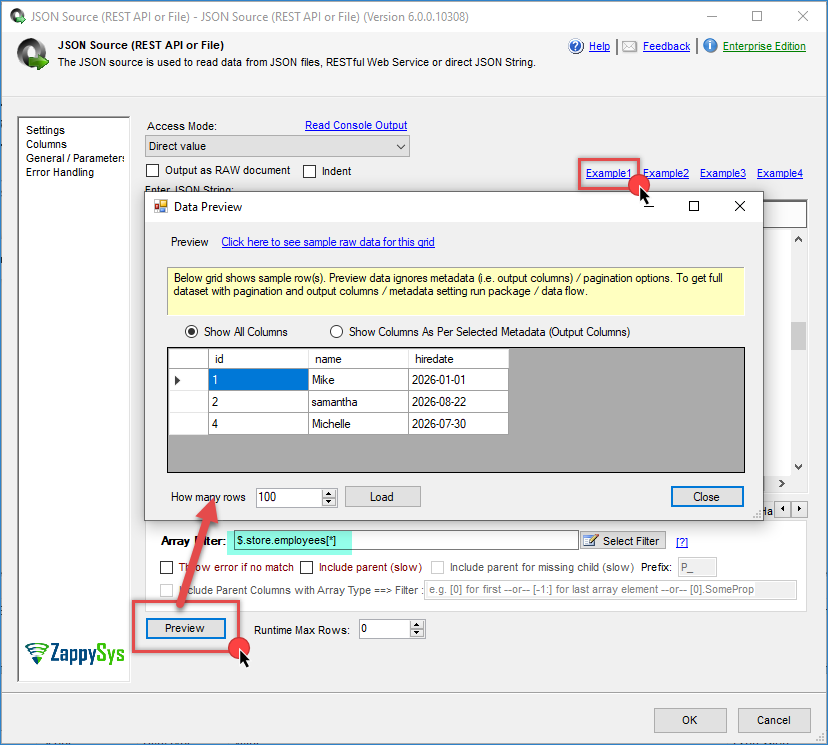
Drag and drop a source component; in this example, we’ll use the JSON Source.
-
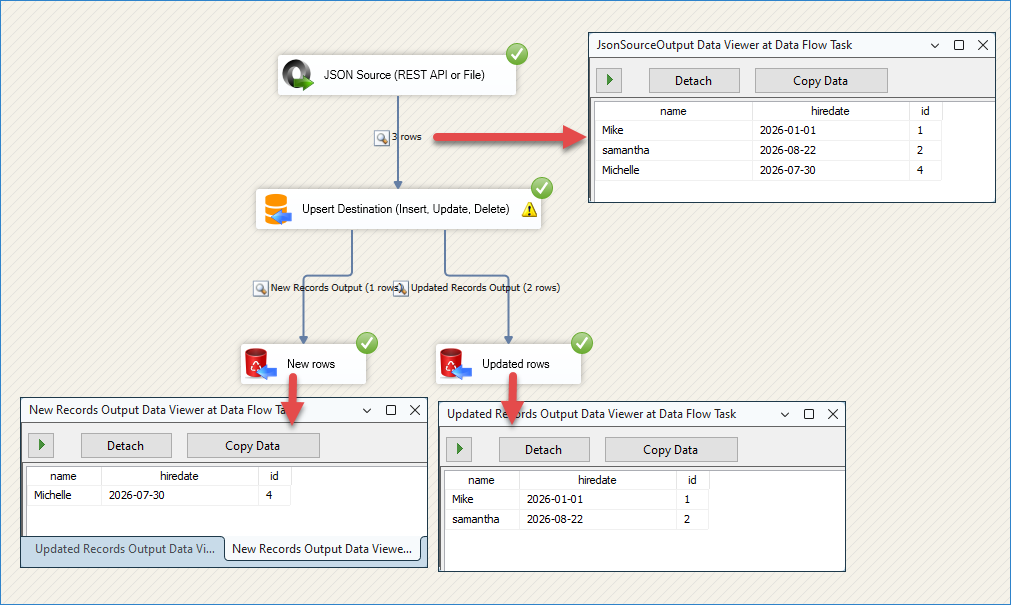
Enter a valid source table. We’ll use example 1 from the component, with the following data. We’ll update the first 2 rows and insert the last user into the database.
-
Drag and drop the Upsert Destination and connect it to the JSON Source.
-
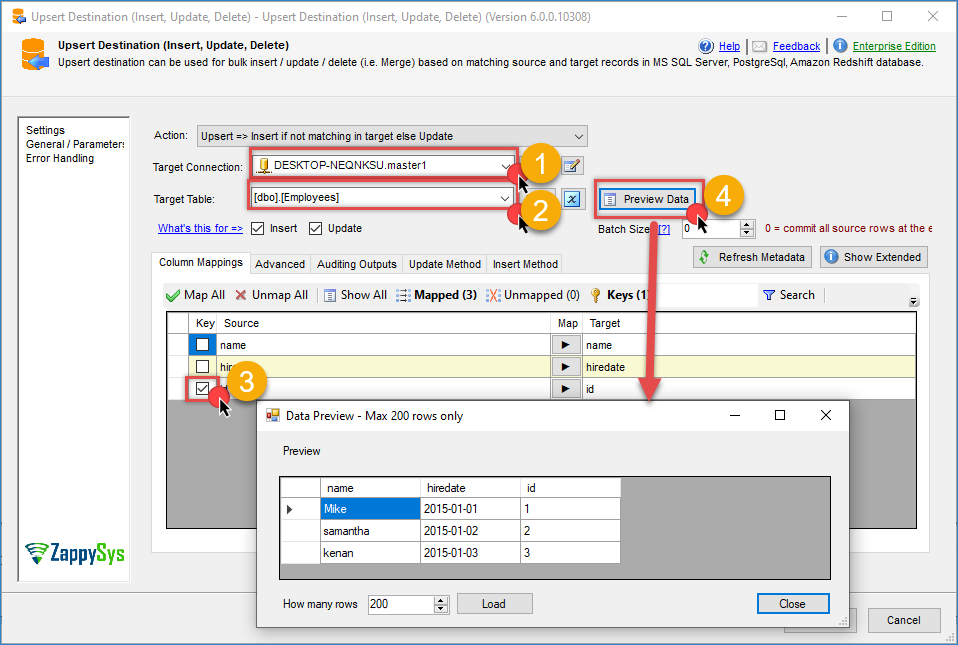
Configure the destination component: create or select the connection and the target table.
-
Check the primary key(s).
-
Preview the data from the database to confirm it looks correct.
-
Click OK to save the configuration.
-
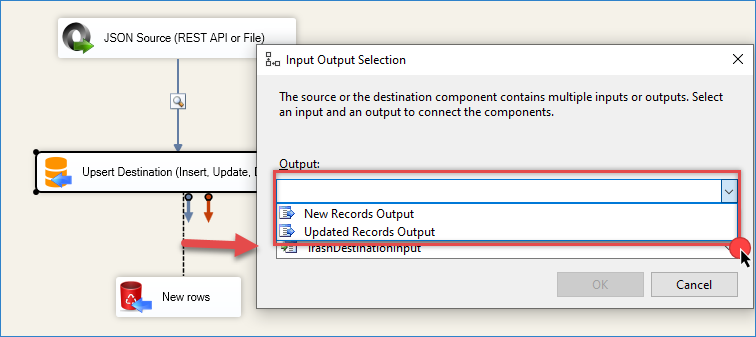
Drag a connector from the Upsert Destination to the destination component where you want to capture the inserted and updated rows (e.g. a Trash Destination for testing).
-
Since the Upsert Destination has multiple outputs, the Input Output Selection dialog appears. In the Output dropdown, select New Records Output.
-
Click OK. This output will now carry only the rows that were inserted.
-
Repeat the process: drag another connector from the Upsert Destination to a second destination component, and this time select Updated Records Output in the dialog.
-
Click OK. This second output will carry only the rows that were updated.
-
Run the package. Each destination will receive only the rows matching its assigned operation type.
Conclusion
The New Records Output and Updated Records Output on the Upsert Destination component let you capture inserted and updated rows separately, without adding extra lookup or comparison logic to your Data Flow. This makes it straightforward to log, audit, or route insert vs. update operations independently.
Still need help?
If you encounter any issues or have questions, please get in touch with our support team:
- Live Chat: Open the chat widget (bottom right of this page)
- Email: support@zappysys.com
- Support Center: Support | ZappySys