Introduction
If you’re developing secure ETL workflows in SSIS and need to retrieve secret values such as passwords, API keys, or connection strings securely, this guide will assist you. In this guide, we’ll walk through how to use the Azure Key Vault REST API with the ZappySys SSIS PowerPack to fetch secret values dynamically.
If you’re developing secure ETL workflows in SSIS and need to retrieve secret values such as passwords, API keys, or connection strings securely, this guide will assist you.
Use Case
Many organisations store sensitive information in Azure Key Vault to avoid hardcoding secrets in applications or ETL code. This guide helps you read those secrets at runtime using:
- SSIS + ZappySys REST API Task
- Azure App Registration
- OAuth2 Client Credentials Flow
Prerequisites
- Download and install the ZappySys SSIS PowerPack
- SSIS via SQL Server Data Tools (Visual Studio 2019 or later)
- Azure App Registration with access to the Key Vault (via RBAC or Access Policies)
- Azure Key Vault (A vault with at least one stored secret)
Steps to Read Azure Key Vault Secret in SSIS
1. Create Azure App Registration (Service Principal)
- Go to the Azure Portal → Azure Active Directory → App registrations → New registration.
- Enter a name (e.g., SSIS_KeyVaultApp) and select the appropriate account type (e.g., Single Tenant).
- After the app is registered:
- Copy the Application (Client) ID
- Go to Certificates & secrets, and create a new Client Secret. Copy the generated value.
- Note down your Tenant ID from the overview page.
2. Assign Key Vault Access to the App
You can grant access using either RBAC or Access Policies, depending on how your Key Vault is configured.
Option 1: Role-Based Access Control (RBAC)
- Go to your Key Vault → Access control (IAM).
- Click Add role assignment.
- Assign the Key Vault Secrets User role to your registered app.
OR
Option 2: Access Policies
- Go to your Key Vault → Access Policies.
- Click Add Access Policy.
- Grant the GET permission for Secrets.
- Select your registered app and save the policy.
3. Get Token via OAuth2 (Client Credentials Flow)
To access Azure Key Vault, you need to obtain an OAuth2 token using the Client Credentials Flow.
Token Endpoint:
https://login.microsoftonline.com/<tenant-id>/oauth2/v2.0/token
Request Body (x-www-form-urlencoded):
client_id=xxxxxxxx-xxxx-xxxx-xxxx-xxxxxxxxxxxx
&client_secret=xxxxx
&scope=https://vault.azure.net/.default
&grant_type=client_credentials
You can test this using Postman before configuring it in SSIS.
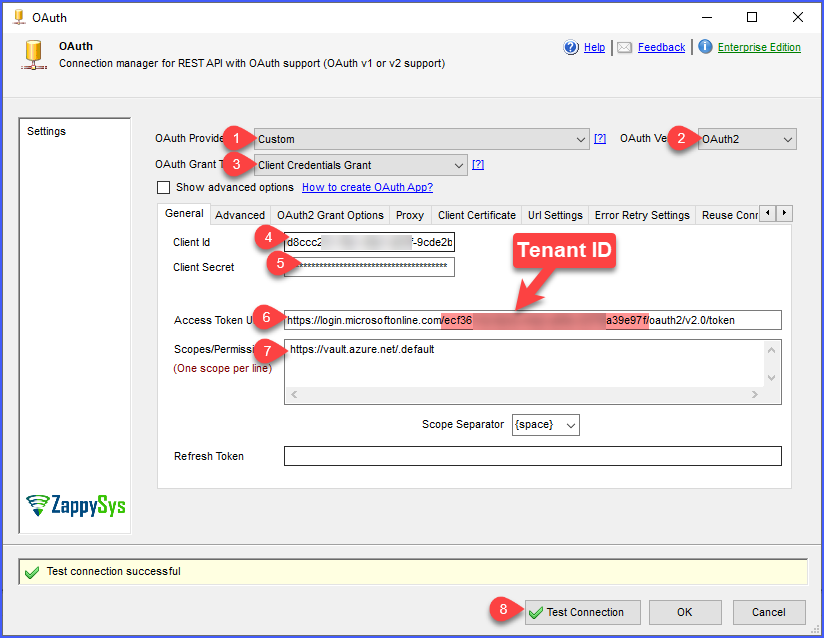
4. Configure SSIS OAuth Connection Manager with OAuth2
- Open your SSIS package and drag REST API Task.
- Click
Newon OAuth Connection. - Choose OAuth2 as Authentication Type.
- Fill in the required fields:
OAuth2 Settings:
- Token URL:
https://login.microsoftonline.com/<tenant-id>/oauth2/v2.0/token
-
Client ID: From your app registration
-
Client Secret: From your app registration
-
Scope:
https://vault.azure.net/.default
- Grant Type: Client Credentials
You should see a configuration screen like this:
5. Call the Azure Key Vault REST API in the REST API Task
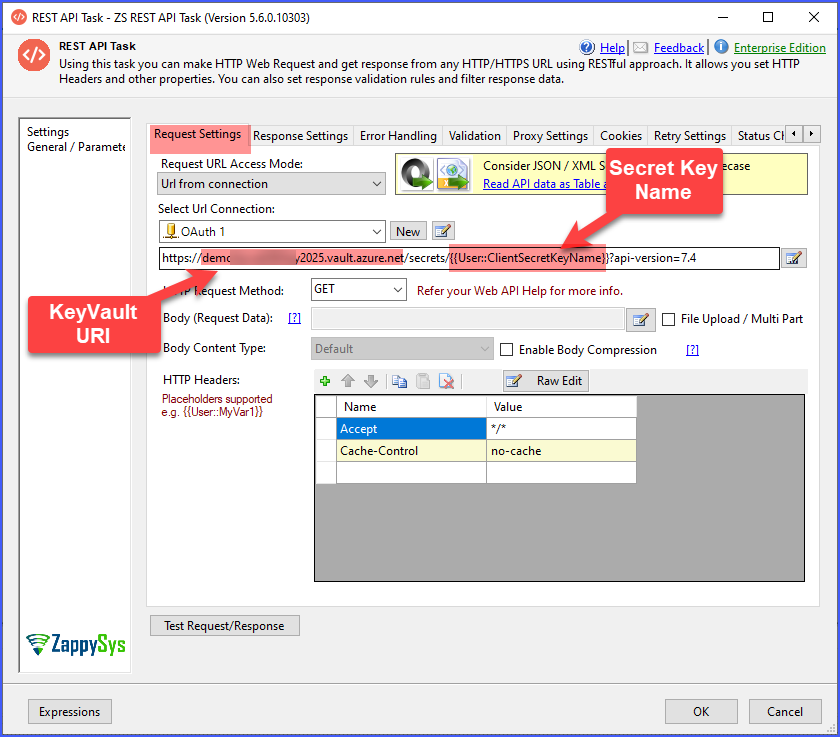
Use the following URL:
GET https://<your-keyvault-name>.vault.azure.net/secrets/<your-secret-name>?api-version=7.3
Set Accept = application/json in headers.
6. Parse the Secret Value and store in SSIS Variable
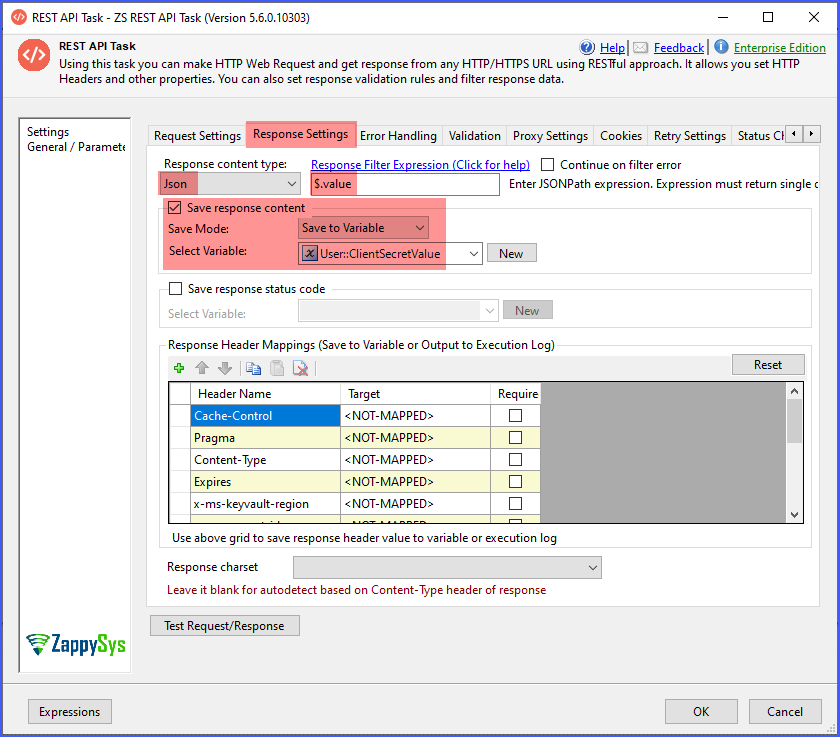
- Go to the Response settings tab and configure the Response content type as JSON.
- Enter the Response Filter (JSONPath) Expression to extract the
valueproperty from the API response. - Select Save response content to save the value to the variable and select the variable.
Sample Output
Example response from Azure Key Vault:
{
  "value": "SuperSecret123!",
  "id": "https://<your-vault>.vault.azure.net/secrets/api-key/abcd1234",
  "attributes": { ... }
}
Extract and use the value field as needed.
7. Use the Retrieved Secret in Connection Manager (Dynamic Expression)
After retrieving the secret value from Azure Key Vault and storing it in an SSIS variable, you can use that value dynamically in an SSIS Connection Manager (for example, as a password, API key, access token, or secret).
This allows you to avoid hard-coding sensitive values and makes your package more secure and environment-agnostic.
7.1: Select the Connection Manager
-
In your SSIS package, locate the Connection Manager that requires the secret
(REST API, OLE DB, Generic Connection Manager, etc.). -
Click the Connection Manager.
-
Open the Properties window (press F4 if it is not visible).
7.2: Open the Expressions Editor
-
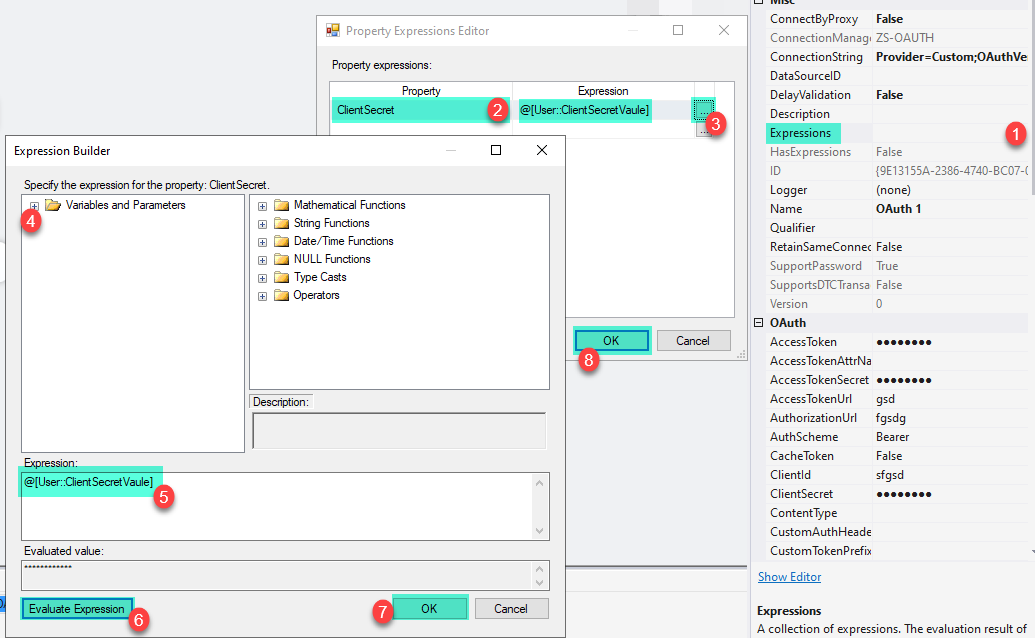
In the Properties window, locate the Expressions property.
-
Click the ellipsis button (
...) next to Expressions. -
This opens the Property Expressions Editor.
7.3: Bind the SSIS Variable to the Secret Property
As saved in Step 6 (Parse secret and store in SSIS variable), in the Property Expressions Editor, configure the expression as follows:
| Property | Expression |
|---|---|
Password / Secret / APIKey / AccessToken |
@[User::ClientSecretVaule] |
Steps:
-
Choose the appropriate Property from the dropdown.
-
Set the Expression to:
@[User::ClientSecretVaule] -
Click OK to save the configuration.
Below is the sample screenshot
If your package ProtectionLevel hides sensitive values, ensure your expressions correctly evaluate at runtime (e.g., EncryptSensitiveWithPassword).
Additional References
-
How to parameterise SSIS Task Property using Expression
https://zappysys.zendesk.com/hc/en-us/articles/4787452038171-How-to-parameterize-SSIS-Task-Property-using-Expression-to-make-it-dynamic -
SSIS DataFlow Expression Source – Configure Properties Dynamically
https://zappysys.com/blog/ssis-dataflow-expression-source-component-property/
Why would you do this?
Using expressions to inject a secret at runtime ensures that you avoid hard-coding sensitive values in SSIS packages and supports secure workflows across Dev/QA/Prod.
Tips & Troubleshooting
- If you encounter a 401 Unauthorised error, check the following:
- The app registration has correct permissions.
- The app is properly granted access via Access Policies or RBAC on the Key Vault.
- Check the Execution Logs for troubleshooting.
- Test the Token URL and Key Vault URL in Postman first to verify external dependencies.
Conclusion
You’ve now learned how to securely integrate Azure Key Vault with SSIS using the ZappySys PowerPack. This approach helps eliminate hardcoded secrets and improves overall security in your ETL workflows.
For more API integrations, explore the full capabilities of the ZappySys SSIS Powerpack.
References
OAuth Connection Manager documentation
REST API Authentication with OAuth
REST API Web Service Task
SSIS REST API Web Service Task – Blog Articles
SSIS Powerpack
Contact us
If you require additional assistance or have specific use cases, please contact our support team via chat or by submitting a ticket.