Introduction
When a process repeatedly generates a report or export file and saves it to the same destination name, it overwrites the previous version. If you want to keep a history instead, either as sequential versions (Report1.xlsm, Report2.xlsm, … ReportN.xlsm) or as uniquely timestamped files, you can rename the file right before moving it using an SSIS variable and the ZappySys Advanced File System Task. This article covers both approaches.
Prerequisites
- Download and install the ZappySys SSIS PowerPack.
Steps
Method 1: Sequential version numbers (Report1, Report2, … ReportN)
- Create two SSIS variables:
User::FileCount, type Int32, default value0.User::Version, type Int32, with Expression:@[User::FileCount] + 1
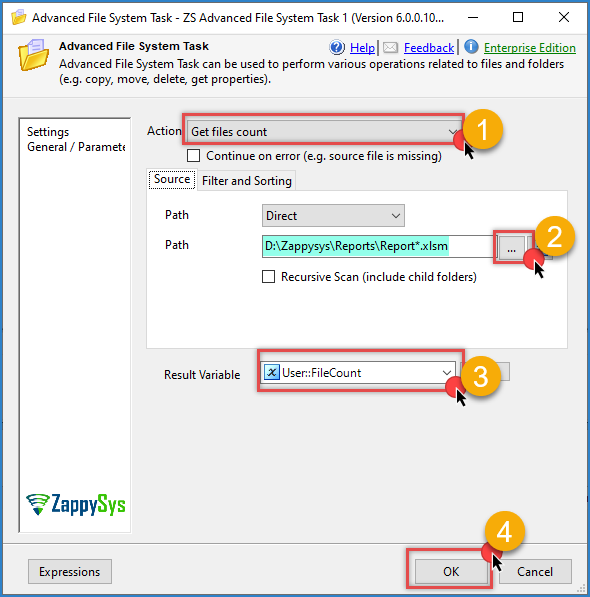
- Drag an Advanced File System Task onto the Control Flow and set Action to Get File Count.
- Set the Source Path to your destination folder with a wildcard matching prior versions, for example:
D:\Reports\Report*.xlsm - Map the result of this task to the
User::FileCountvariable, so it updates with the actual count each time the package runs. - Click OK to save the configuration.
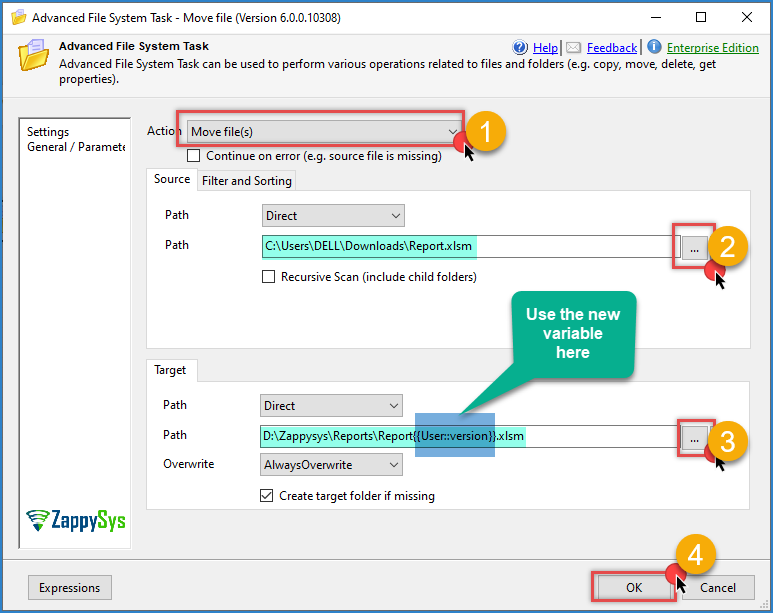
- Drag a second Advanced File System Task, set Action to Move File(s).
- Set the Source Path to the file you want to move.
- Set the Destination Path to your target folder with the folder name, adding the version to the file name like this:
D:\Zappysys\Reports\Report{{User::Version}}.xlsm - Click OK to save the configuration.
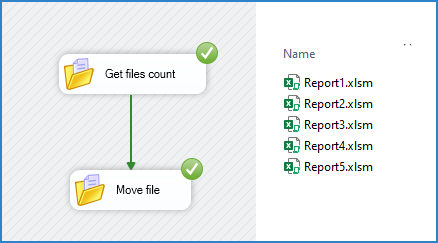
- Run the package. Each run produces the next number in sequence:
Report1.xlsm,Report2.xlsm, and so on.
Method 2: Unique name based on date and time
- Create an SSIS variable, e.g.,
User::UniqueFileName, type String, and use an expression that appends a formatted date/time to the base name (e.g.,Report_20260923_143205_123.xlsm), for example:
"Report_" + REPLACE(REPLACE(REPLACE((DT_WSTR,30) GETDATE(), "-", ""), ":", ""), " ", "_") + ".xlsm"
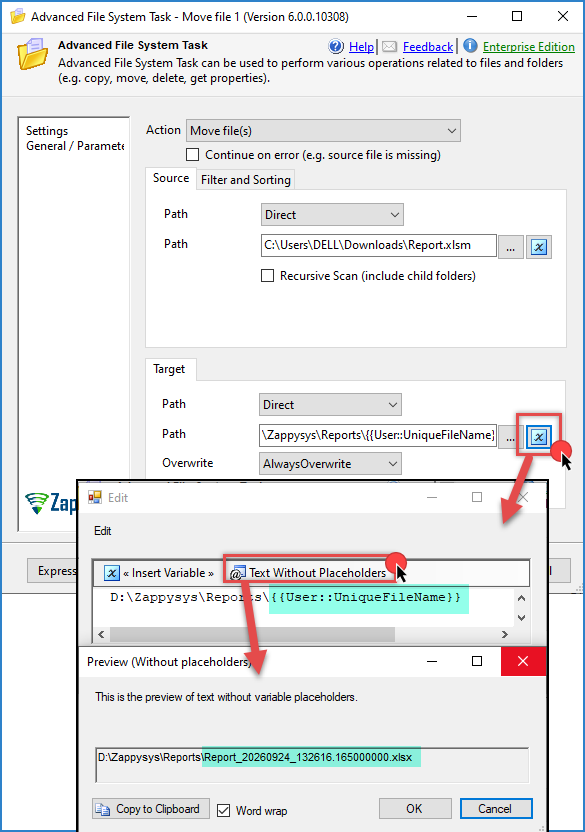
- Drag an Advanced File System Task, set Action to Move File(s) (or Rename File(s) if the file already sits in the destination folder).
- Set the Source Path to the file you want to move.
- Set the Destination Path, binding the file name portion to
User::UniqueFileNamelike this:D:\Zappysys\Reports\{{User::UniqueFileName}} - Run the package. Because the expression includes time down to milliseconds, each run automatically produces a unique file name.
Conclusion
Renaming a file before moving it, using an SSIS variable bound to the destination file name through an expression, lets you keep every version of a report instead of overwriting it. Use sequential numbering for a readable version history, or a date/time-based name when you need to guarantee every file is unique.
Explore our SSIS PowerPack for more information and download and install it to start building smarter, faster, and more scalable solutions.
Still need help?
If you need assistance setting up file versioning with the Advanced File System Task, please get in touch with our support team:
- Live Chat: Open the chat widget (bottom right of this page)
- Email: support@zappysys.com
- Support Center: Support | ZappySys