Introduction
In this article, you will learn how to insert new rows into a destination table using the Upsert destination with a source component. This approach allows you to insert only new records while preventing updates to existing rows, making it ideal for incremental load scenarios.
Prerequisites
- Download and install the ZappySys SSIS PowerPack.
Steps
Configuring the JSON Source component
-
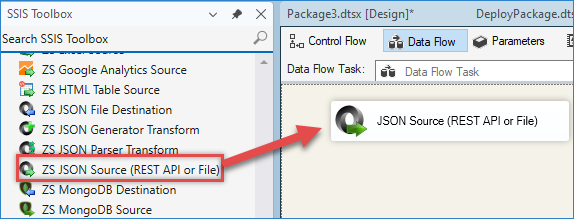
Drag and drop the JSON Source component into the Data Flow. In this example, we will use the JSON Source.
-
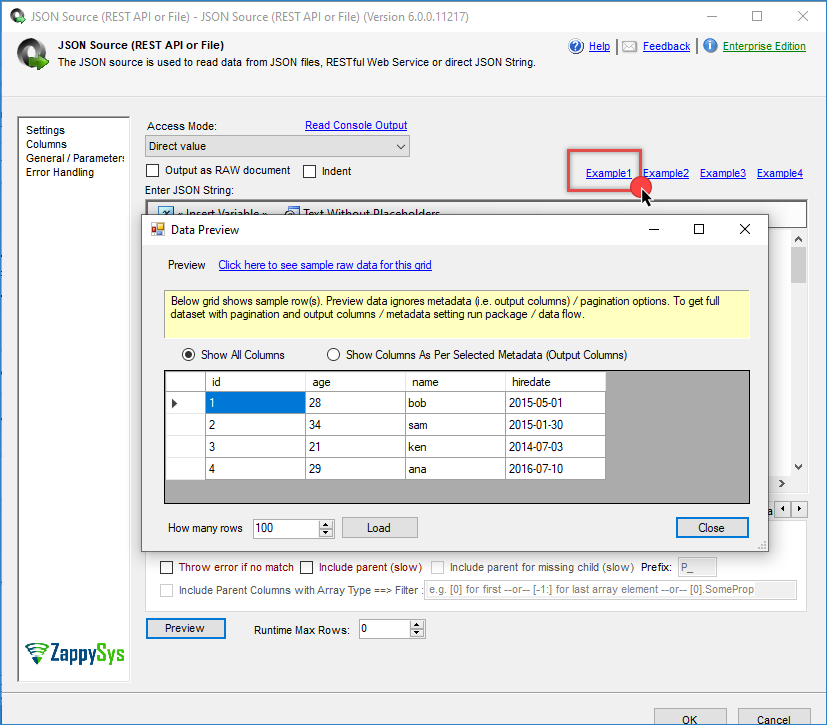
Configure the source component. In our case, we will select Example1 as the data source.
-
Click Preview to validate the data.
-
Click OK to save the configuration.
Configuring the Upsert Destination for insert only
-
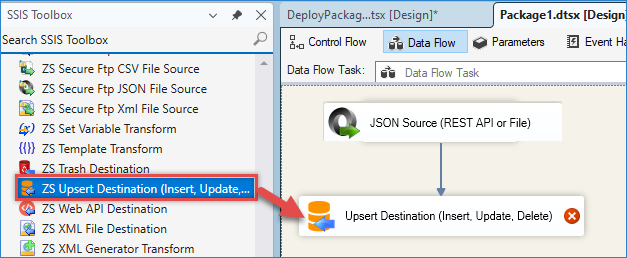
Drag and drop the Upsert Destination component into the Data Flow.
-
Connect the JSON Source to the Upsert Destination.
-
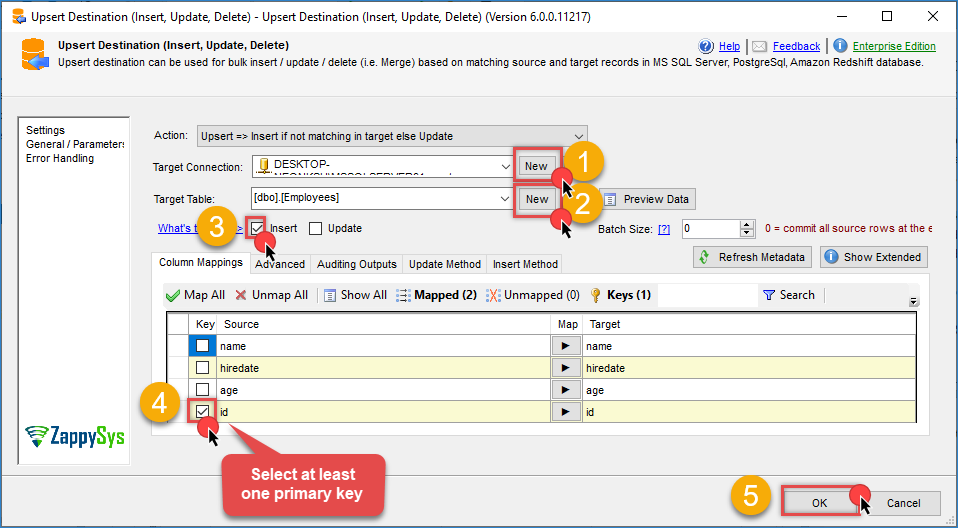
Double-click the component and create or select a connection to the destination database.
-
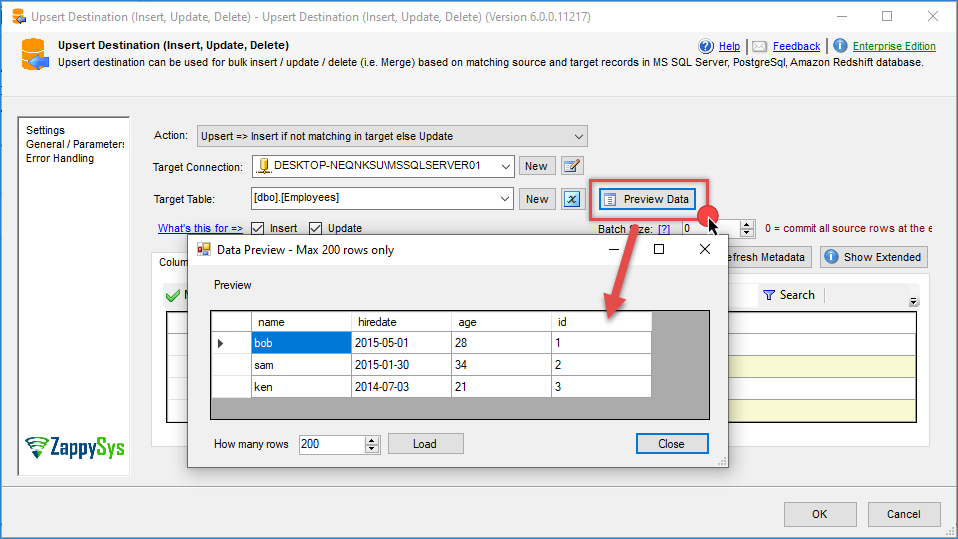
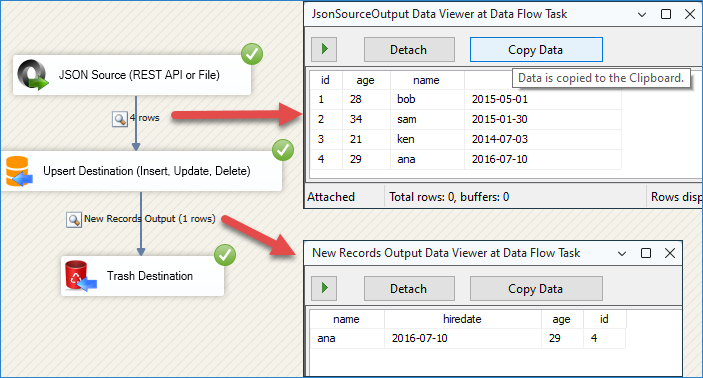
Select the destination table and click preview to check the data. In this table, we have 3 rows, and in the final result, we will insert the fourth row.
-
Enable only the Insert option.
-
Map the source columns to the destination columns.
-
Select the primary key column used to identify new rows.
-
Click OK to save the configuration.
-
Drag and drop a destination component (for example, Trash destination).
-
Connect it to the Upsert destination output to review the inserted rows.
Executing the package and reviewing the results
- Run the SSIS package.
- Verify that only new rows are inserted into the destination table.
- Confirm that no existing rows are updated.
Conclusion
Using the Upsert destination in insert-only mode is an effective way to load new records into a destination table without modifying existing data. This configuration is commonly used in incremental data loads and helps maintain data integrity in ETL workflows.
Explore our SSIS PowerPack for more information and download and install it to start building smarter, faster, and more scalable solutions.
References
Contact us
If you encounter any issues or have specific questions, reach out to our support team via live chat or support ticket using our email support@zappysys.com.