Introduction
In this article, you will learn how to connect Slack with SSIS using the ZappySys SSIS PowerPack, without writing any custom code. By using the Slack Connector, you can easily send messages, retrieve channel data, users, and other Slack resources directly from your SSIS packages.
This integration supports notifications, monitoring, logging, and automating communication workflows from SSIS.
Prerequisites
- Download and install the ZappySys SSIS PowerPack.
- A Slack account
Steps
Creating a Slack App and Obtaining an OAuth Token
-
Go to the Slack API portal: https://api.slack.com/apps
-
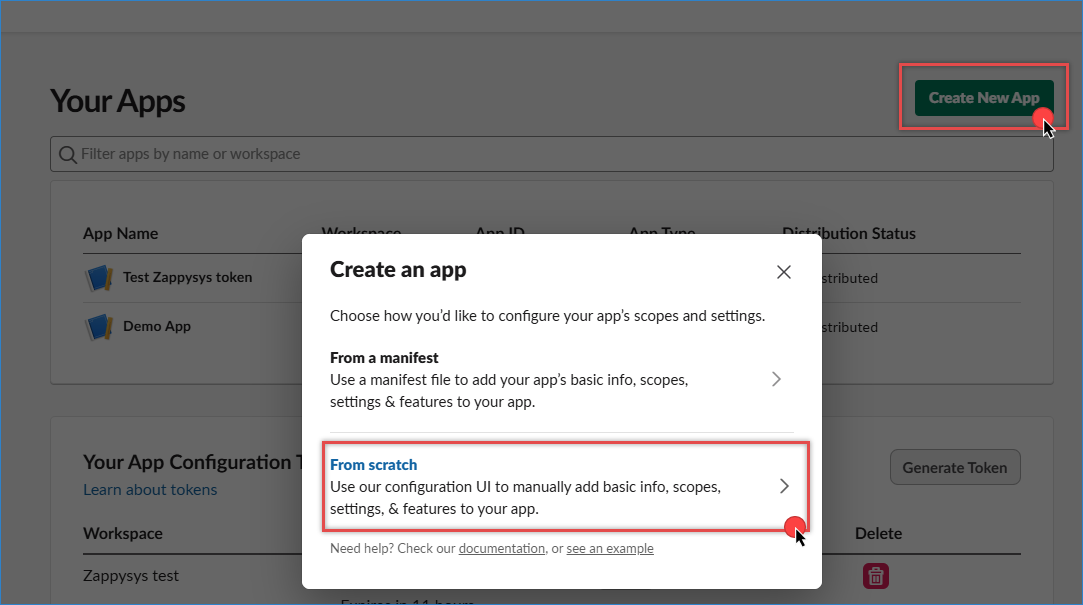
Click Create New App, then choose From scratch.
-
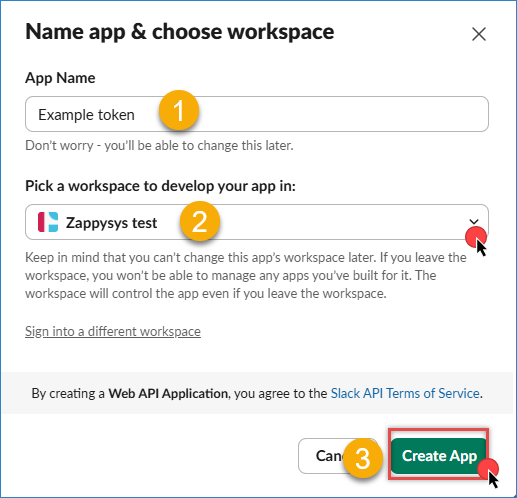
Provide an App Name and select your Slack Workspace.
-
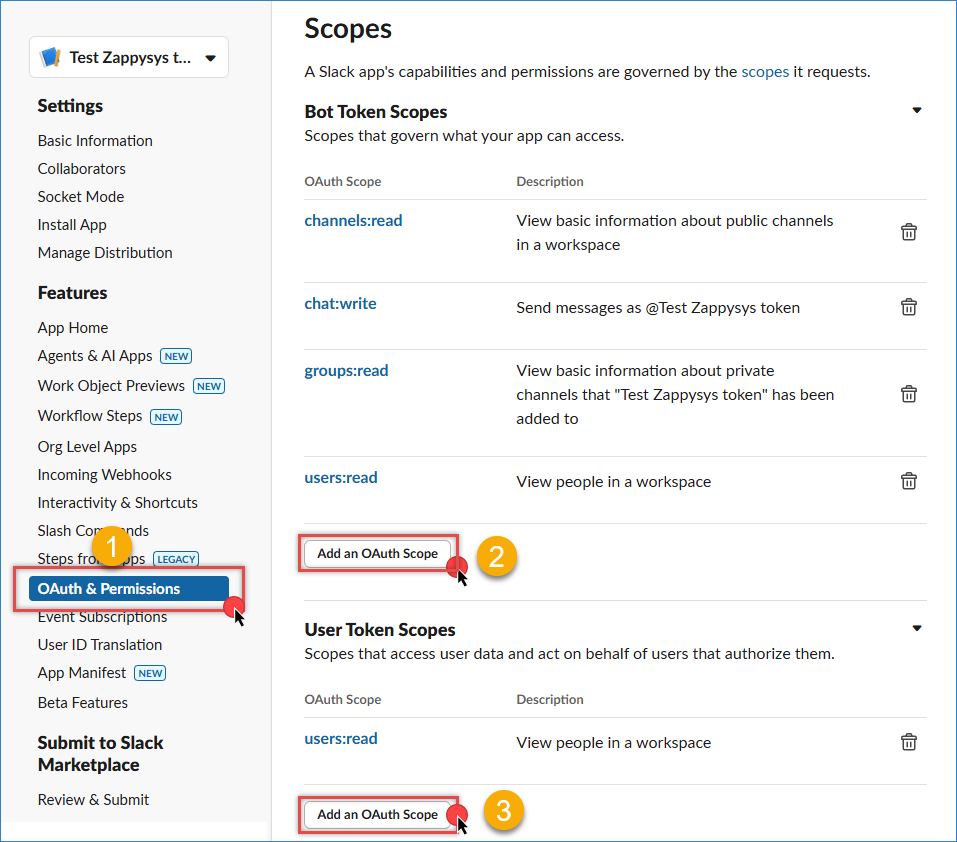
Once the App is created, navigate to OAuth & Permissions.
-
Under Scopes, add the required permissions based on your use case, for bot and user. You can refer to the Slack API documentation for the complete list of scopes and required endpoints. Common scopes include:
chat:write,channels:read,users:read,groups.read
-
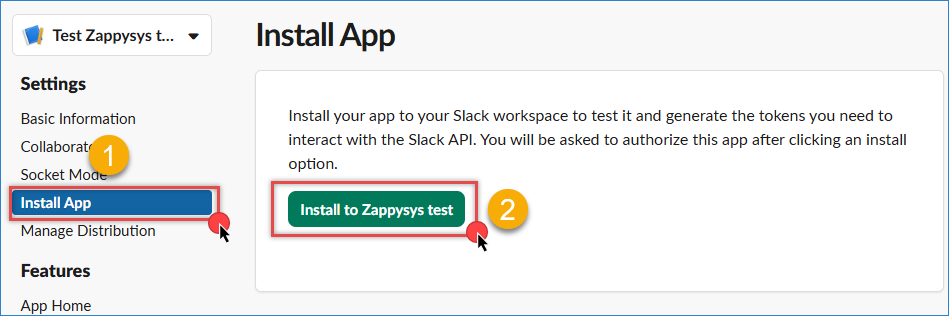
Click Install App to install the application in your workspace.
-
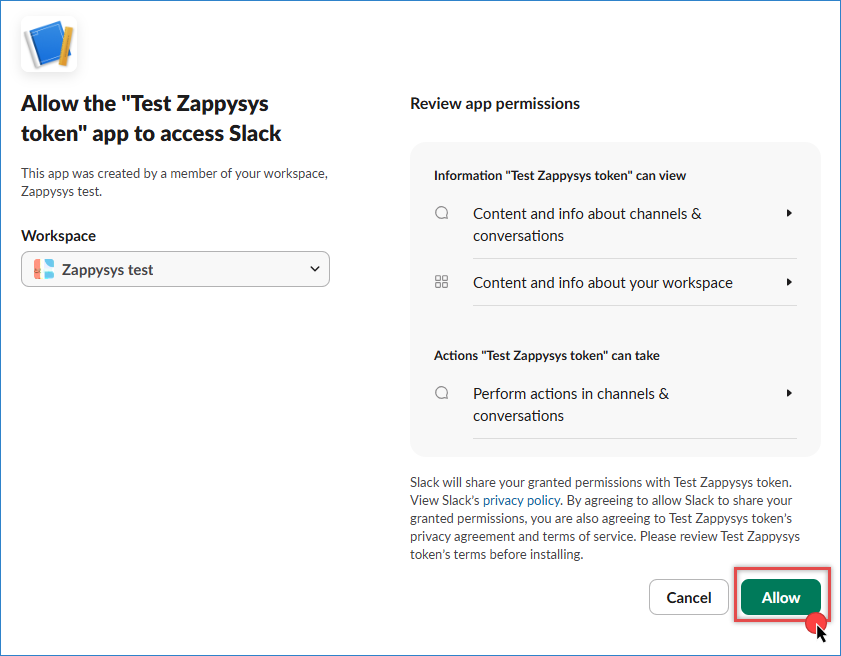
Click Allow to authorize the app. After authorization, your OAuth token will be generated.
-
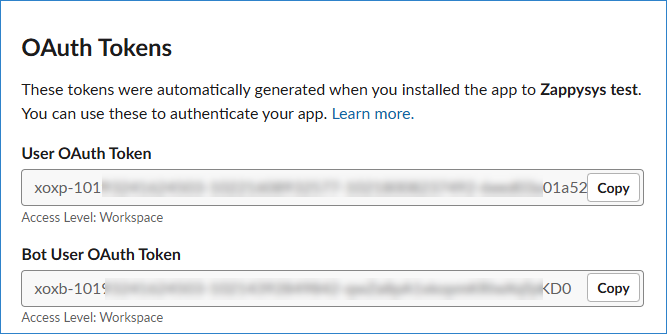
Copy the generated Bot User OAuth Token (it starts with
xoxb-).
Configuring the Slack Connection in SSIS
-
Drag and drop a REST API Task into the Control Flow and double-click it to open the configuration window.
-
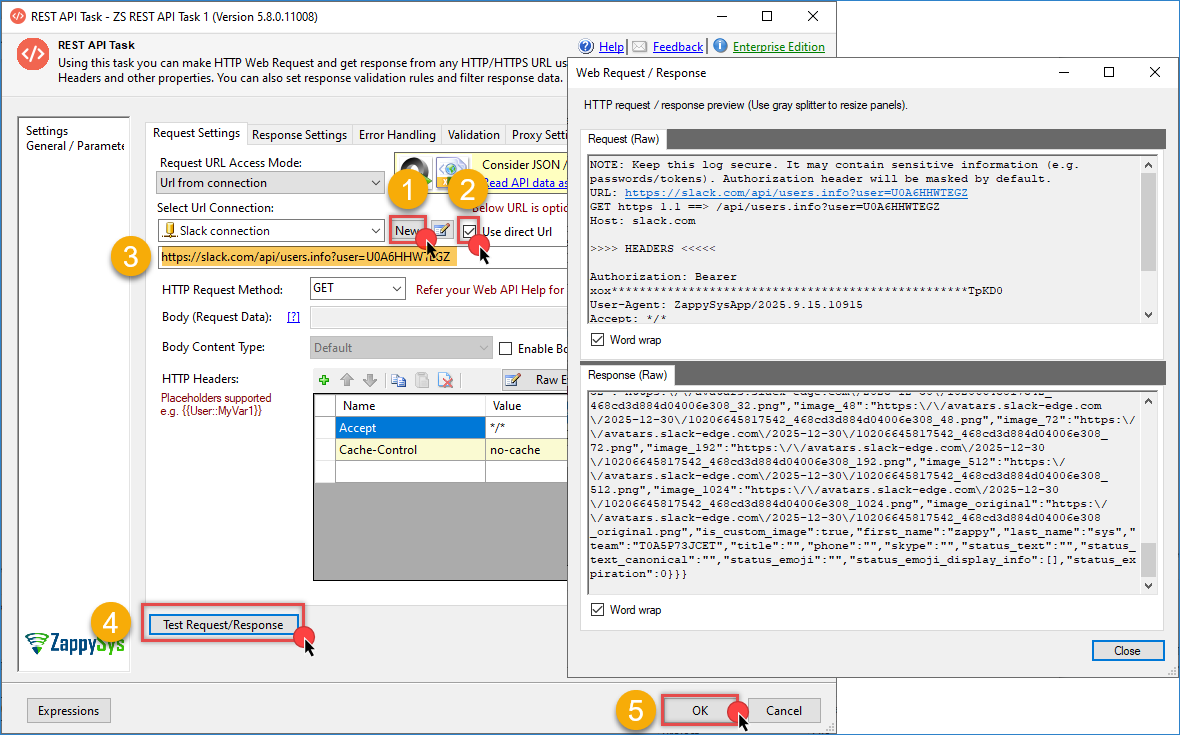
Enter the Slack API endpoint you want to use. In this example, we will retrieve user information using:
https://slack.com/api/users.info?user=user_id -
Set the HTTP Method to GET.
-
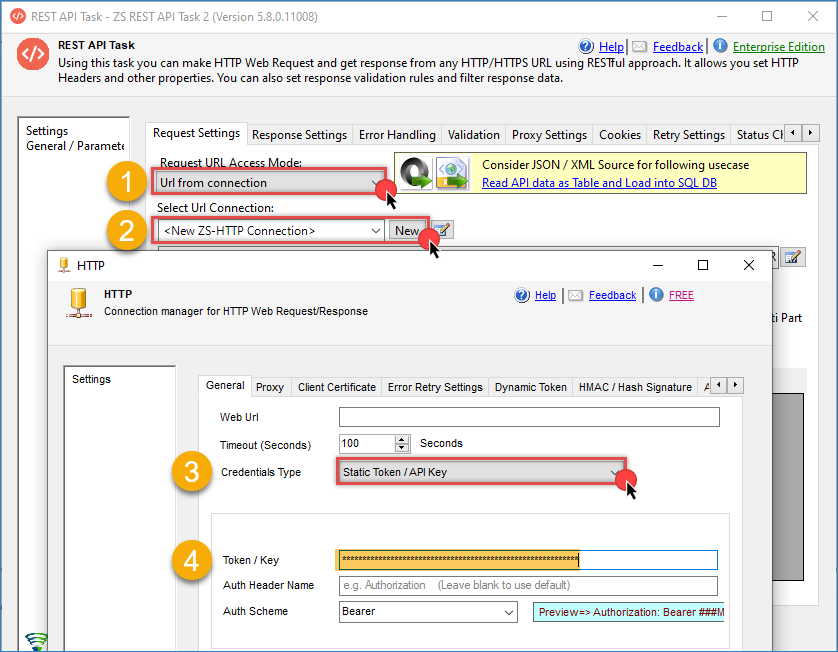
In Request URL Access mode, select URL from Connection and create a new HTTP connection.
-
In Credential Type, select Static Token and enter the token from the past step, click OK to save the connection
-
Click on Use direct URL and then Test Request/Response and review the returned data to confirm the connection.
-
Click OK to save the configuration.
Handling Missing Scopes
-
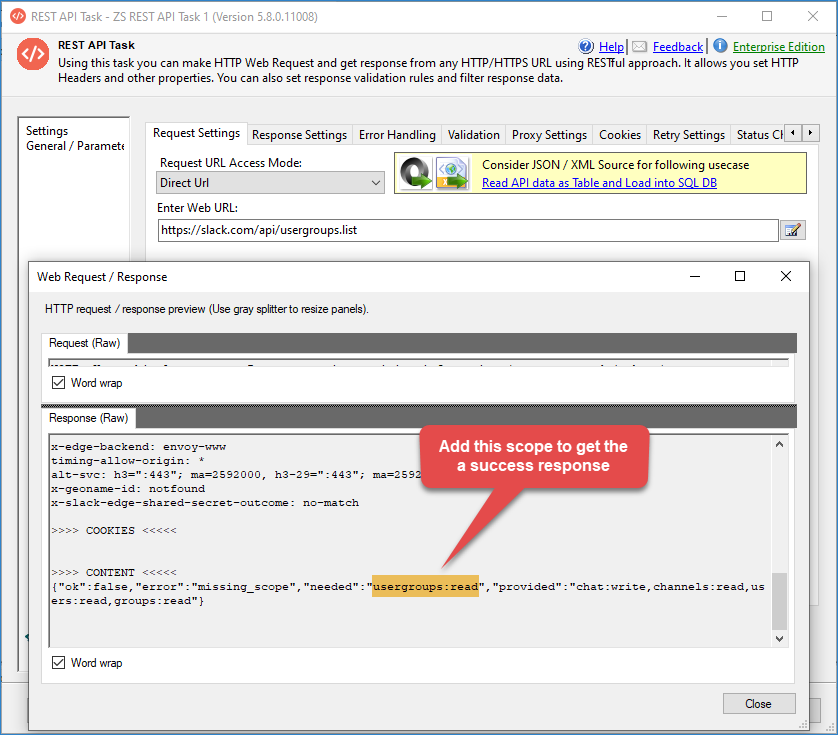
If you execute a request without the required scope, the API response will return an error indicating which scope is missing.
-
Return to your Slack App configuration and navigate to the Scopes section.
-
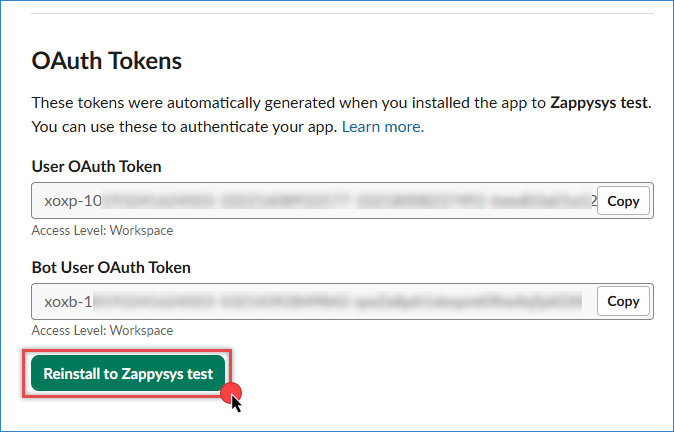
Add the missing scope and reinstall the App to update the token.
-
Update the component with the same token or copy the newly generated token.
-
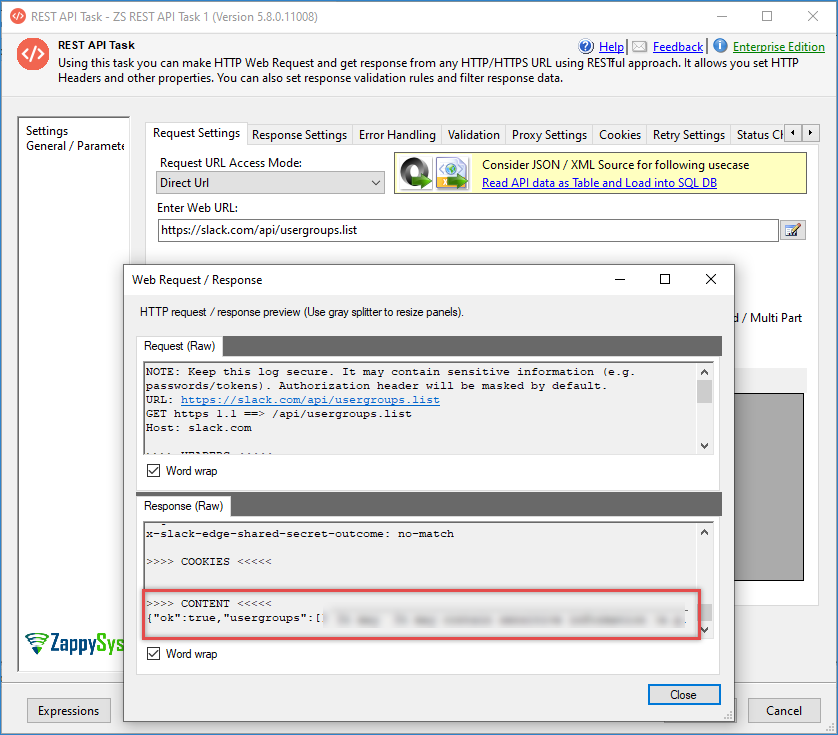
Test the request again to confirm the response is returned successfully.
Conclusion
By integrating Slack with SSIS using the ZappySys SSIS PowerPack, you can automate communication and notifications without writing custom scripts or directly calling APIs. This solution enables seamless interaction with Slack for both reading data and sending messages, helping you build more responsive and informative data workflows.
Explore our SSIS PowerPack for more information and download and install it to start building smarter, faster, and more scalable solutions.
References
Contact us
If you encounter any issues or have specific questions, reach out to our support team via live chat or support ticket using our email support@zappysys.com.