Problem
When configuring a PostgreSQL Source or Destination in SSIS using ZappySys SSIS PowerPack, the connection test may fail if the PostgreSQL server enforces SSL / client certificate authentication.
In most cases, PostgreSQL administrators provide certificates in PEM format, such as:
client-key.pemclient-cert.pemserver-ca.pem
While these files work fine in tools like DBeaver or psql, the ZappySys PostgreSQL connector requires a single .pfx (PKCS#12) certificate file.
Root Cause
The PostgreSQL driver used by ZappySys does not directly consume separate PEM files. Instead, it expects:
- Client private key
- Client certificate
- Server CA certificate
to be bundled into one .pfx file.
If this conversion is not done correctly, you may see errors such as:
- Invalid certificate
- Value cannot be null
- SSL handshake failed
Solution Overview
Convert the provided PEM certificate files into a .pfx file using OpenSSL, then configure that .pfx file in the ZappySys PostgreSQL Connection Manager.
 Step-by-Step Implementation
Step 1 — Collect Required Certificate Files
Ensure you have the following files from your PostgreSQL administrator:
| File Name | Description |
|---|---|
client-key.pem |
Client Private Key |
client-cert.pem |
Client Certificate |
server-ca.pem |
Server CA Certificate |
 Place all files in the same folder.
Step 2 — Install OpenSSL on Windows
Download Win64 OpenSSL – Light from the official OpenSSL Windows build:
 Download Link
During installation:
 Select “Add OpenSSL to the system PATH”
Keep default options
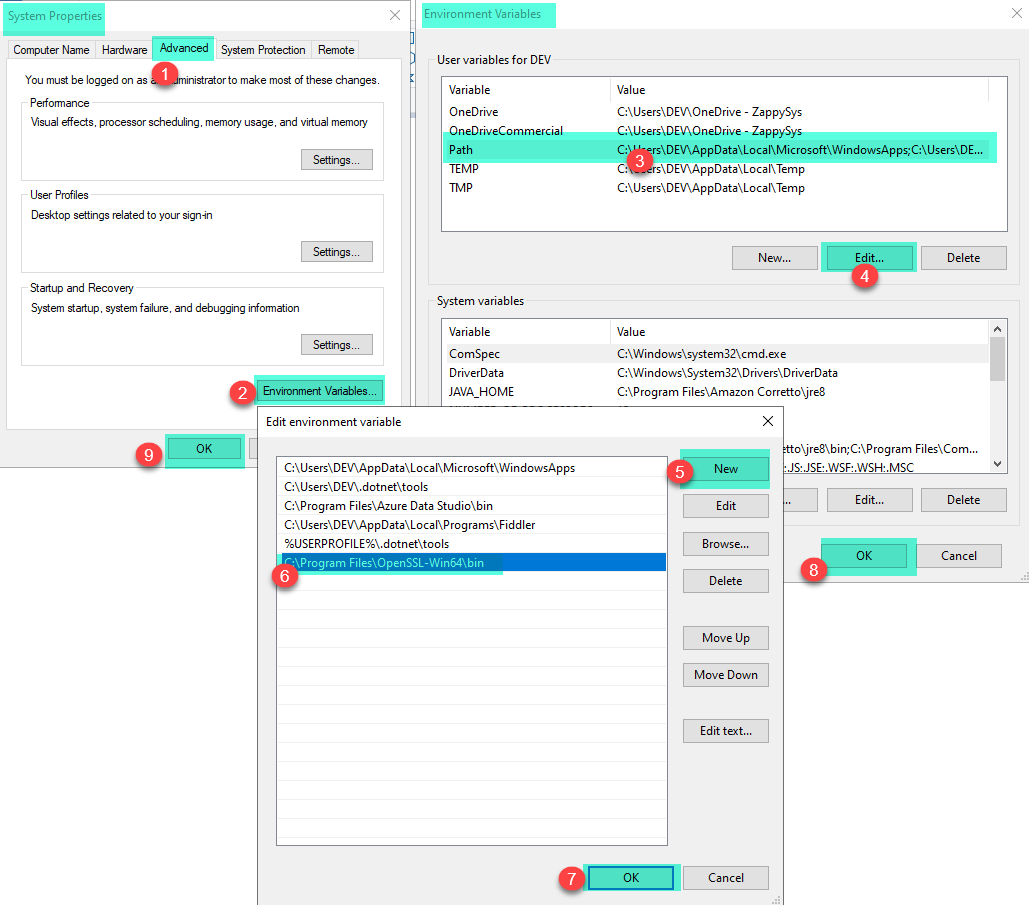
You need to set the PATH System Environment Variable, below is the sample screenshot of it.
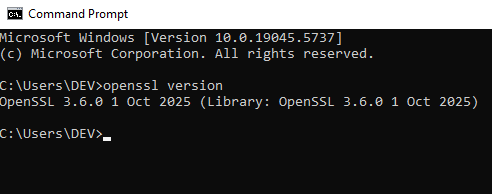
After installation, verify:
openssl version
Step 3 — Create the .pfx File from PEM Certificates
Open Command Prompt and navigate to the folder containing your PEM files.
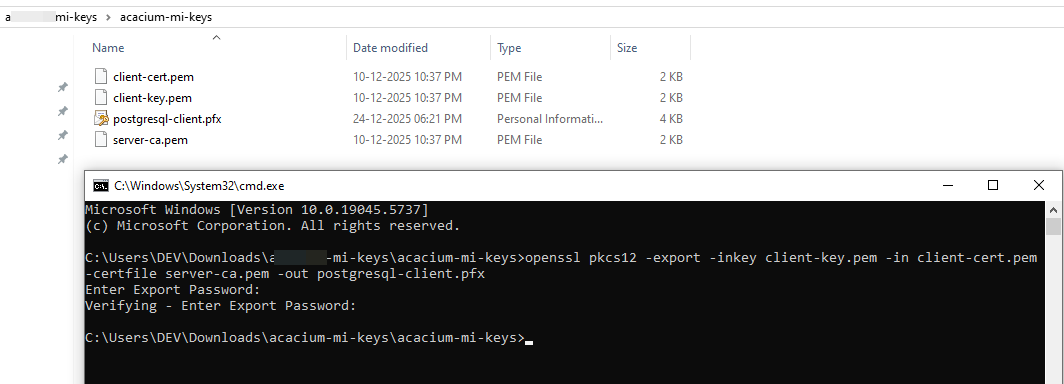
Run the following command:
openssl pkcs12 -export -inkey client-key.pem -in client-cert.pem -certfile server-ca.pem -out postgresql-client.pfx
You will be prompted to:
 Enter a password for the
 .pfx file
Confirm the password
After successful execution, the file postgresql-client.pfx will be created.
Step 4 — Configure ZappySys PostgreSQL Connection Manager
- Open your SSIS package
- Add or edit PostgreSQL Connection Manager
- Enable SSL / Certificate Based Authentication
- Configure:
- Certificate File Path →
postgresql-client.pfx - Certificate Password → Password used during
.pfxcreation
- Leave PEM-related fields empty
- Click Test Connection
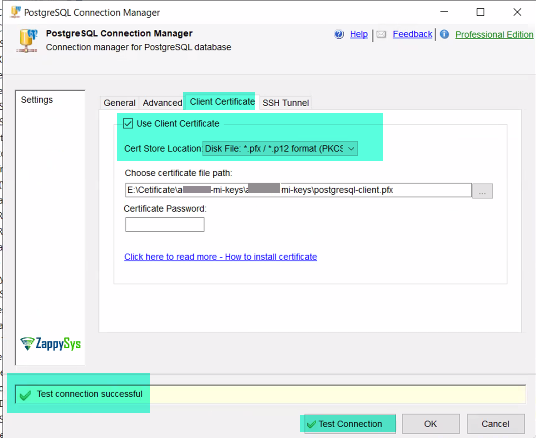
Connection should now succeed.
 Command Breakdown
| Parameter | Purpose |
|---|---|
-inkey client-key.pem |
Client private key |
-in client-cert.pem |
Client certificate |
-certfile server-ca.pem |
Server CA chain |
-out postgresql-client.pfx |
Output .pfx file |
 Important Notes
- The
.pfxfile must include all three components - Password is mandatory for
.pfxand must be supplied in SSIS - If the connection works in DBeaver but not SSIS, this is usually a certificate format mismatch
- This applies to PostgreSQL Source, Destination, and Lookup components
Conclusion
When PostgreSQL SSL is enabled, ZappySys SSIS PowerPack requires certificates in PKCS#12 (.pfx) format. By converting PEM files into a single .pfx file using OpenSSL and configuring it correctly in the PostgreSQL Connection Manager, SSL connections work reliably in SSIS.
Related Articles
 Join the community: https://community.zappysys.com