Introduction
Before processing a file in SSIS, you may need to determine whether it actually contains data. This is a common requirement when building ETL packages: skip empty files or execute different logic based on whether data is available.
There are two common approaches for checking whether a file is empty, but they do not provide the same level of accuracy:
-
Check the file size – Determine whether the physical file size is
0bytes. -
Read the file and count the rows – Use a Source component (such as Excel Source or JSON Source) together with the Row Count transformation to determine whether the file contains any data rows.
The file-size method is useful as a quick pre-validation step, but it is not reliable for all file formats. For example, an empty Excel (.xlsx) file still contains workbook metadata, formatting information, and internal XML files, so its size is typically between 5 KB and 7 KB even when no data exists.
Prerequisites
- Download and install the ZappySys SSIS PowerPack.
Steps
Option 1: Check the File Size
This approach verifies whether the file is physically empty.
-
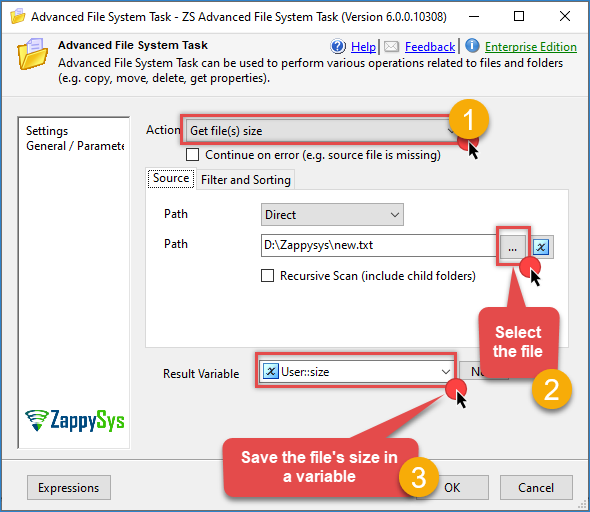
Add an Advanced File System Task and select the Get File Size action. Store the result in an SSIS variable.
-
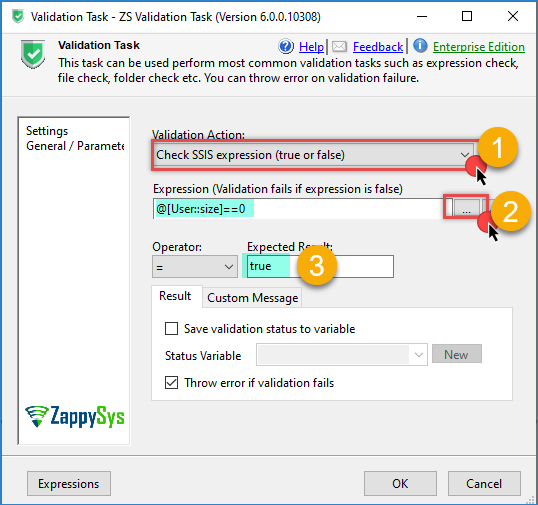
Connect the task to a Validation Task and use the following expression:
@[User::size] == 0
If the expression evaluates to True, the file contains zero bytes and is physically empty.
- For a complete example of controlling package execution based on validation results, see this article: How to Check if a File Exists in SSIS
Option 2: Count the Data Rows
Some file formats, especially Excel workbooks, always contain metadata even when no user data exists. In these cases, checking the file size is not sufficient.
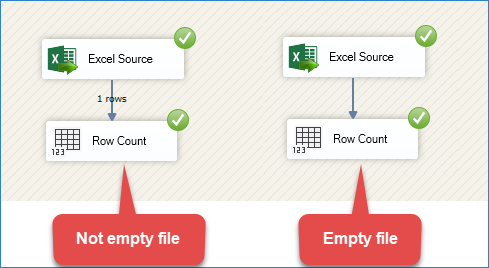
Counting the rows is the most reliable method for determining whether a file actually contains data.
-
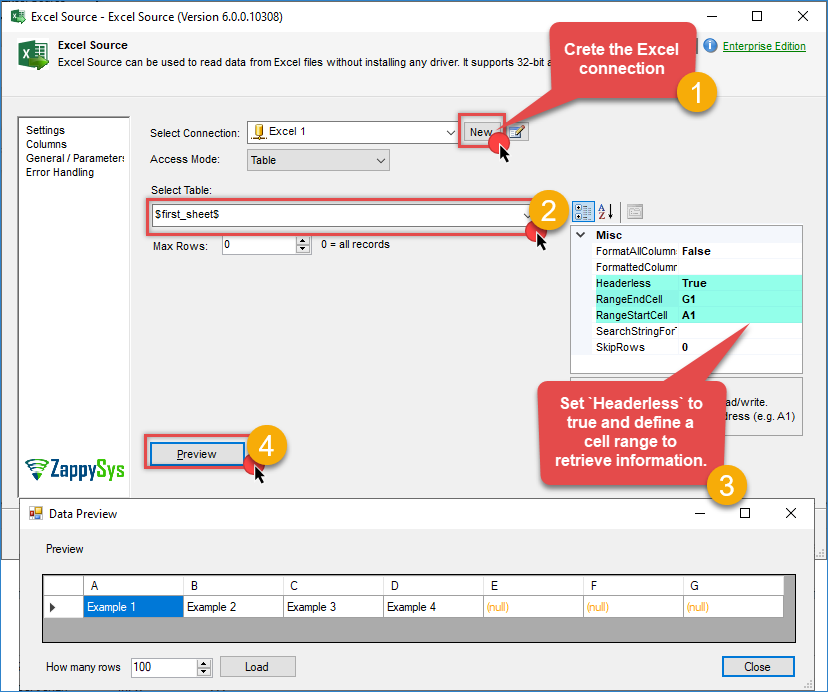
Add a Source component inside a Data Flow. For this example, use Excel Source.
-
Configure the connection to the Excel workbook.
-
Select the worksheet to read; try to use the first sheet.
-
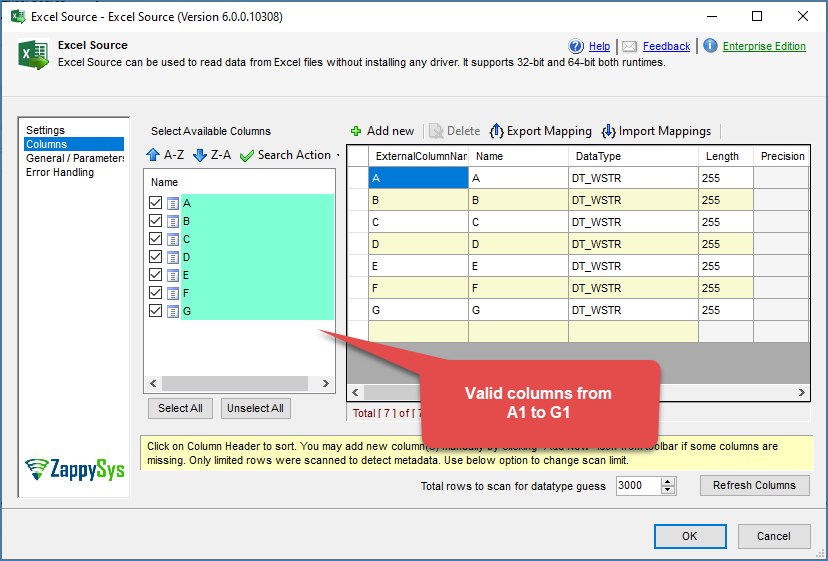
Under Misc, set Headerless to true and specify a cell range (for example,
A1:G1) to retrieve sample data. -
Preview the data to verify that the connection is working correctly.
-
During package design, it is recommended to use an Excel file that contains at least one data row so the Source component can correctly detect the column metadata.
-
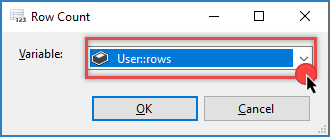
Connect the Source to a Row Count transformation and store the result in an SSIS variable.
F8. ina
-
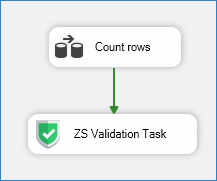
Return to the Control Flow and connect the Data Flow Task to a Validation Task.
-
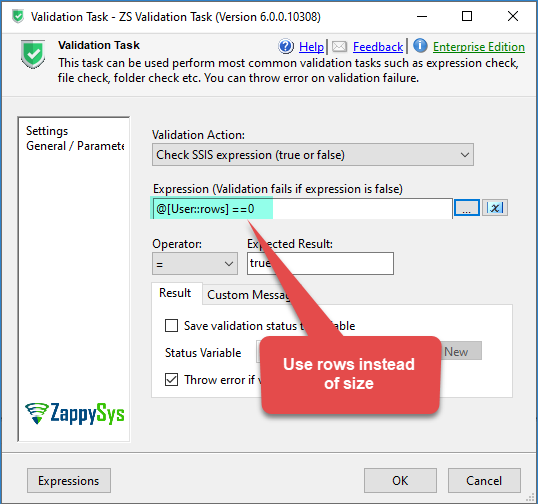
Configure the Validation Task to verify that the row count is greater than zero by using the variable populated by the Row Count transformation.
-
Based on the validation result, your package can continue processing the file or skip it when no data rows are found.
Conclusion
Checking the file size is the fastest approach and works well for detecting files that contain zero bytes. However, it cannot determine whether formats such as Excel, XML, or JSON contain actual business data because these files often include metadata even when no records exist.
Counting the data rows is the most reliable method because it validates the file from a business perspective rather than a physical one. Although it requires reading the file, it ensures that your SSIS package only processes files that contain meaningful data.
Explore our SSIS PowerPack for more information and download and install it to start building smarter, faster, and more scalable solutions.
Still need help?
If you need help implementing this in your package, contact ZappySys Support:
-
Live Chat: Open the chat widget (bottom right of this page)
-
Email: support@zappysys.com
-
Support Center: Support | ZappySys