Introduction
Connecting Excel with Salesforce using ODBC allows you to query Salesforce data directly from Excel, refresh reports on demand, and work with live CRM data without exporting files manually. This approach is ideal for reporting, analytics, and operational monitoring.
In this article, you will learn how to connect Excel to Salesforce using the ZappySys Salesforce ODBC Driver, which simplifies authentication, API access, metadata discovery, and data retrieval.
Prerequisites
- Download and install the ZappySys ODBC PowerPack
- A Salesforce account
Steps
Generate your Salesforce security token
- Log in to Salesforce at account.
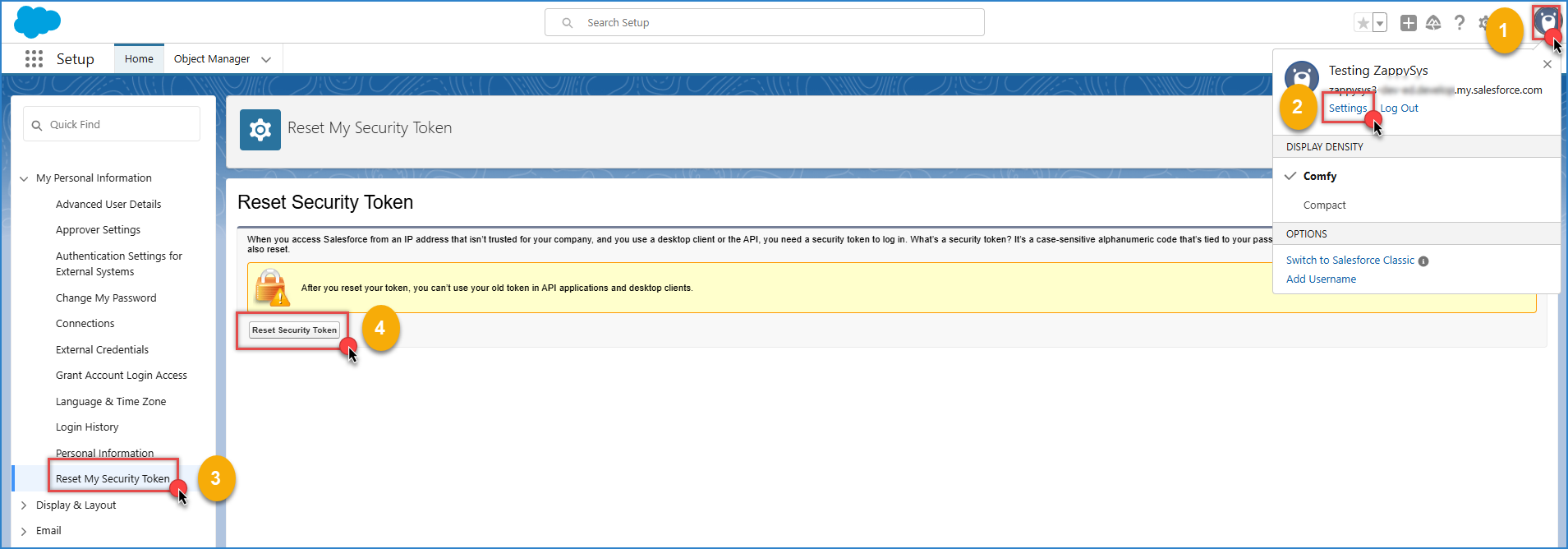
- Click your profile icon, go to Settings, then Personal Information, then Reset My Security Token.
- Click Reset Security Token and check your email inbox. Salesforce will send the token to your registered email address.
Set up the ODBC data source
-
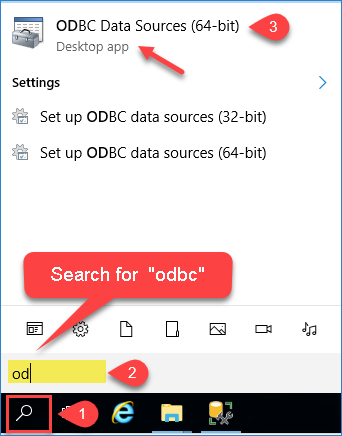
Open ODBC Data Source Administrator (64-bit) by searching for “ODBC” on your system.
-
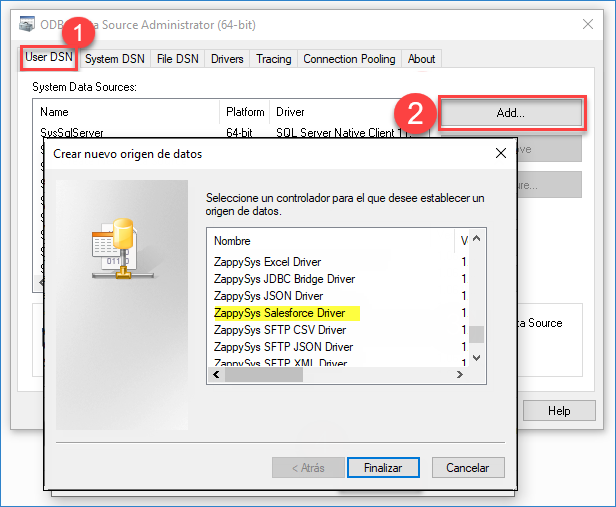
Under the User DSN tab, click Add and select ZappySys Salesforce Driver.
-
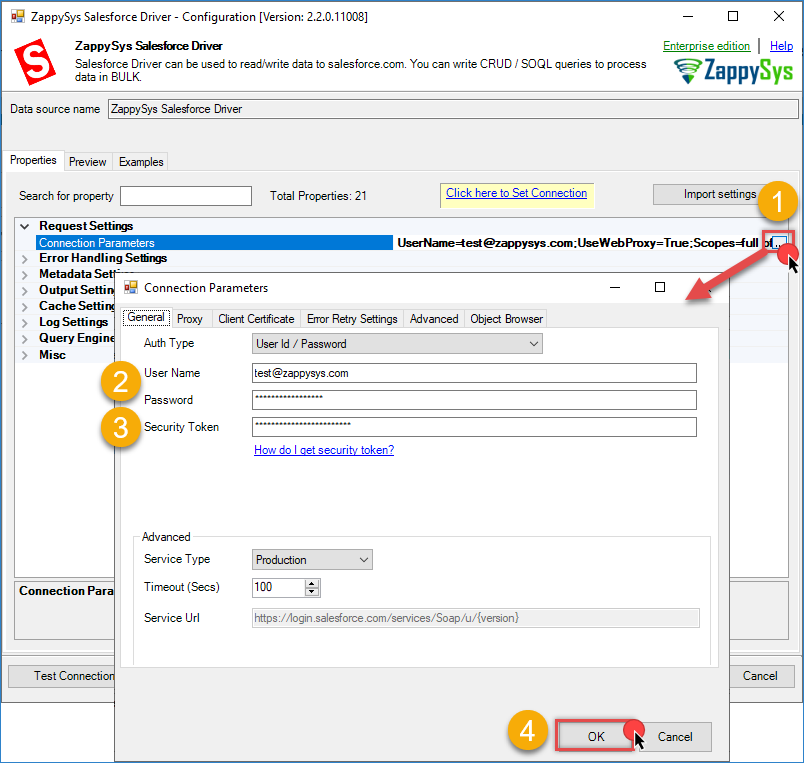
In the connection settings, enter your Salesforce username, password, and security token, then click Test Connection to validate access.
-
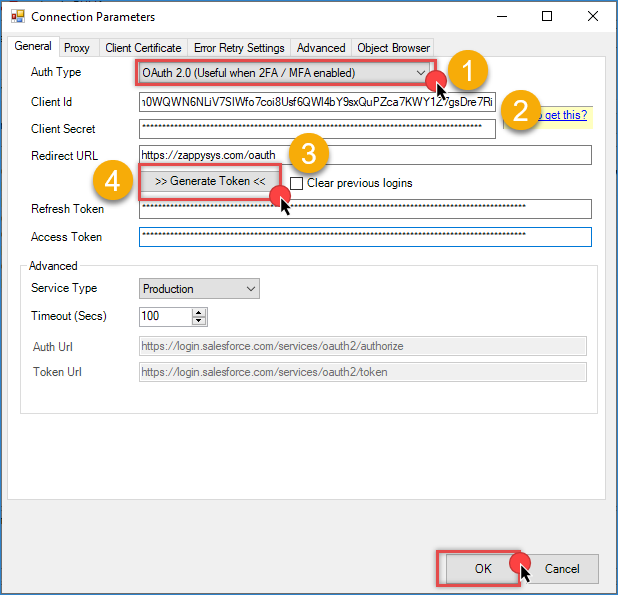
As an alternative, you can use OAuth authentication by entering your Client Id, Client Secret, and Redirect URL, then clicking Generate Token.
-
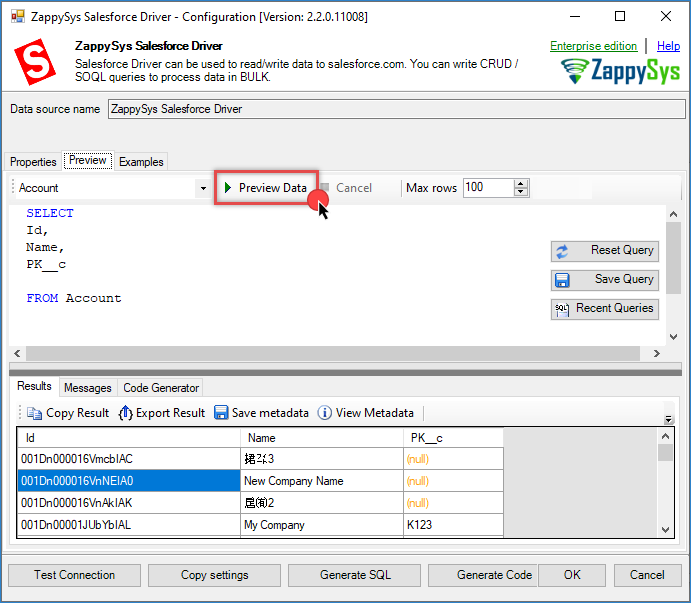
Go to the Preview tab, select any Salesforce object, and click Preview Data to confirm the connection is working correctly.
-
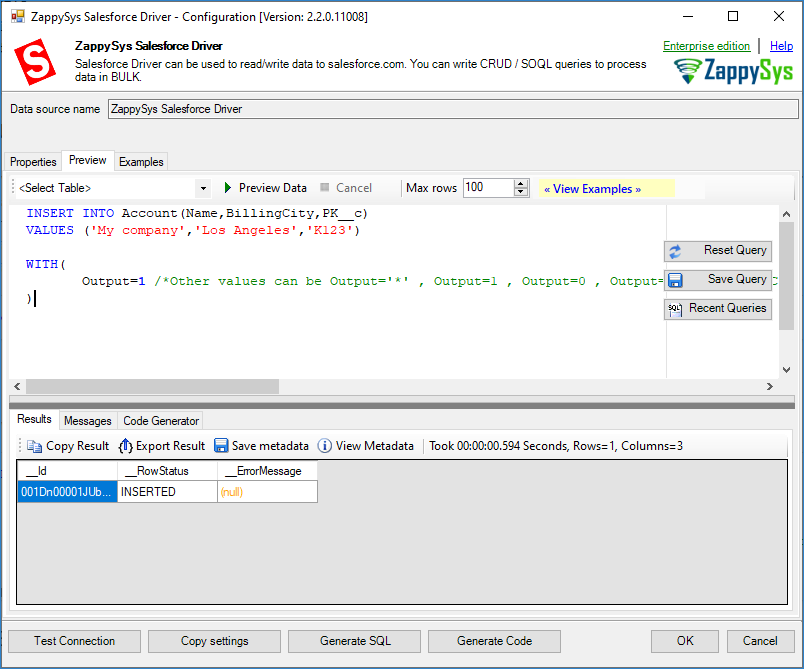
You can also run additional operations, such as inserting a new row into a table.
-
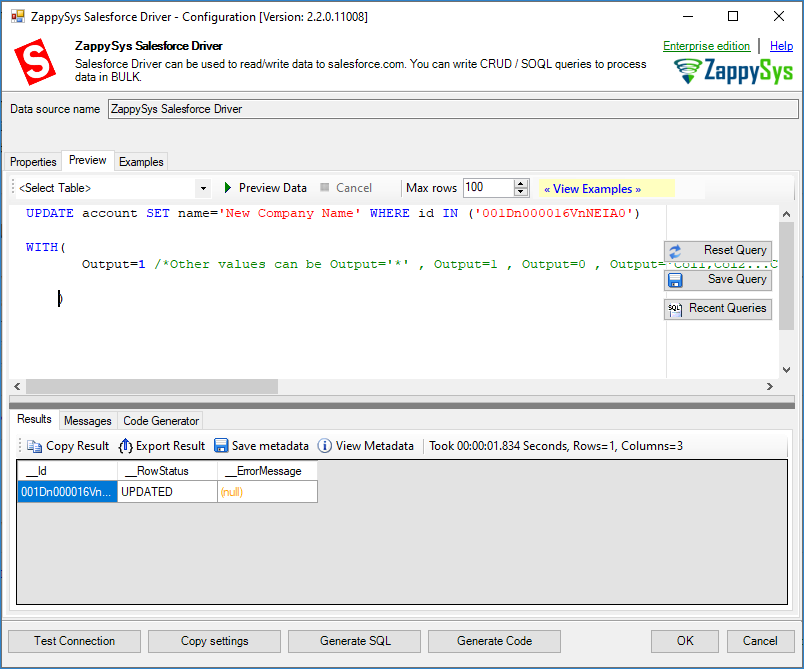
Update an existing row using an UPDATE statement.
-
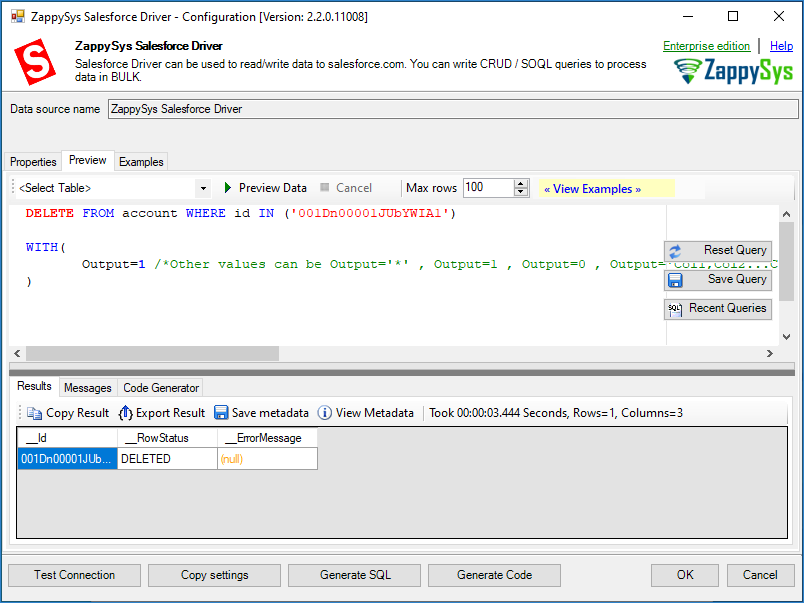
Delete a row using a DELETE statement.
Read Salesforce data in Excel using the DSN
-
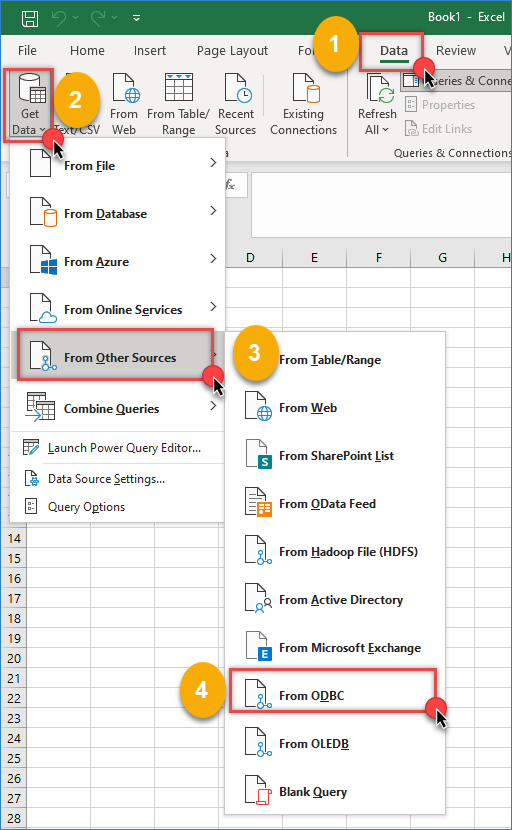
Open Excel, go to the Data tab, then select Get Data, From Other Sources, and From ODBC.
-
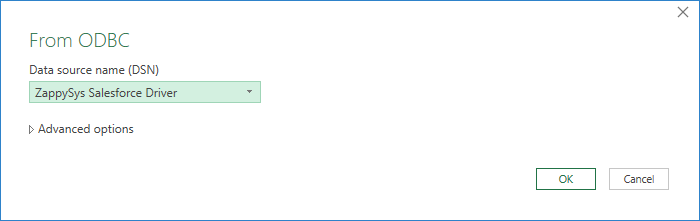
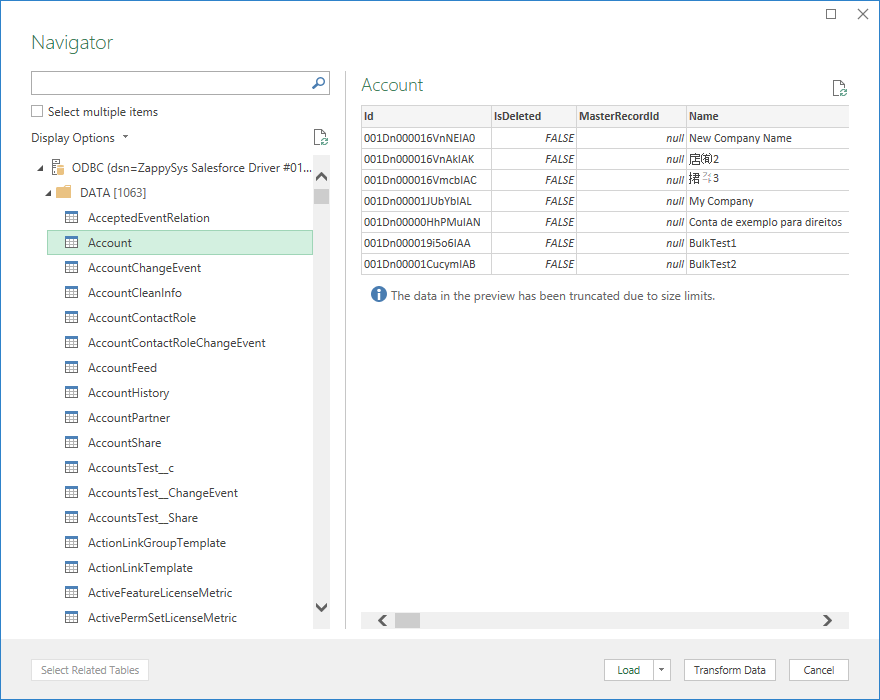
Select the data source name (DSN) you created earlier and click OK.
-
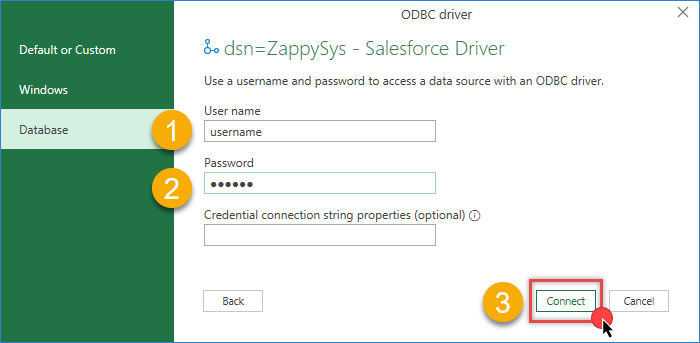
When prompted, enter your Salesforce credentials if required. The ODBC driver handles authentication.
-
Choose a Salesforce object or view from the list and click Load to import the data into Excel.
-
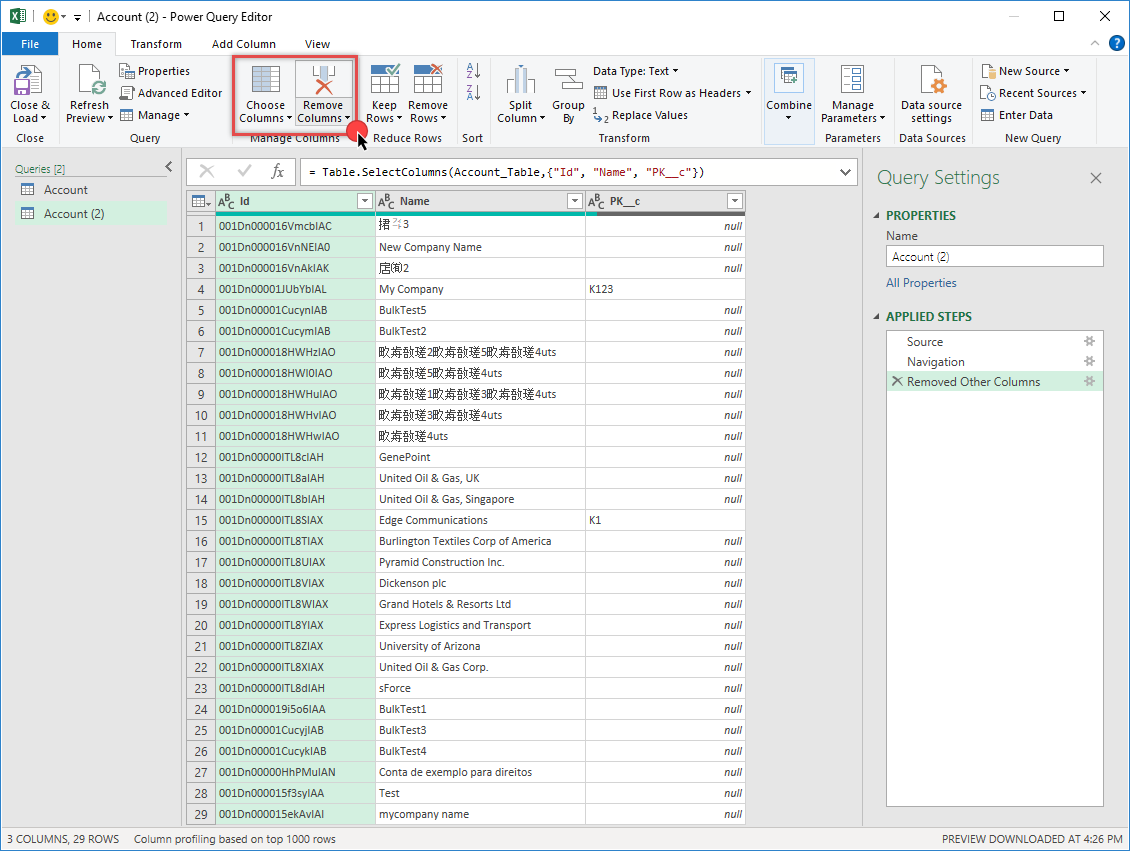
By selecting Transform Data, you can filter rows, remove columns, and shape the data before loading it into Excel.
-
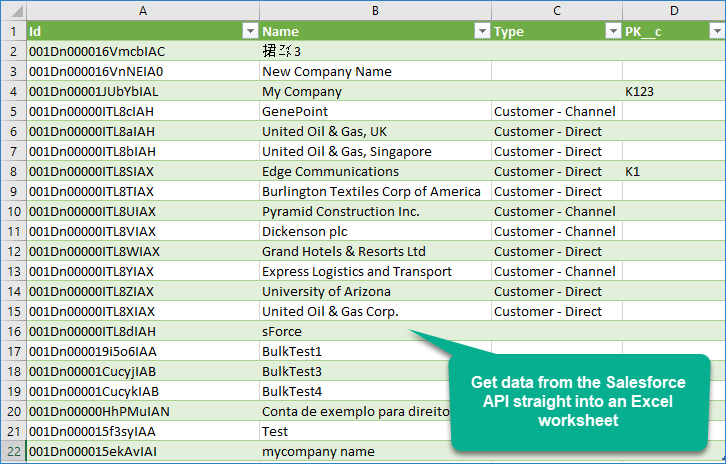
The Salesforce data is now available in an Excel worksheet and can be refreshed at any time.
Conclusion
Using ODBC to connect Excel to Salesforce provides a stable, scalable way to work with CRM data directly in spreadsheets. Instead of relying on manual exports or custom API scripts, the ZappySys Salesforce ODBC Driver provides a more efficient, maintainable approach by automatically handling authentication, schema discovery, and query execution.
Explore our ODBC PowerPack for more information and download and install it to start building smarter, faster, and more scalable solutions.
References
Contact us
If you encounter any issues or have specific questions, reach out to our support team via live chat or support ticket using our email support@zappysys.com.