Introduction
Connecting ChatGPT with Excel using ODBC allows you to send prompts, process text, and retrieve AI-generated responses directly inside spreadsheets. This approach enables use cases such as text summarization, classification, data enrichment, validation, and content generation without writing custom scripts or VBA code.
In this article, we demonstrate how to connect Excel to the OpenAI / ChatGPT API using the ZappySys JSON ODBC Driver. This driver enables any ODBC-compliant application, including Excel, to communicate with REST APIs such as OpenAI using standard SQL queries.
Prerequisites
- Download and install the ZappySys ODBC PowerPack
- An OpenAI account
Steps
Obtaining your OpenAI API key
To call ChatGPT or other OpenAI models, you must generate an API key.
- Create an account at OpenAI site.
- Sign in to the OpenAI dashboard.
- Verify your email and log in to the OpenAI Dashboard.
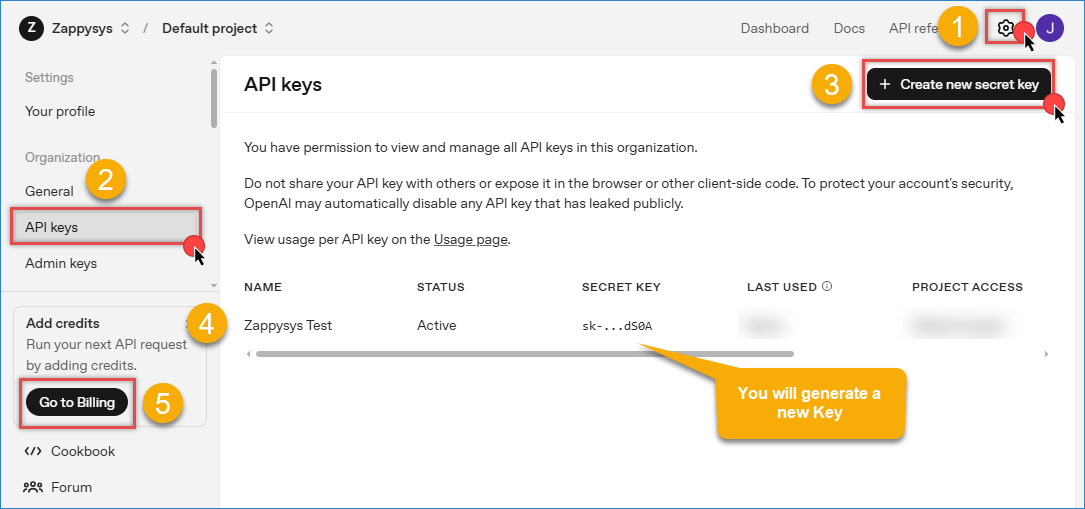
- Click into Start building or the settings icon to the side of your profile icon.
- Click API Keys from your profile menu or visit API Keys.
- Click Create new secret key.
- Copy the generated key and store it securely. It will not be displayed again
- Add a payment method via the Billing Settings page. New users receive $5 in free credits for the first 3 months.
- Optional: You can configure spending limits to manage costs.
WARNING
Keep your API key private — treat it like a password. Revoke keys if exposed or unused.
Creating a new ODBC DSN using ZappySys JSON Driver
-
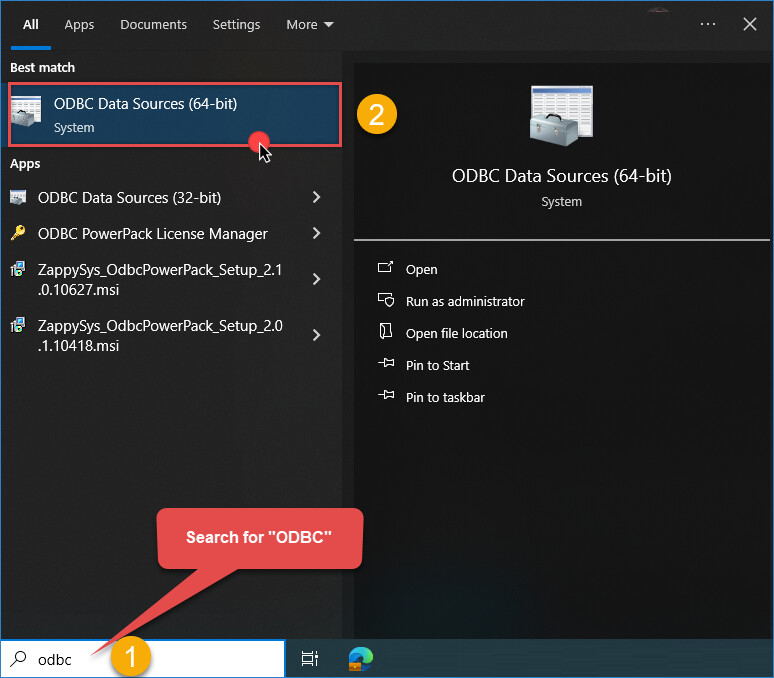
Open ODBC Data Source Administrator: Search for ODBC in the Windows Start menu and open the ODBC Data Source Administrator.
-
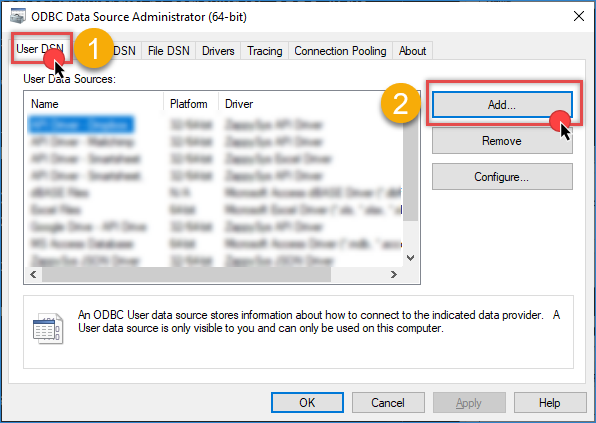
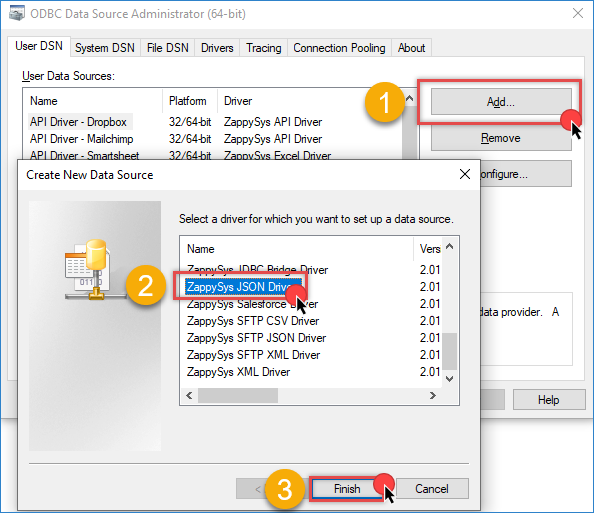
Create a New Data Source: In the User DSN or System DSN tab, click Add to create a new data source.
-
Select ZappySys JSON Driver: In the ODBC Data Source Setup window, select the ZappySys JSON Driver and click Continue.
Configuring the ODBC connection for ChatGPT
-
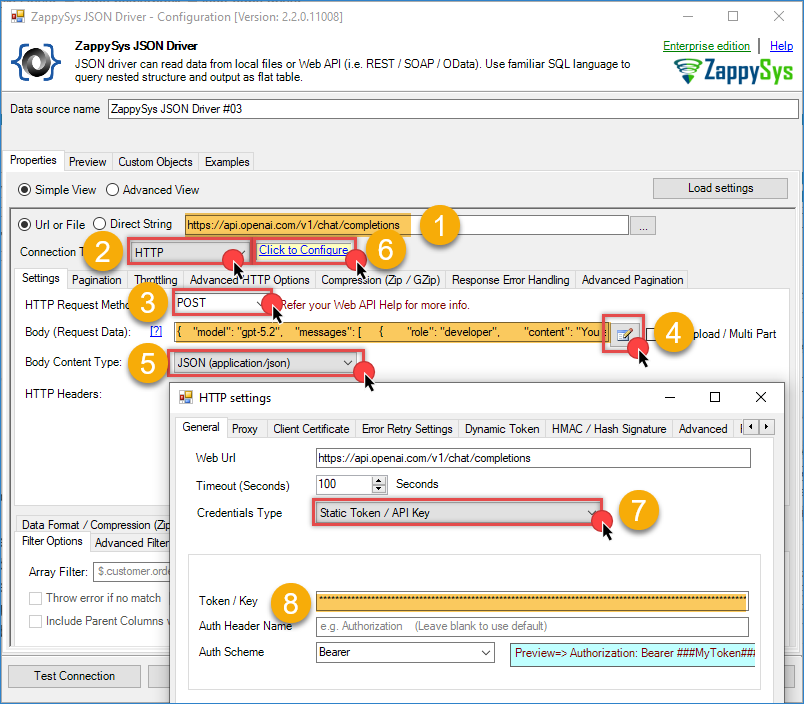
Set the API URL to the Chat Completions endpoint:
https://api.openai.com/v1/chat/completions -
Select HTTP connection as the connection type.
-
Set the HTTP request method to POST.
-
Configure Content-Type as application/json.
-
Use the following request body example:
{
    "model": "gpt-5.2",
    "messages": [
      {
        "role": "developer",
        "content": "You are a helpful assistant."
      },
      {
        "role": "user",
        "content": "Hello!"
      }
    ]
  }
- Configure authentication as Static Token / API Key and paste your OpenAI API key.
- Save the configuration and test the connection.
Querying ChatGPT from Excel using SQL
-
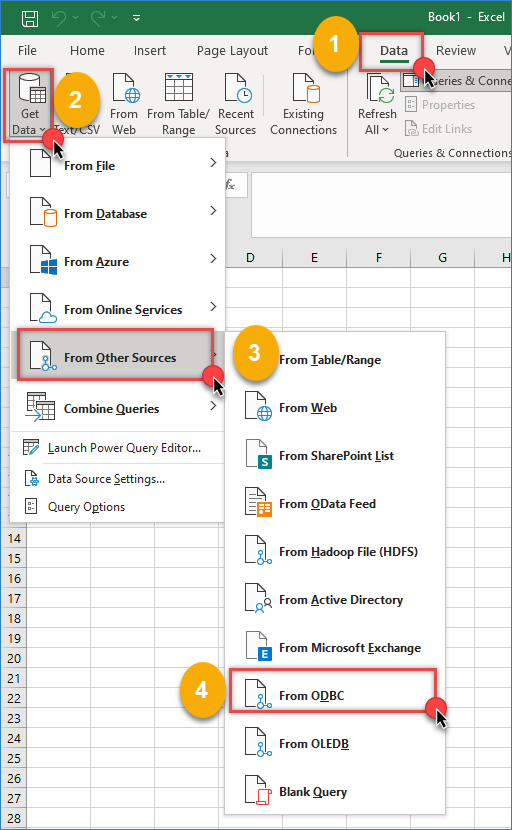
Open Excel, go to the Data tab, then select Get Data, From Other Sources, and From ODBC.
-
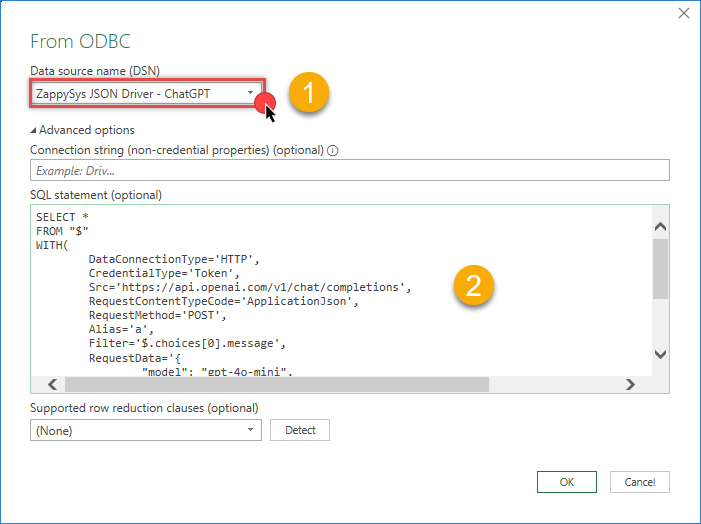
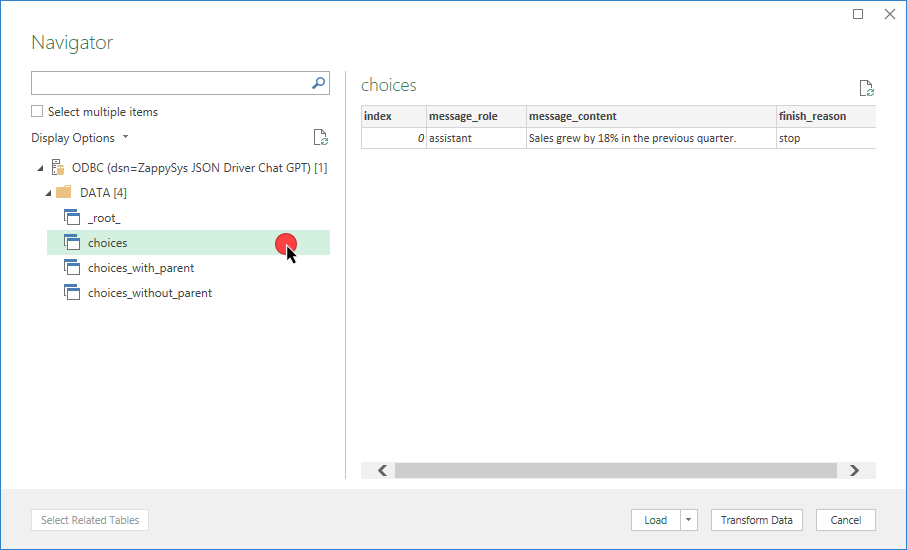
Select the data source name (DSN) you created earlier*.
-
Select Advanced Options.
-
Enter the following SQL query example and click OK to execute the query.:
SELECT *
FROM "$"
WITH(
	DataConnectionType='HTTP',
	CredentialType='Token',
	Src='https://api.openai.com/v1/chat/completions',
	RequestContentTypeCode='ApplicationJson',
	RequestMethod='POST',
	Alias='a',
	Filter='$.choices[0].message',
	RequestData='{
		"model": "gpt-5.2",
		"messages": [
			{ "role": "system", "content": "You are a data analyst." },
			{ "role": "user", "content": "Summarize this text: Sales increased by 18 percent last quarter." }
		],
		"max_tokens": 300,
		"temperature": 0.2
	}'
)
-
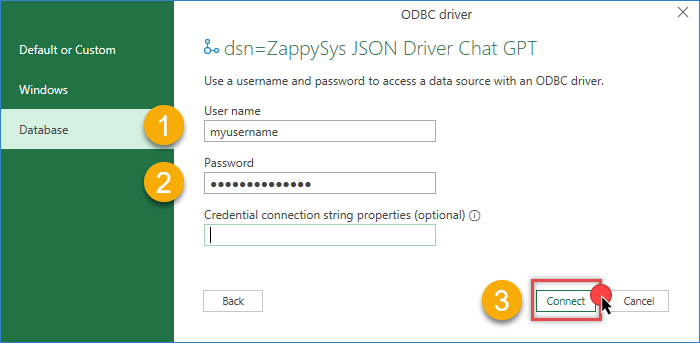
When prompted, enter your credentials if required. The ODBC driver handles authentication.
-
Click OK to execute the query.
-
Load the results into Excel or use Transform Data to shape the response.
-
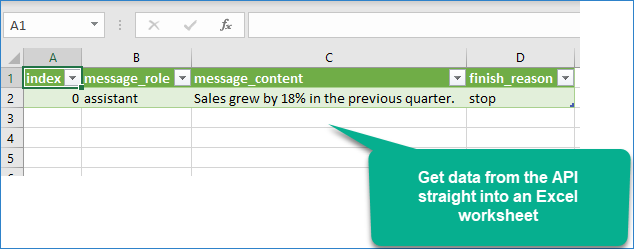
See the final result in the Excel sheet.
Conclusion
Using the ZappySys JSON ODBC Driver to connect ChatGPT to Excel provides a scalable, maintainable way to integrate AI directly into spreadsheet workflows. Instead of managing custom scripts, REST calls, or VBA code, this solution enables structured API access using SQL while handling authentication, JSON parsing, and request execution automatically.
Explore our ODBC PowerPack for more information and download and install it to start building smarter, faster, and more scalable solutions.
References
Contact us
If you encounter any issues or have specific questions, reach out to our support team via live chat or support ticket using our email support@zappysys.com.