In some environments, the ZappySys License Manager may still appear OFFLINE even after all required URLs and ports have been correctly whitelisted. This issue is particularly common in Azure IaaS and other highly controlled infrastructures where policy-based network restrictions can block or alter SSL certificate chains.
Furthermore, many corporate networks employ SSL interception or Deep Packet Inspection (DPI) using security platforms such as ZScaler, Palo Alto, Mimecast, Forcepoint, and similar technologies. When HTTPS traffic is intercepted or rewritten, the certificate delivered to the ZappySys License Manager may differ from the original zappysys.com certificate. As a result, the License Manager may encounter trust validation errors or connectivity issues despite proper whitelisting.
In the reported case, the HTTPS connectivity test (PowerShell + ZS REST API Task) returned the following error:
The underlying connection was closed: Could not establish trust relationship for the SSL/TLS secure channel.
Additionally, the ZS REST API Task succeeded only when Ignore SSL Certificate Errors was checked, confirming an SSL trust issue.
Eventually, installing the Starfield Class 2 Certification Authority Root Certificate - G2 resolved the problem.
This article provides the exact steps to fix the issue.
Important Note for Legacy Operating Systems (Windows Server 2012 R2) and Modern Cipher Suite Requirements
The Issue If you are running older operating systems such as Windows Server 2012 R2, you may experience TLS negotiation failures during online license activation. This will cause the License Manager to appear offline, even if you have successfully bypassed SSL inspection and whitelisted the required URLs and ports.
The Cause To ensure high security for our licensing services and protect against network-based attacks, ZappySys servers enforce the use of modern TLS cipher suites. Legacy Windows Server configurations (like 2012 R2) often lack support for these updated security standards.
Our licensing service currently requires one of the following cipher suites to successfully connect:
TLS_ECDHE_RSA_WITH_AES_256_GCM_SHA384TLS_ECDHE_RSA_WITH_AES_128_GCM_SHA256TLS_ECDHE_RSA_WITH_CHACHA20_POLY1305_SHA256
The Solution
- Recommended: Upgrade your environment to Windows Server 2016 or later, which natively supports the required modern cipher suites for a secure handshake.
- Alternative Workaround: If upgrading your operating system is not immediately feasible, you can bypass the online check entirely by utilizing the Offline License Activation method.
1. Verify HTTPS Trust Issue
If the machine cannot establish a secure SSL/TLS connection to https://zappysys.com, the License Manager will remain OFFLINE.
Symptoms include:
- In the browser able to open the site
https://zappysys.com - PowerShell test fails with SSL/TLS trust errors.
- ZS REST API Task works only when “Ignore SSL Errors” is enabled.
- License Manager status remains OFFLINE.
2. Install Required SSL Certificate (Recommended Fix)
As advised by our development team, please install the correct Root / Intermediate CA certificates on the affected server/machine and verify if the OFFLINE issue is resolved.
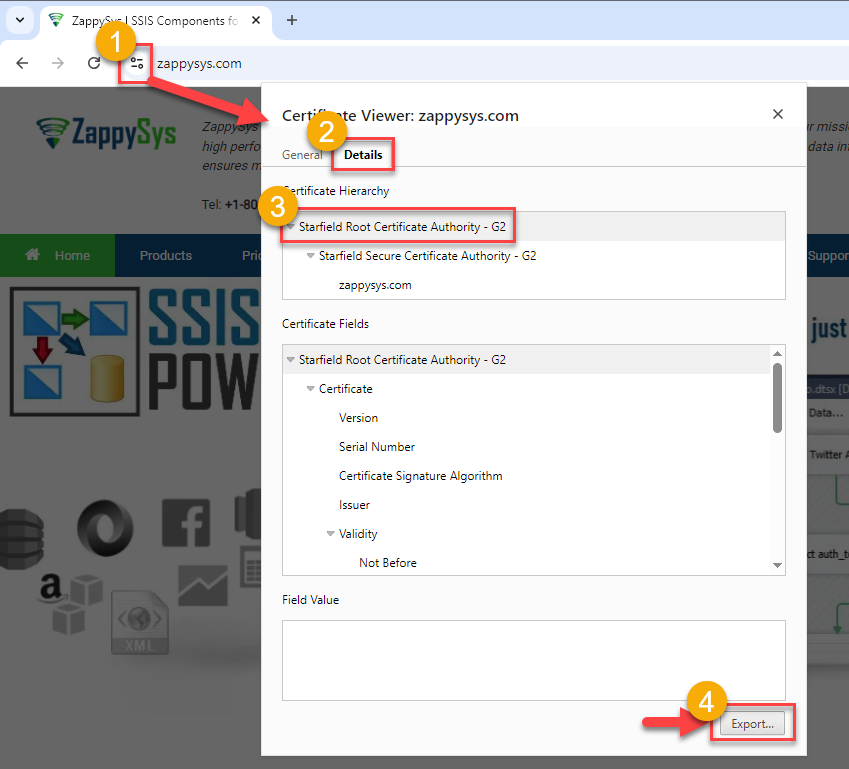
Steps to Export and Install Certificate via Google Chrome / Edge
-
Open Chrome or Edge and navigate to:
-
Click the Padlock icon → Connection is secure → Certificate (Valid).
-
Go to the Certification Path tab.
-
Select the top-most certificate (Starfield Root Certificate Authority - G2) → click View Certificate.
-
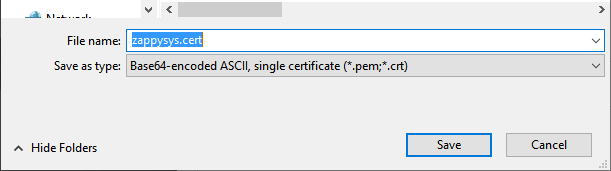
Go to Details → Copy to File… → export the certificate (.CRT).
-
Save it e.g.
Zappysys.crt
-
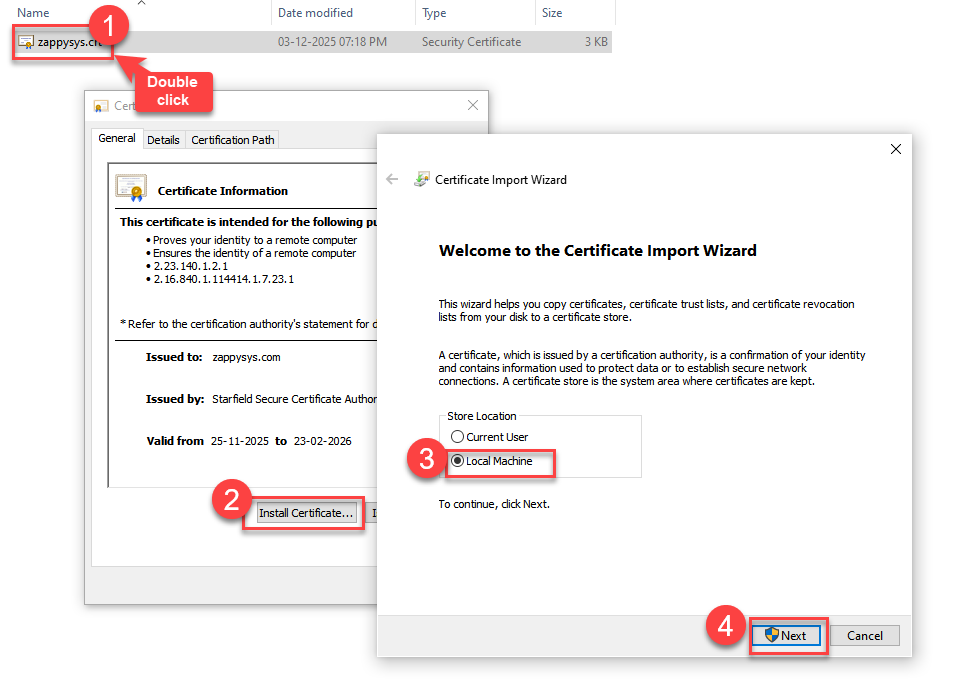
Double-click the exported file → Install Certificate.
-
Choose Local Machine.
-
Place it into Trusted Root Certification Authorities.
After completing this, try re-opening the ZappySys License Manager and activating your original ONLINE license key again.
3. Download the Certificates Directly (If Needed)
If exporting through Chrome is not convenient, you may download the required Root and Intermediate CAs directly from the Starfield repository:
Download Links
- Starfield Class 2 Certification Authority Root Certificate - G2
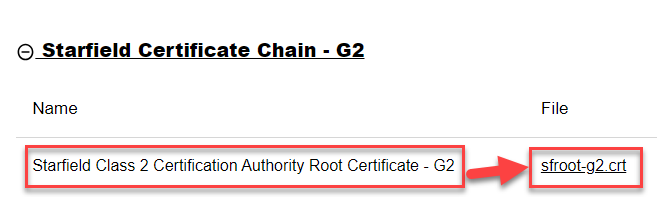
Download from:
https://certs.starfieldtech.com/repository/
Install Into These Stores
Install each certificate into both:
- Local Computer → Trusted Root Certification Authorities
- Local Computer → Intermediate Certification Authorities
This ensures full trust chain validation for HTTPS connections.
4. Final Step
After certificates are installed:
- Restart the machine (Optional).
- Open ZappySys License Manager.
- Attempt to activate the online license key again.
You should now see the status changed from OFFLINE → ONLINE.
NOTE:
If License Manager is still showing Offline after completing the steps above, then the issue is likely related to TLS/cipher compatibility between your server and ZappySys servers.In that case, follow the troubleshooting steps below to verify TLS 1.2 and cipher support manually on your machine.
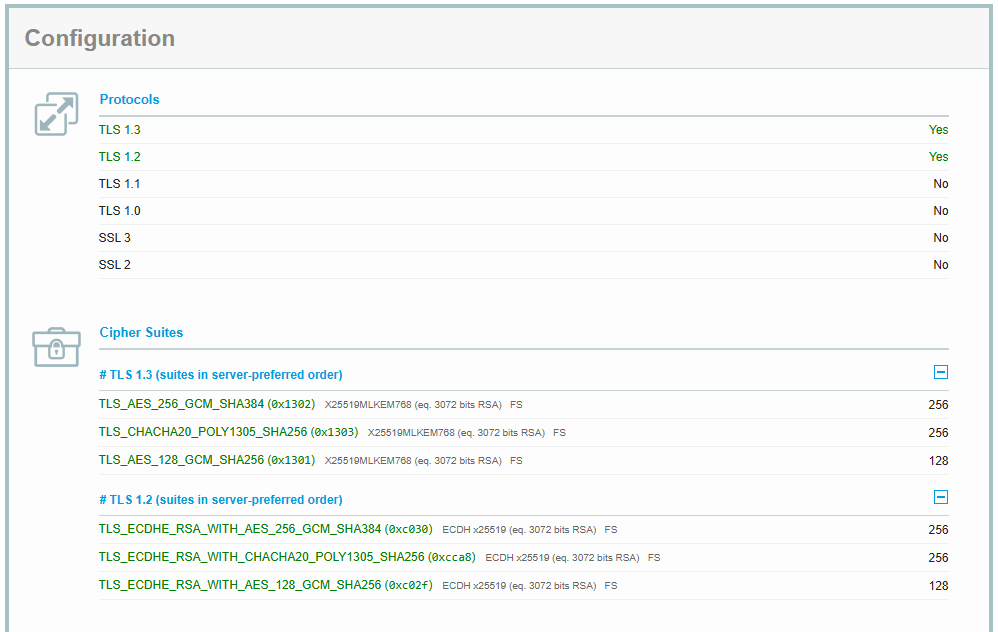
Which TLS Ciphers / Protocols ZappySys Supports
ZappySys servers support modern TLS protocols and strong cipher suites only.
You can review the latest SSL/TLS compatibility report here:
SSL Labs Report for zappysys.com
Supported Protocols
- TLS 1.2
- TLS 1.3
Common Supported Cipher Suites
Below are some commonly supported secure cipher suites available on ZappySys servers (subject to periodic security updates).
TLS 1.3
- TLS_AES_256_GCM_SHA384
- TLS_AES_128_GCM_SHA256
- TLS_CHACHA20_POLY1305_SHA256
TLS 1.2
- ECDHE-RSA-AES256-GCM-SHA384
- ECDHE-RSA-AES128-GCM-SHA256
- ECDHE-RSA-CHACHA20-POLY1305
NOTE: Older/insecure protocols such as SSL 3.0, TLS 1.0, and TLS 1.1 are not supported.
How to Make Sure Your Server Can Talk to ZappySys
If License Manager shows Offline even after URL/Port whitelisting, then most likely:
- TLS 1.2 is disabled
- Required cipher suites are missing
- Windows security policies are outdated
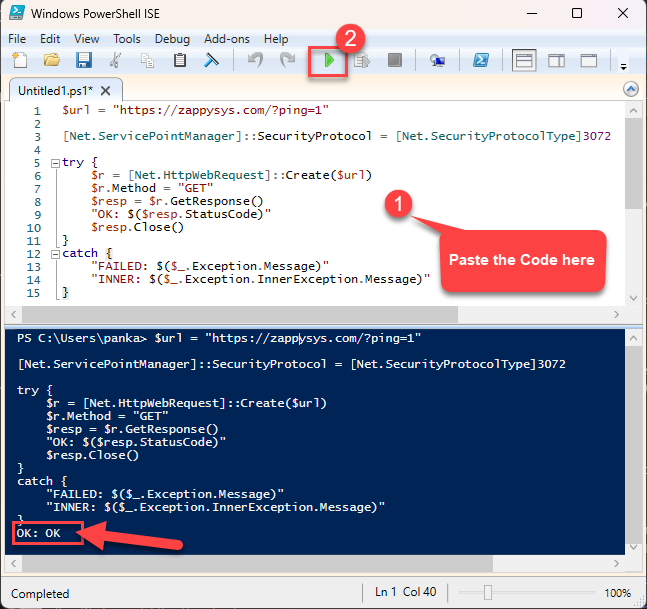
Quick Connectivity Test
Open:
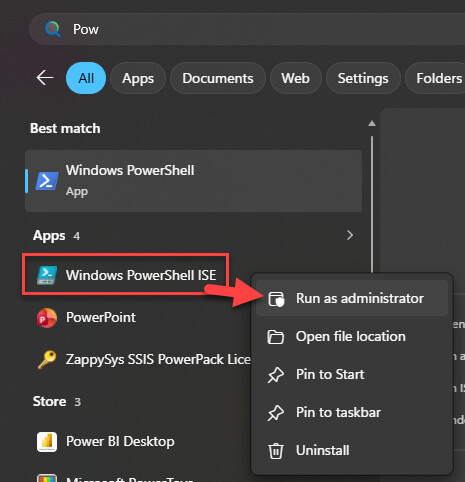
- PowerShell ISE
- Run as Administrator
Execute the script below:
$url = "https://zappysys.com/?ping=1"

[Net.ServicePointManager]::SecurityProtocol = [Net.SecurityProtocolType]3072

try {
    $r = [Net.HttpWebRequest]::Create($url)
    $r.Method = "GET"
    $resp = $r.GetResponse()
    "OK: $($resp.StatusCode)"
    $resp.Close()
}
catch {
    "FAILED: $($_.Exception.Message)"
    "INNER: $($_.Exception.InnerException.Message)"
}
Expected Result
OK: OK
If You Get SSL/TLS Channel Error
Example:
The request was aborted: Could not create SSL/TLS secure channel
Then your server likely:
- Does not support TLS 1.2
- Has outdated cipher suites
- Missing Windows security updates
How to Enable Modern TLS/Ciphers
Windows Server 2019 / 2022
Usually works after:
- Installing the latest Windows Updates
- Enabling TLS 1.2
- Rebooting server
Modern ciphers are generally enabled by default on newer Windows versions.
Windows Server 2012 R2 (and other legacy OS)
If you are running older operating systems such as Windows Server 2012 R2, you may experience TLS negotiation failures during online license activation. This will cause the License Manager to appear offline even if you have successfully whitelisted the required URLs and ports.
The Cause To ensure high security for our licensing services and protect against network-based attacks, ZappySys servers now enforce the use of modern TLS cipher suites. Legacy Windows Server configurations often lack support for these updated security standards.
Our licensing service requires one of the following cipher suites to successfully connect:
TLS_ECDHE_RSA_WITH_AES_256_GCM_SHA384TLS_ECDHE_RSA_WITH_AES_128_GCM_SHA256TLS_ECDHE_RSA_WITH_CHACHA20_POLY1305_SHA256
The Solution Because older environments often cannot negotiate a secure TLS handshake with these modern ciphers, you have two options:
- Recommended: Upgrade your environment to Windows Server 2016 or later, which natively supports the required modern cipher suites.
- Alternative Workaround: If upgrading your operating system is not immediately feasible, bypass the online check entirely by utilizing the Offline License Activation method.
However, some environments still cannot negotiate secure TLS with modern servers due to missing cipher support. In such cases, upgrading Windows is recommended.
Conclusion
This issue typically occurs when the machine cannot fully communicate securely with https://zappysys.com due to one or more of the following reasons:
- SSL certificate chain validation failure
- TLS 1.2 disabled
- Missing or outdated cipher suites
- Firewall/proxy restrictions
- Outdated Windows security updates
Installing the correct Root/Intermediate CA certificates, enabling modern TLS protocols/ciphers, and verifying connectivity using the PowerShell test usually resolves the issue and restores the License Manager’s online functionality.