Introduction
An offline-activated ZappySys license can only be active on one machine at a time. To move it to a new machine, the license first needs to be deactivated on the old machine and that deactivation confirmed on our side, otherwise the new machine won’t be able to activate it. This article walks through the process of moving an offline license from one machine to another.
Steps
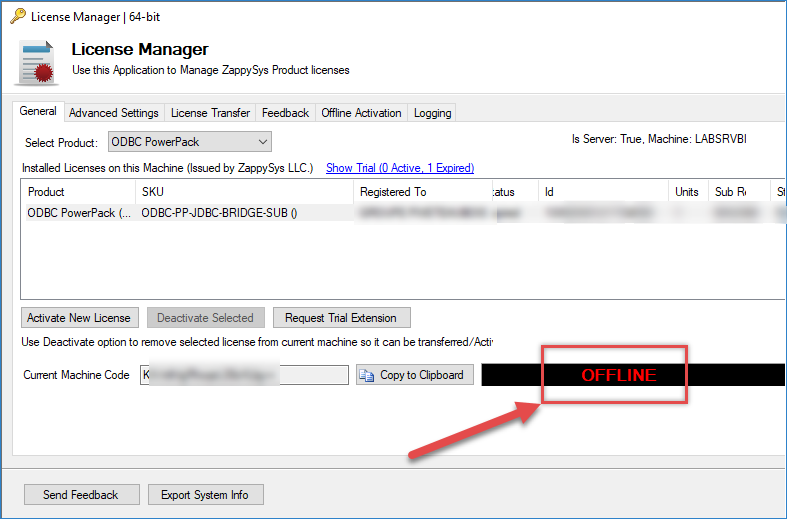
- Verify you are using an offline license. Inside License Manager, it should show OFFLINE; otherwise, go to this article.
- On the old machine, open License Manager and deactivate the license with the Deactivate Selected button. This generates the Deactivation Code, which you’ll need in the next step.
- Confirm the deactivation is reported to ZappySys, using one of these two options:
- Option A: Contact support: Send us a screenshot of License Manager showing the deactivated license, along with the license key and the Deactivation Code. We’ll deactivate the license on our side to match.
- Option B: Put the machine online temporarily: If the old machine can briefly connect to the internet, switch it to online mode. License Manager will report the deactivation to ZappySys automatically, with no manual steps needed.
- Wait for confirmation that the deactivation is reflected on our side (immediate with Option B, or once support confirms with Option A).
- On the new machine, open License Manager and locate its Machine Code.
- For a new Offline License, follow this article to generate and activate a new offline license key using the machine code and your existing license key; you don’t need to contact us for this step. Only reach out to support if you encounter an error or the activation doesn’t go through.
- Once the license shows as active on the new machine, it’s ready to use, either in online mode or staying offline.
Notes
- An offline license can only be activated once per machine; this is why the deactivation on the old machine must be confirmed before the new machine can activate.
- Keep the Deactivation Code and screenshot from the old machine; support uses them to verify the transfer if you go with Option A.
Conclusion
Moving an offline license to a new machine means deactivating it on the old machine first, either by briefly bringing the machine online to automatically report the deactivation, or by sending the Deactivation Code and a License Manager screenshot to support for manual confirmation. Once that deactivation is confirmed, the license is ready to be activated on the new machine, either in online mode or, if it needs to stay offline, by generating a new offline license key.
Still need help?
If you need assistance, please contact our support team:
- Live Chat: Open the chat widget (bottom right of this page)
- Email: support@zappysys.com
- Support Center: Support | ZappySys