Problem
You are using an SSIS package with sensitive parameters and the package protection level is set to:
DontSaveSensitive
You may notice that when a sensitive parameter is used in an expression, the value becomes blank during design-time testing or after reopening the package.
For example, you may have a sensitive package/project parameter mapped to a ZappySys connection manager property such as:
ClientSecret
Password
AccessToken
RefreshToken
API Key
The expression may look correct, but the value passed to the connection manager is blank.
Why This Happens
This is expected SSIS behavior.
When DontSaveSensitive is selected, SSIS does not save sensitive values inside the package or parameter files. This includes passwords, client secrets, tokens, and sensitive parameters.
So if you type a secret value into a sensitive parameter and save the package, SSIS intentionally removes that value from the saved file.
This is secure because secrets are not accidentally stored in source control systems such as Git, GitLab, Azure DevOps, or TFS.
However, it also means the package cannot read the secret from the package file itself during local debugging. The secret must be supplied again at runtime.
Common Symptom
You may see behavior like this:
Package Parameter:
  ClientSecret
  Sensitive = True

Connection Manager Expression:
  ClientSecret = @[$Package::ClientSecret]

ProtectionLevel:
  DontSaveSensitive
After saving or reopening the package, the parameter value becomes blank.
As a result, the connection manager receives a blank ClientSecret.
This does not mean the expression is wrong. It means SSIS did not save the sensitive value.
Recommended Runtime Approach
When using DontSaveSensitive, supply the secret value from outside the package at runtime.
Common options include:
- SSIS Catalog environment variables
- SQL Agent job configuration
- Command-line execution
- Runtime parameter assignment
- External configuration source
- Key Vault / secrets manager integration
This is the preferred production approach because the package does not contain secrets.
Local Debugging Option 1: Temporarily Disable Sensitive Flag
For local testing only, you can temporarily set the parameter as non-sensitive.
Example:
ClientSecret
Sensitive = False
Then enter the test secret value and debug the package.
After testing, change the parameter back to:
Sensitive = True
Use this only for local testing. Do not commit real secrets into source control.
Local Debugging Option 2: Use EncryptSensitiveWithPassword
If you want SSIS to save sensitive values in encrypted form, change the protection level to:
EncryptSensitiveWithPassword
With this option, SSIS saves sensitive values in encrypted format. This makes local debugging easier because the secret value can be preserved.
However, anyone opening or running the package must know the password.
This option is useful when:
- You need to debug packages locally
- You want SSIS to remember sensitive values
- You are okay managing a package password
- You do not want to supply secrets every time from runtime configuration
Important
If you change the project protection level, also update each package protection level.
In many SSIS projects, setting only the project protection level is not enough. Each package may still have its own protection level.
So you should update both:
Project ProtectionLevel
Package ProtectionLevel
Use the same password for the project and packages if you choose EncryptSensitiveWithPassword.
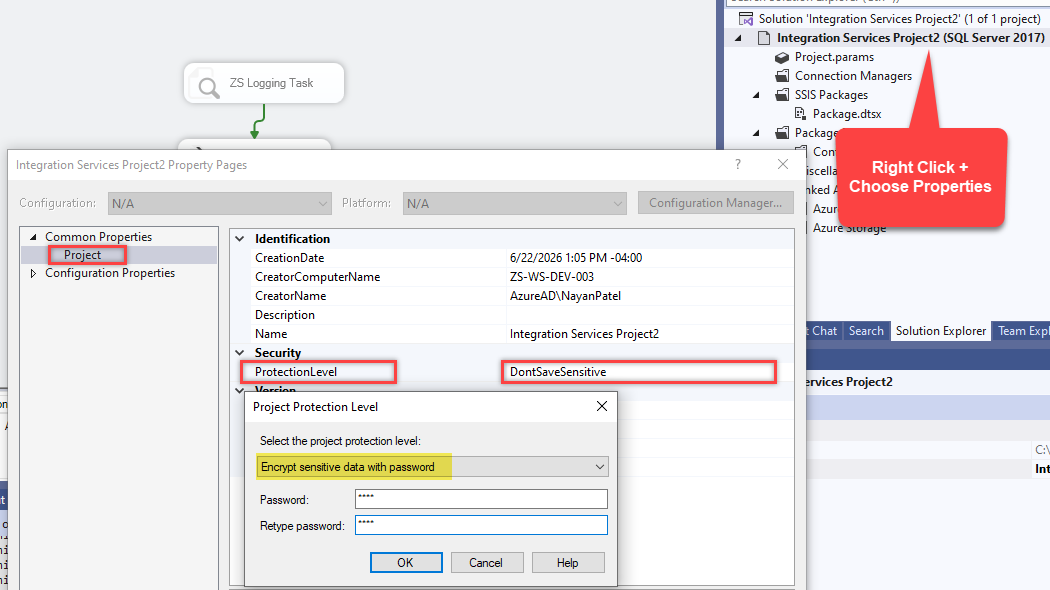
Step 1: Change Project Protection Level
In Visual Studio / SSDT:
- Right-click the SSIS project.
- Select Properties.
- Go to Common Properties > Project.
- Set ProtectionLevel to:
EncryptSensitiveWithPassword
- Enter the package password.
- Save the project.
Step 2: Change Each Package Protection Level
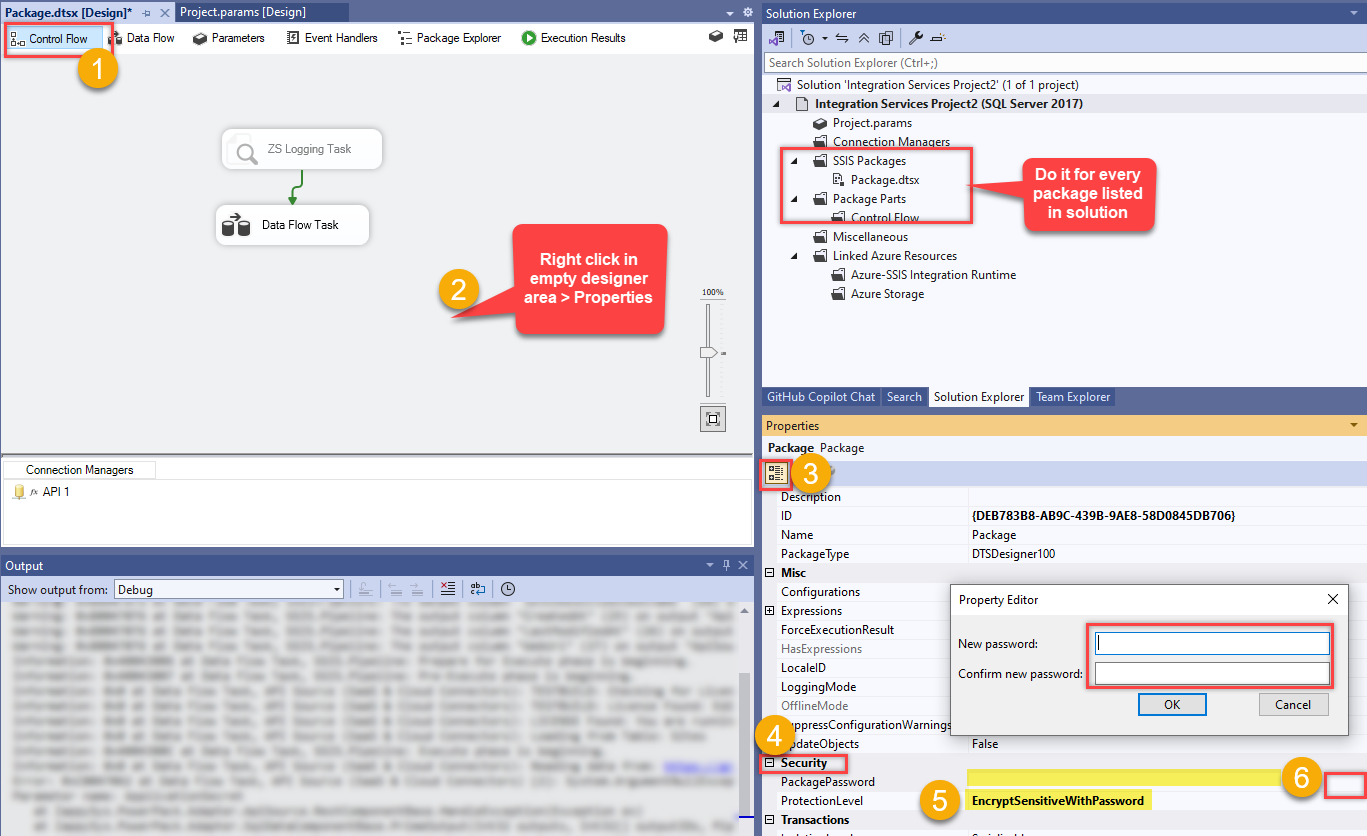
Now open each package in the project and update the package-level settings.
- Open the
.dtsxpackage. - Right-click on the package designer surface.
- Select Properties.
- Find the security-related properties.
- Set ProtectionLevel to:
EncryptSensitiveWithPassword
- Set the same password used at the project level.
- Save the package.
- Repeat this for every package in the project.
Which Option Should You Use?
Use DontSaveSensitive when security is more important
Use this when you do not want any secrets stored in the package.
This is usually best for production deployments where secrets are supplied from SSIS Catalog environments, SQL Agent jobs, or another secure runtime source.
Use EncryptSensitiveWithPassword when debugging convenience is more important
Use this when you want to preserve sensitive values during local debugging.
This avoids blank secret values during design-time testing, but you must manage the password carefully.
Summary
DontSaveSensitive is working as designed. It does not save sensitive values to disk, so sensitive parameters may appear blank after saving or reopening the package.
If you use DontSaveSensitive, provide secrets at runtime.
If you want the package to remember encrypted sensitive values for debugging, use:
EncryptSensitiveWithPassword
Make sure to set the protection level and password at both the project level and package level.