If you want to gather more detailed information about an issue with your ODBC driver, follow the steps below to enable logging:
-
Go to your ODBC Driver Configuration window.
In the Properties tab, click Advanced View. -
Expand the Log Settings section.
-
Configure the logging options:
- Set Log Level to Debug.
- Specify the Maximum Log File Size (MB).
- Enter a local file path where the log file will be saved.
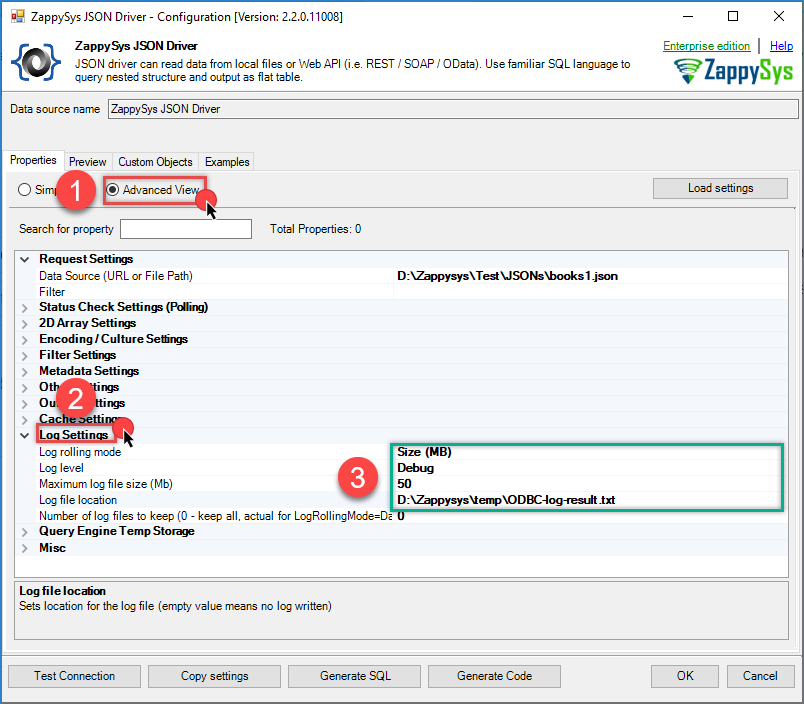
NOTE: After you finish troubleshooting, make sure to turn off logging. Otherwise, log files may continue growing and fill up your disk space (this applies to older versions). Newer versions support rolling logs (default size: 50 MB).
-
Test the connection or run any query. The driver will generate detailed information in the specified log file.
-
If the connection test is successful, the log file should contain entries similar to the following:
Debug Thread#1/PID#30840 [27/02 19:10:30.011] DataStatement.ExecQueryWithOptions, Flags=DoNotFetchData, Query=select * from _root_
Debug Thread#1/PID#30840 [27/02 19:10:30.047] MemoryCache.Get() >> Metadata_e5e155b3
=== end of log ===
- If there is an issue (for example, an invalid URL or SSL/TLS problem), you may see an error similar to this:
Error Thread#1/PID#30840 [27/02 19:29:18.663] Error : Query execution error: Failed to start secure channel. Try to change SSL Version to TLS 1.1 or Higher see that helps. This option can be found on Advanced Tab >> [Security Protocol for HTTPS]. For more information visit https://zappysys.com/links/?id=10025
ERROR ==>The underlying connection was closed: An unexpected error occurred on a send.
  Authentication failed because the remote party has closed the transport stream.

=== end of log ===