Introduction
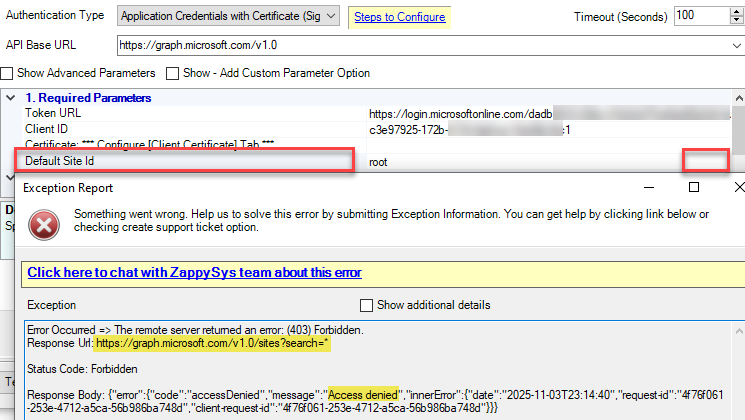
If you are using ZappySys SharePoint Online Connector, you may encounter the following challenge when selecting the Site ID Parameter in the connection UI due to permission or UI limitations.
- Your Microsoft Graph permissions are limited, and you cannot list all sites (Throws access denied error)
- Your Site ID is not listed in the SharePoint Connector UI (Due to the maximum limit for items in the drop-down)
Regardless of the above issue, you can still manually build the full siteId by using the classic SharePoint REST API directly in your browser.
 Step 1 — Open the Site in Your Browser
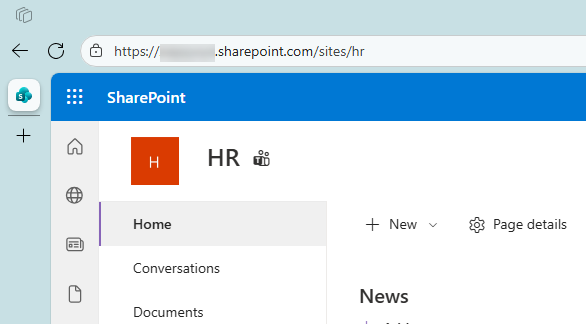
Go to your SharePoint site, for example:
https://YOUR-COMPANY.sharepoint.com/sites/MY-SITE-NAME
Keep this tab open — you’ll use it as the base URL for the next step.
Example:
 Step 2 — Find the Site Collection ID
In the same browser window, navigate to this URL (append _api/site/id):
https://YOUR-COMPANY.sharepoint.com/sites/MY-SITE-NAME/_api/site/id
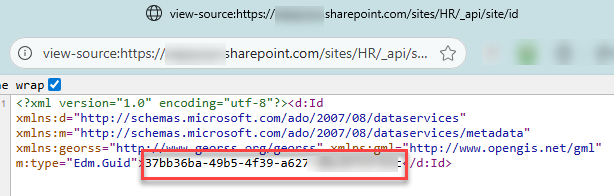
You’ll see an XML or JSON response showing the Site Collection ID GUID:
<?xml version="1.0" encoding="utf-8"?>
<d:Id xmlns:d="http://schemas.microsoft.com/ado/2007/08/dataservices"
	xmlns:m="http://schemas.microsoft.com/ado/2007/08/dataservices/metadata"
	xmlns:georss="http://www.georss.org/georss"
	xmlns:gml="http://www.opengis.net/gml"
	m:type="Edm.Guid">37bb36ba-49b5-4f39-a627-d0xxxxxxxx</d:Id>
Copy that value — this is your Site Collection ID. (example: 37bb36ba-49b5-4f39-a627-d0xxxxxxxx )
Step 3 — Find the Web ID
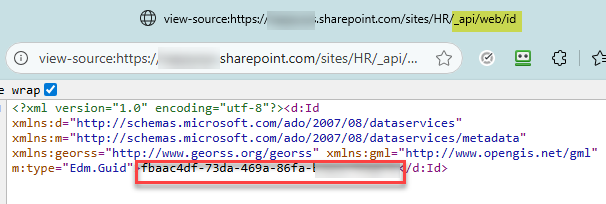
Now open this URL (append _api/web/id):
https://YOUR-COMPANY.sharepoint.com/sites/MY-SITE-NAME/_api/web/id
The response will show the Web ID GUID:
<?xml version="1.0" encoding="utf-8"?><d:Id xmlns:d="http://schemas.microsoft.com/ado/2007/08/dataservices" xmlns:m="http://schemas.microsoft.com/ado/2007/08/dataservices/metadata" xmlns:georss="http://www.georss.org/georss" xmlns:gml="http://www.opengis.net/gml" m:type="Edm.Guid">fbaac4df-73da-469a-86fa-b3xxxxxxxx</d:Id>
Copy that value — this is your Web ID.
 Step 4 — Build the Full
 siteId
Combine the three parts in this exact order:
{hostname},{site-collection-id},{web-id}
 Example
your-company.sharepoint.com,37bb36ba-49b5-4f39-a627-d0xxxxxxx,fbaac4df-73da-469a-86fa-b3xxxxxxx
You can now use this value in Microsoft Graph API calls such as:
GET https://graph.microsoft.com/v1.0/sites/{siteId}/lists

Your URL in API call may look like this

https://graph.microsoft.com/v1.0/sites/your-company.sharepoint.com,37bb36ba-49b5-4f39-a627-d0xxxxxxx,fbaac4df-73da-469a-86fa-b3xxxxxxx/lists
 Summary
| Value | Example | Source |
|---|---|---|
| Hostname | your-company.sharepoint.com |
From site URL |
| Site Collection ID | 37bb36ba-49b5-4f39-a627-d0xxxxxxx |
_api/site/id |
| Web ID | fbaac4df-73da-469a-86fa-b3xxxxxxx |
_api/web/id |
| Full Site ID | your-company.sharepoint.com,37bb36ba-49b5-4f39-a627-d0xxxxxxx,fbaac4df-73da-469a-86fa-b3xxxxxxx |
Combine all |
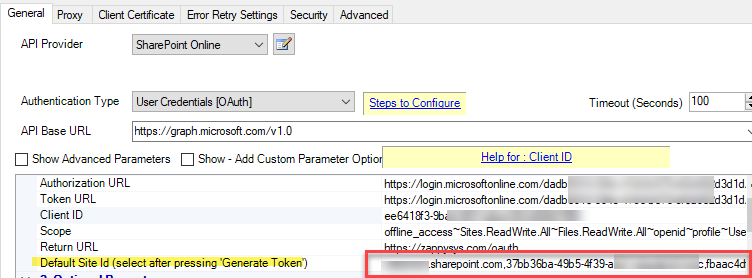
Now you can use this value on your SharePoint API Connector UI like below