Introduction
A frequently asked question on community.zappysys.com is:
“I can download a file from a URL using the REST API Task in Control Flow, but how do I download the same file inside Data Flow ?”
This article explains the recommended and supported approach to download binary files (PDF, Image, ZIP, etc.) inside SSIS Data Flow using Web API Destination.
This pattern is especially useful when:
- URLs are stored in a table or CSV file
- Each row represents one file to download
- Files must be downloaded dynamically and in bulk
The solution documented here is based on a real support case and follows the same style and best practices used in other ZappySys community articles.
Why REST API Task Is Not Enough
The REST API Task and Download File Task work only in Control Flow , which is ideal for:
- Single or static downloads
- One-time operations
However, Control Flow is not row-based .
If you need to:
- Download files dynamically per row
- Drive downloads from a table / CSV / query
- Process hundreds or thousands of URLs
Then Data Flow is the correct choice.
Recommended Approach (Data Flow)
To download a file inside Data Flow:
- Use Web API Destination
- Enable Treat Response as Binary
- Capture the binary response in an output column
- Write the binary content to disk using FUN_FILE_WRITE_BINARY
This is the same approach recommended across multiple ZappySys community articles.
High-Level Design
Source (CSV / Table)

       ↓

Web API Destination (GET + Binary Response)

       ↓

Derived Column / Template Transform

       ↓

File written to disk
Step-by-Step Configuration
Step 1: Configure Source
Use any SSIS source that provides the download URL dynamically.
Typical columns:
FileUrl– URL to download (e.g., AWS S3 pre-signed URL)FileName– Output file name (PDF, ZIP, etc.)OutputFolder– Target folder path
Example: CSV Source
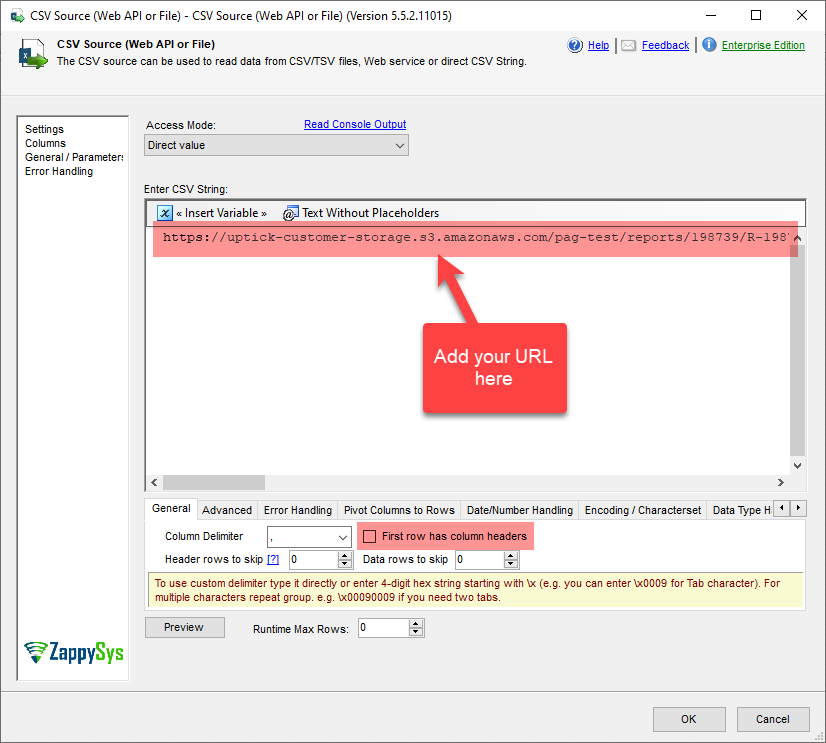
Step 2: Configure Web API Destination
Add Web API Destination and configure the following:
General Tab
- HTTP Method:
GET - Request URL: Map from
FileUrlcolumn  Treat Response as Binary (mandatory)
If Treat Response as Binary is not enabled, the downloaded file will be corrupted.
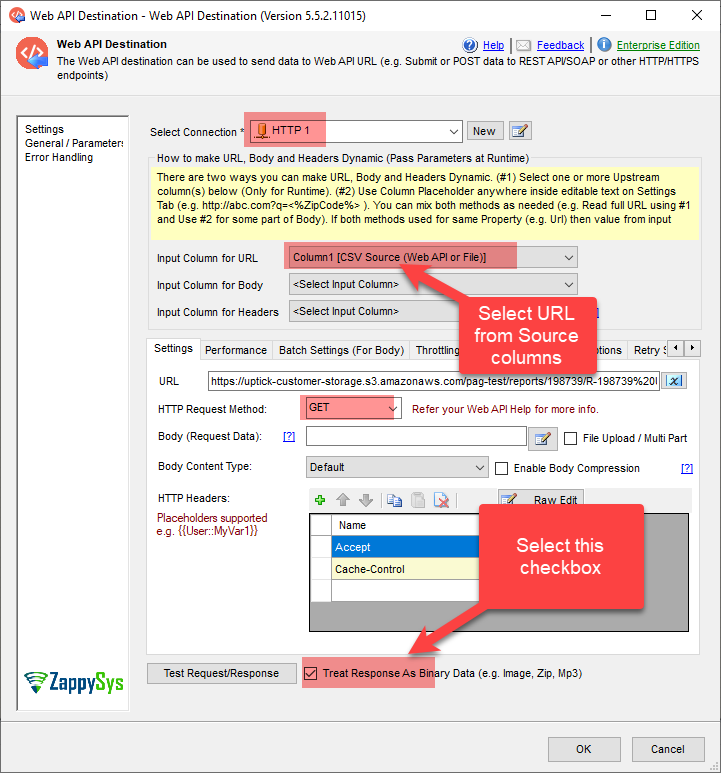
Step 3: Output from Web API Destination
Once configured, the component produces a binary output column (for example):
ResponseBinary
This column contains the raw file bytes returned by the HTTP endpoint.
Step 4: Write Binary Content to File
Add Template Transform and use the built-in function:
<<D:\demo1.pdf|~|<%ResponseText%>|~|True,FUN_FILE_WRITE_BINARY>>
This function writes the binary response directly to a physical file location.
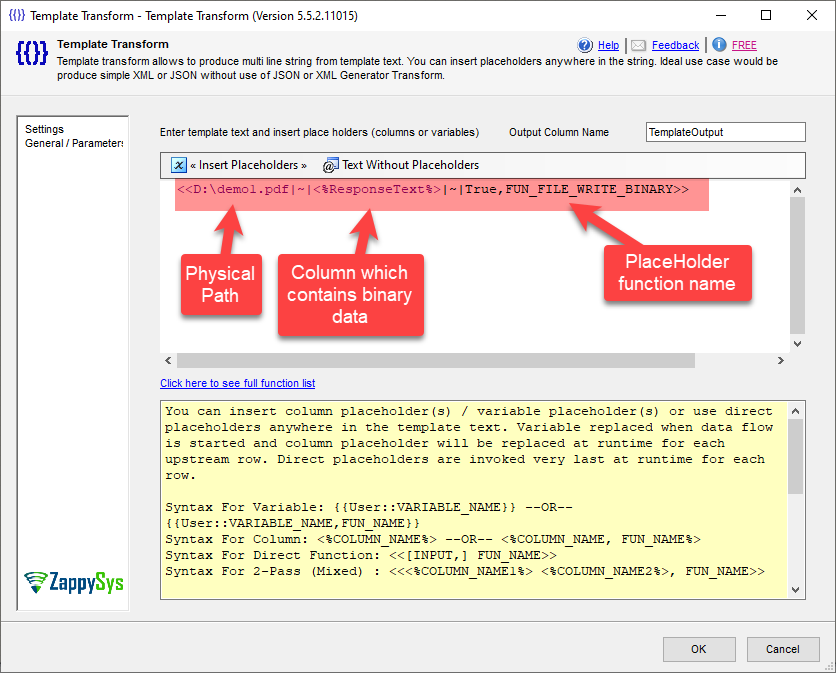
Step 5: Validate Output
After execution:
- Confirm the file exists in the target folder
- Open the file (PDF / image / ZIP)
- Verify that the file is not corrupted
Dynamic & Bulk Download Scenarios
This approach works seamlessly when:
- URLs are stored in a database table
- URLs are read from CSV / Excel
- URLs are generated dynamically using expressions
Each input row results in one downloaded file.
Related Community Articles
- How to load a file from URL to SQL table using SSIS
How to load a file from a URL to SQL table using SSIS? - How to download binary file (Image, ZIP, PDF) using SSIS REST API Task
How to download binary file using SSIS REST API Task (image, zip, pdf) - Download file from URL using SSIS (Control Flow)
How to download file from URL using SSIS | ZappySys Blog
Summary & Best Practices
| Scenario | Recommended Component |
|---|---|
| Single / Static download | REST API Task / Download File Task |
| Row-based / Dynamic download | Web API Destination (Data Flow) |
Key Takeaways
- Always enable Treat Response as Binary
- Use
FUN_FILE_WRITE_BINARYto persist files - Data Flow is ideal for scalable and dynamic downloads