Introduction
In this article, you will learn how to deploy an SSIS package that uses the ZappySys SSIS PowerPack into SQL Server 2025. Proper deployment ensures that your packages run reliably in production environments, whether they include REST API integrations, ODBC connections, file system operations, or cloud-based data sources.
This guide walks you through installing SQL Server 2025 for development and deploying your SSIS package using the SSIS Catalog (SSISDB).
Prerequisites
- A working SSIS package.
- SQL Server Agent installed.
- Download and install the ZappySys SSIS PowerPack.
Step 1: install sql server 2025 and sql server management studio
-
Download the SQL Server installer from the official download page.
-
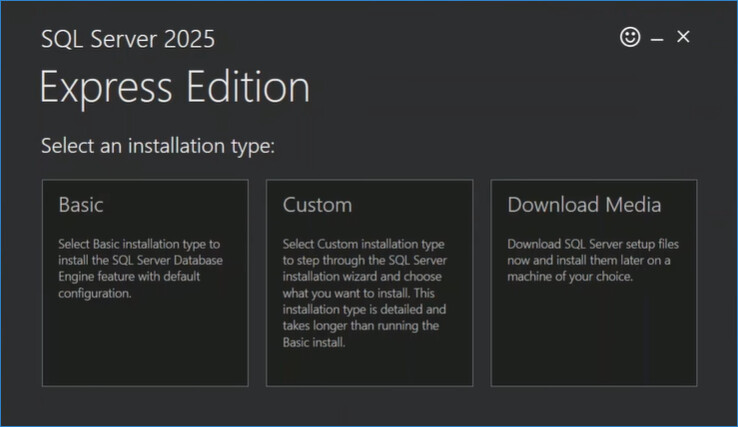
Launch SQL Server Setup and select the installation type. For this scenario, choose a custom installation.
-
Select New SQL Server stand-alone installation.
-
Under Installation edition, choose Standard Developer.
-
Select the required components, including Database Engine Services and Integration Services.
-
On the Instance Configuration page, choose one of the following options:
- Default instance (MSSQLSERVER), or
- Named instance (custom)
-
On the Database Engine Configuration page, select the authentication mode:
- Mixed Mode, and set the SQL administrator password.
-
Add the current user as a SQL administrator.
-
Click Next, review the summary, and proceed with the installation.
-
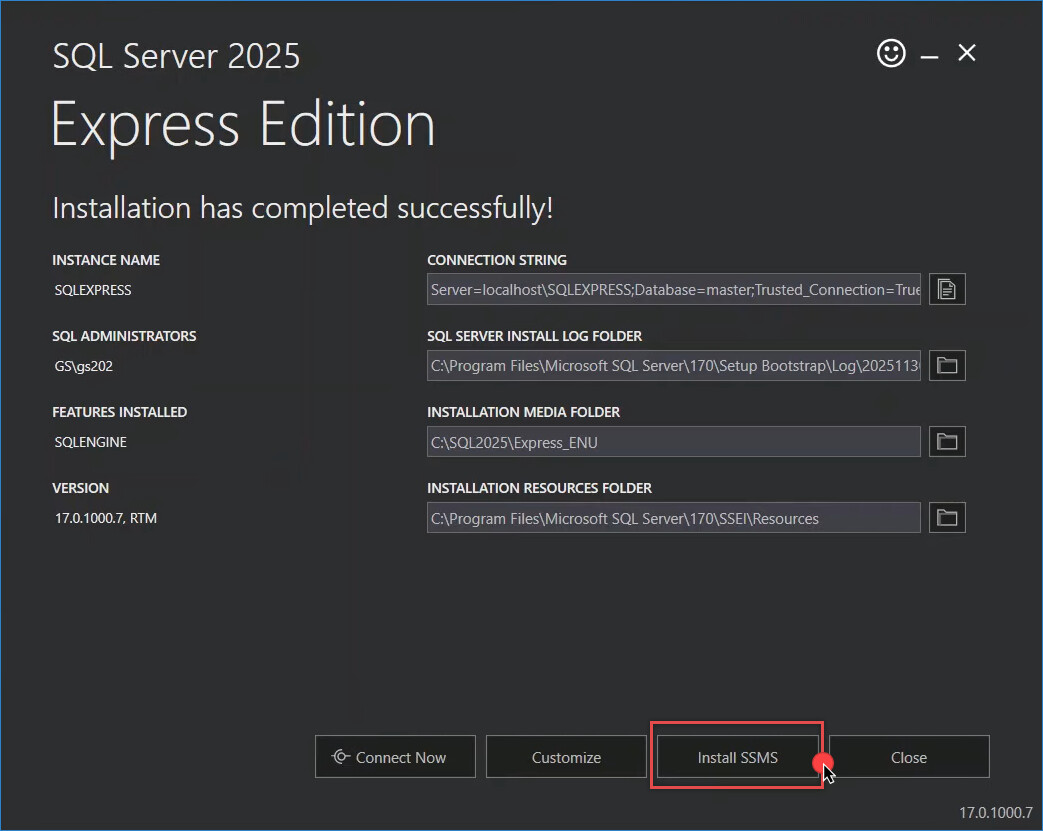
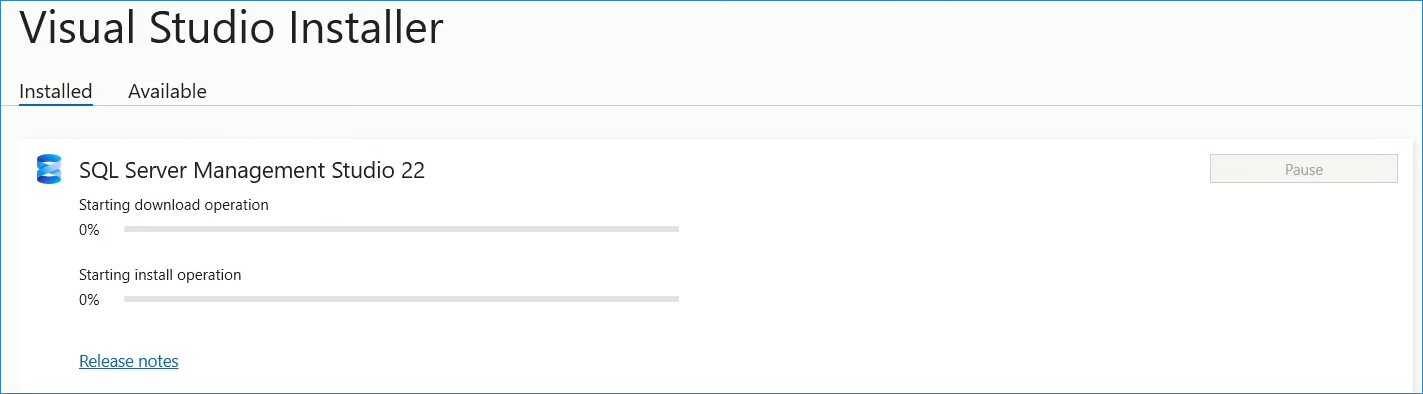
After the installation completes, copy the connection information and click Install SSMS to download the SQL Server Management Studio 22 installer.
-
Run the installer.
-
Complete the installation of SQL Server Management Studio 22.
-
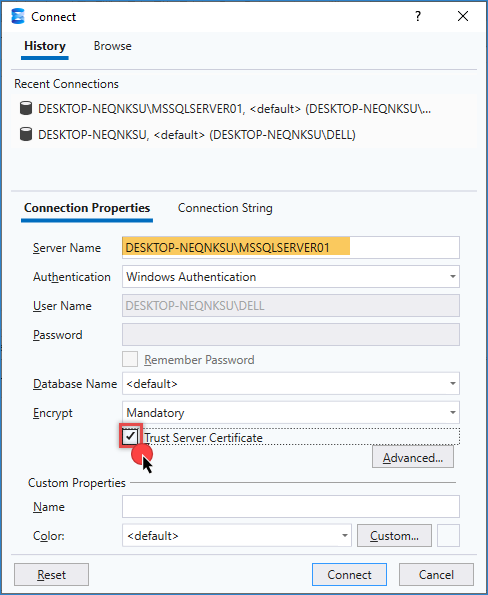
Open SSMS and connect to SQL Server 2025 using the connection information from the installation.
Step 2: Build the ssis project in Visual Studio
-
Open your SSIS project in Visual Studio (SSDT).
-
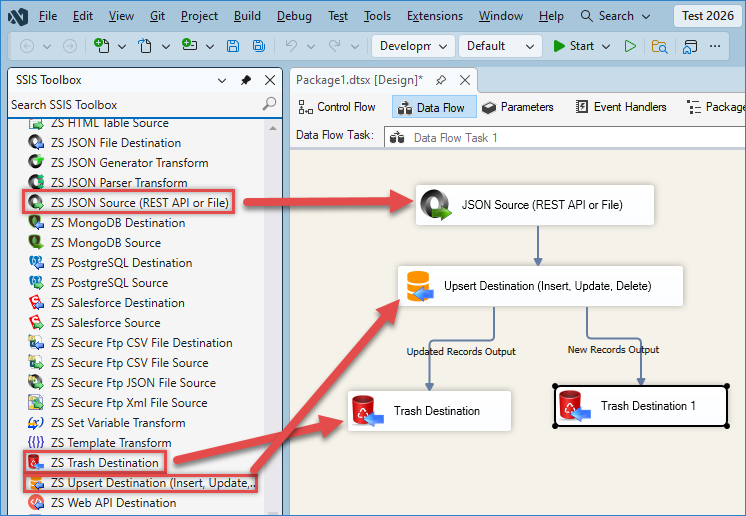
Create an SSIS package. In this example, the package includes a JSON source, an Upsert destination, and a Trash destination.
-
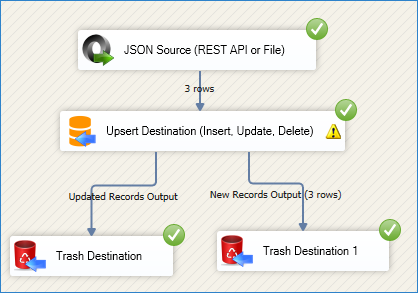
Execute the package and verify that it runs successfully.
Step 3: Deploy your package to SSISDB (project deployment model)
-
Open SQL Server Management Studio (SSMS).
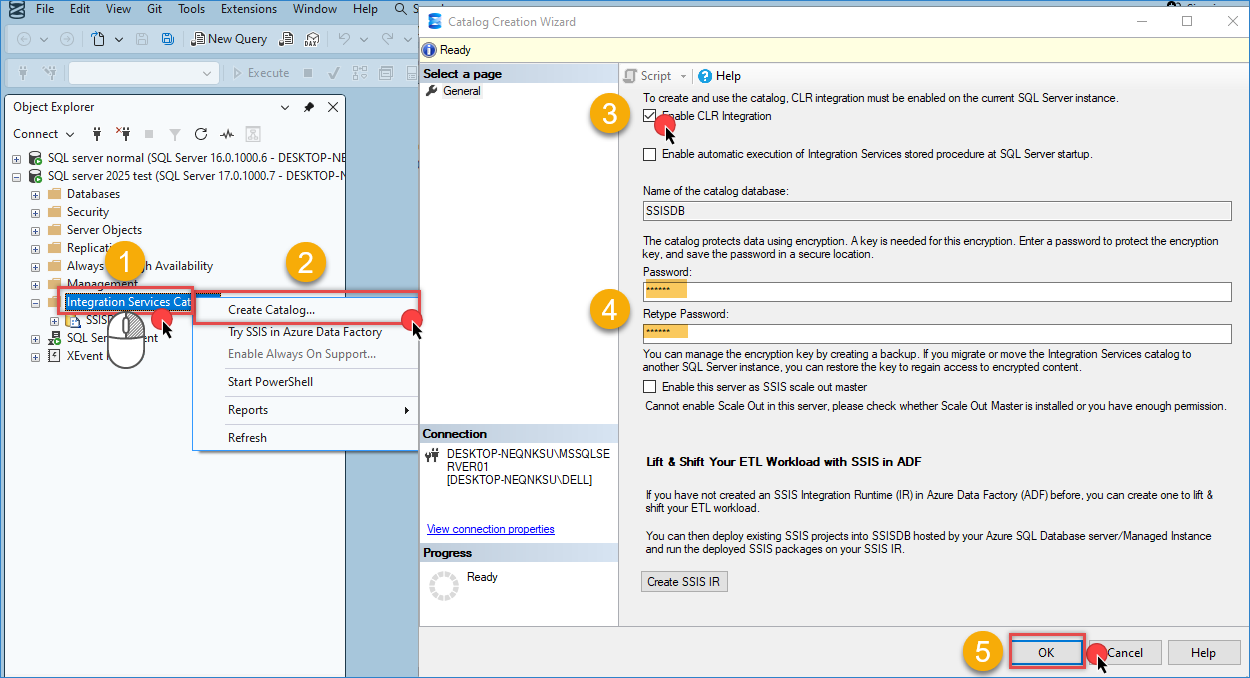
-
Right-click Integration Services Catalogs and select Create Catalog.
-
Set an encryption password and click OK.
-
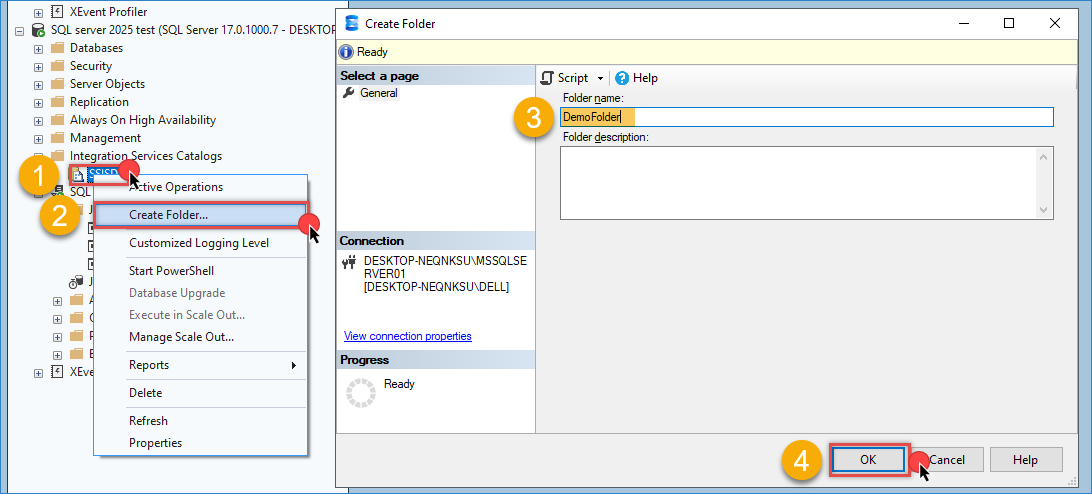
Expand Integration Services Catalogs, right-click SSISDB, and select Create Folder. Enter a folder name and click OK.
-
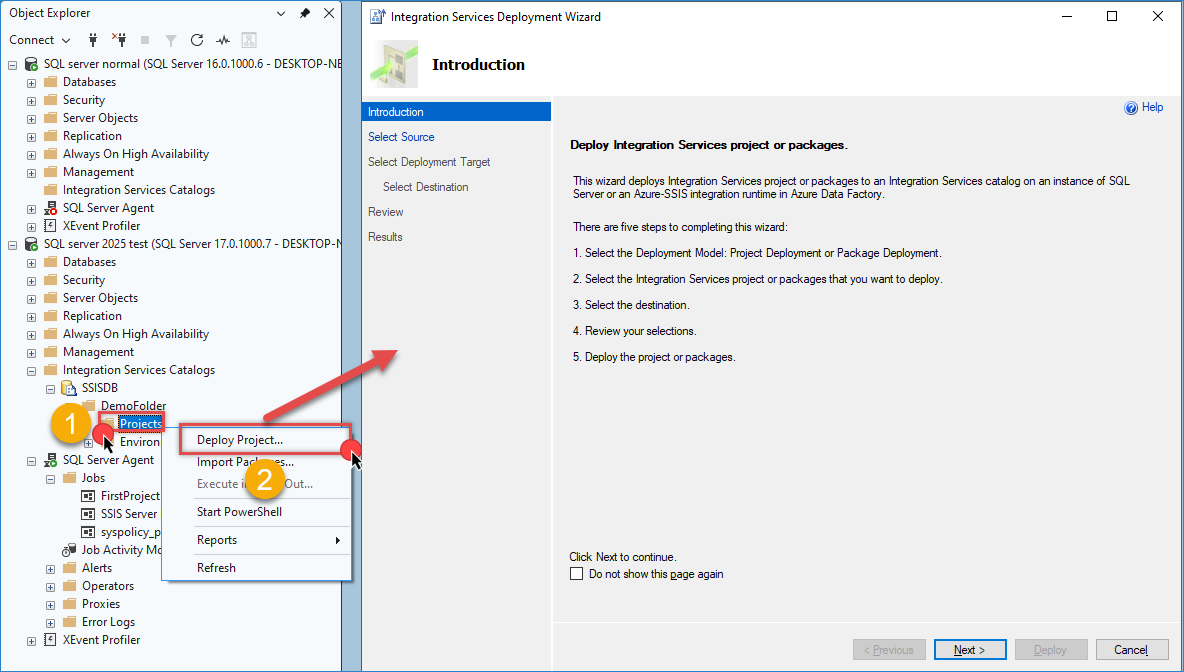
Right-click the newly created folder and select Deploy Project.
-
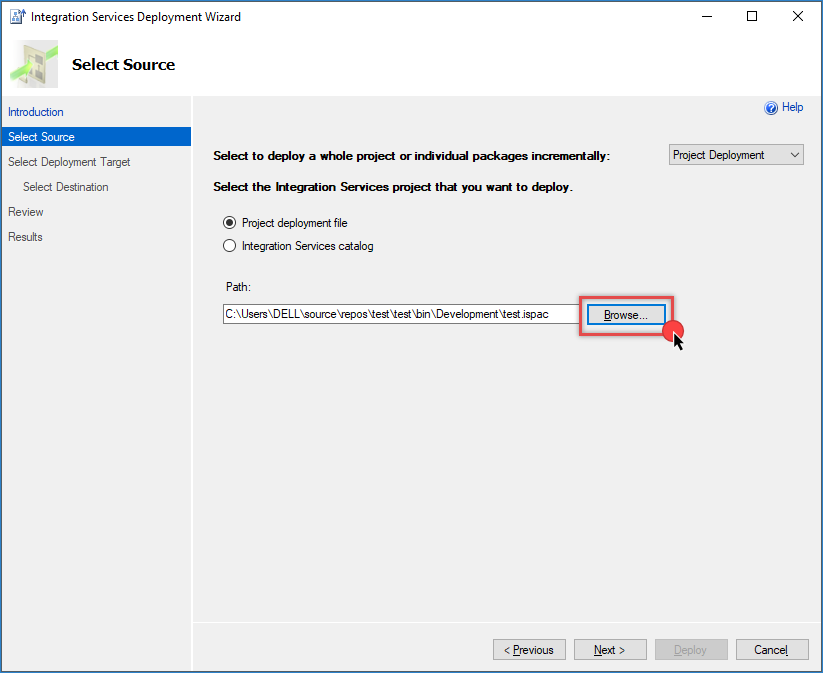
Select the
.ispacfile generated from your SSIS project, click Next, and choose SSIS in SQL Server.
-
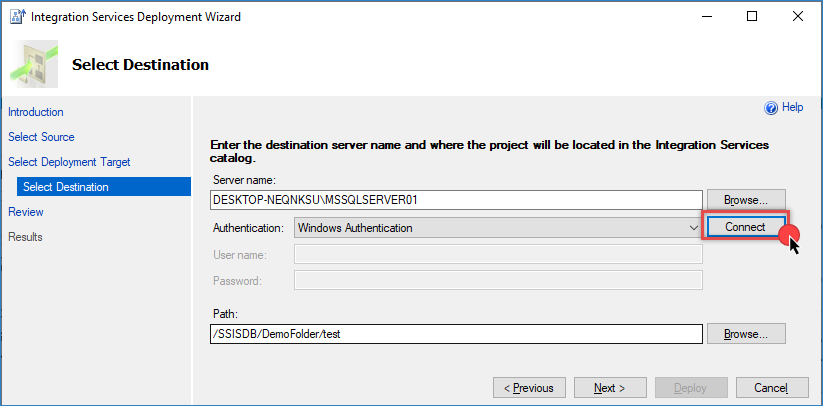
Enter the server name, click Connect, verify the target path created in the previous step, and click Next.
-
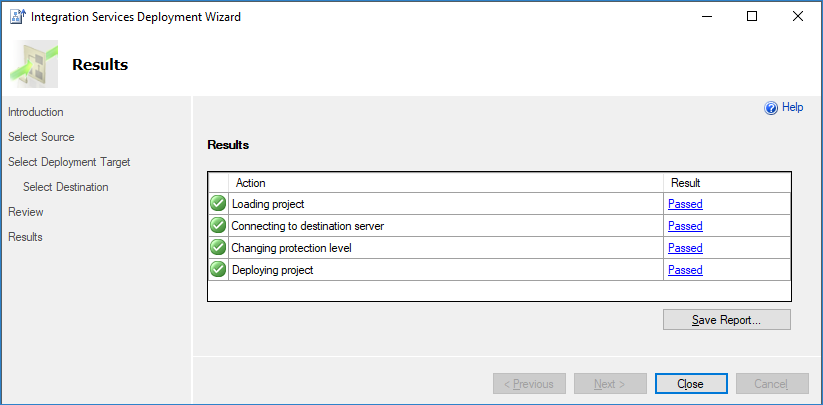
Continue clicking Next until the Deploy button is available. Click Deploy, and then click Close once deployment completes.
Step 4: Create a SQL Server agent job
-
In SSMS, expand SQL Server Agent and ensure the service is running.
-
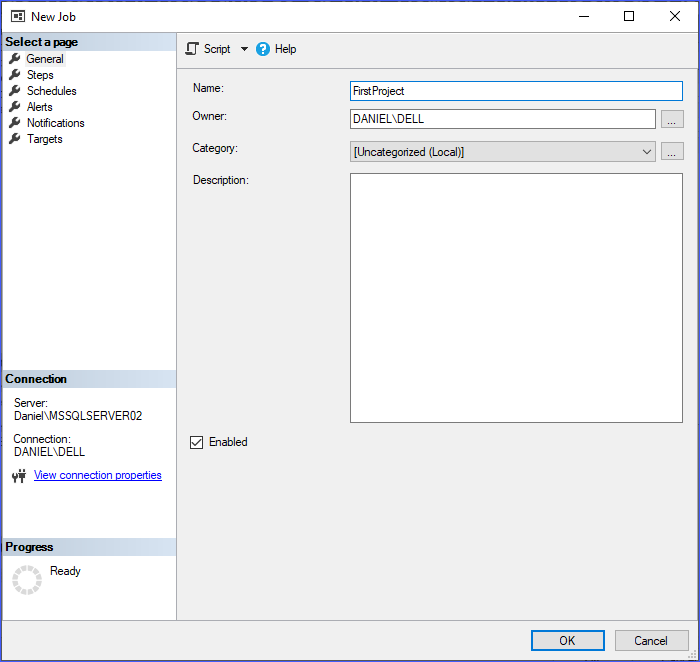
Right-click Jobs and select New Job.
-
In the General tab, enter a job name (for example,
FirstProject).
-
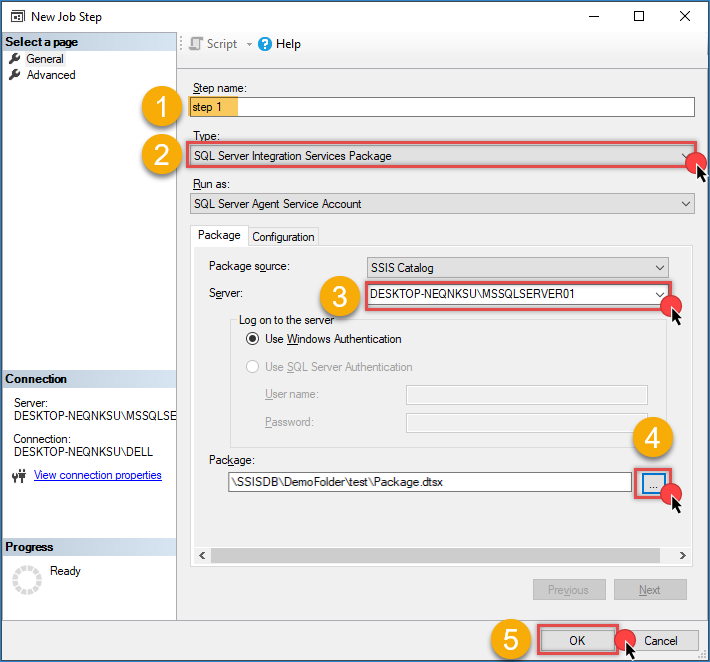
Go to the Steps tab and click New.
-
Enter a step name.
-
For Type, select SQL Server Integration Services Package.
-
For Run as, select SQL Server Agent Service Account.
-
For Package source, select SSIS Catalog for SSISDB deployments or File System for
.dtsxfiles. -
Specify the server name and package path, then click OK.
-
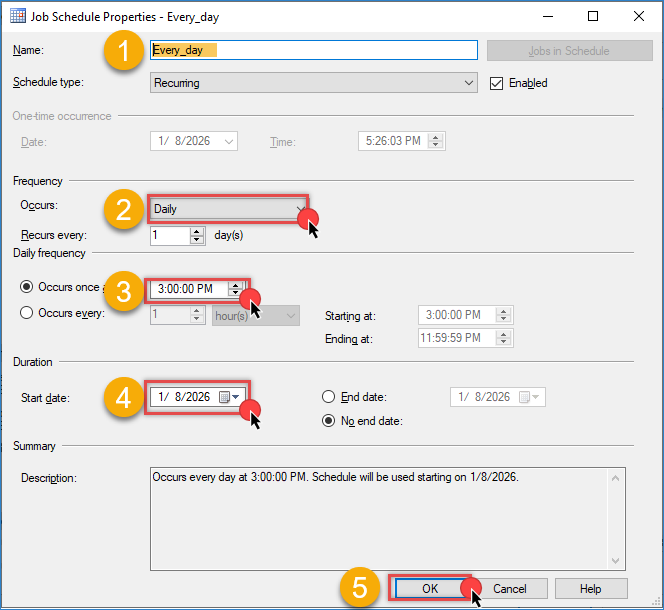
Go to the Schedules tab and click New.
-
Enter a schedule name.
-
Define the execution frequency (for example, daily or weekly).
-
Configure the start time and recurrence.
-
Click OK to save the schedule.
-
Click OK to save the job.
Step 5: Run and monitor the job
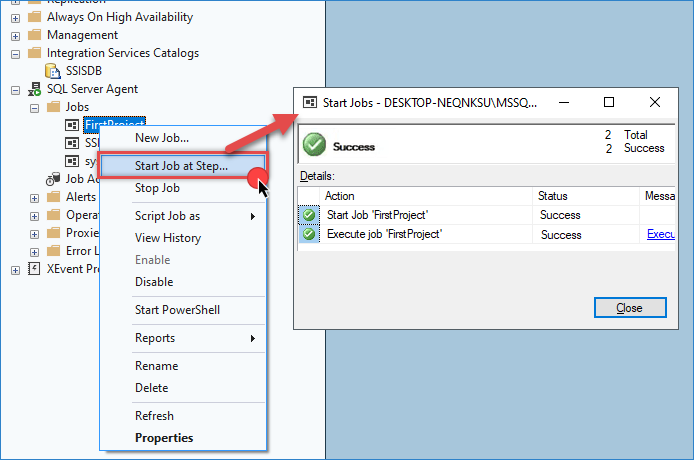
- In SSMS, navigate to SQL Server Agent → Jobs.
- Right-click the job and select Start Job at Step.
- Monitor the execution dialog and confirm that all steps complete successfully.
Conclusion
Deploying SSIS packages that use the ZappySys SSIS PowerPack to SQL Server 2025 is straightforward when you follow a structured installation, deployment, and scheduling process. By installing SQL Server correctly, deploying packages to SSISDB, and automating execution with SQL Server Agent, you can build reliable and scalable data integration workflows.
Explore our SSIS PowerPack for more information and download and install it to start building smarter, faster, and more scalable solutions.
References
- How to design, debug, deploy, schedule SSIS Package (In SQL Agent and Catalog)
- How to parameterize properties in SSIS package and configure them in a SQL job
- SSIS PowerPack
Contact us
If you encounter any issues or have specific questions, reach out to our support team via live chat or support ticket using our email support@zappysys.com.