Introduction
MariaDB is a popular open-source relational database management system widely used by businesses for data storage and management. Many organisations need to integrate MariaDB data with Excel for reporting, analysis, and business intelligence purposes.
Using the ZappySys ODBC Driver for MariaDB, you can easily query database tables directly from Excel using standard SQL queries without writing custom code or VBA scripts. This enables both technical and non-technical users to access live database data and create dynamic reports and dashboards.
Prerequisites
- Download and install the ZappySys ODBC PowerPack
- A MariaDB database containing tables and data
- Microsoft Excel installed (Excel 2016 or later recommended)
- Basic knowledge of SQL queries and Excel
Steps
Create MariaDB ODBC Data Source (DSN)
- We already have a detailed tutorial about how to connect to MariaDB using ZappySys ODBC in this article
- In the preview section, you can use the following SQL queries to retrieve information from your MariaDB tables.
Example 1: Query all active products
Retrieve all active products sorted by product name:
SELECT
    id,
    product_name,
    price,
    stock,
    active_status
FROM products
WHERE active_status = TRUE
ORDER BY product_name ASC;
This query retrieves only active products currently available for sale.
Example 2: Query products currently in stock
Retrieve products with stock greater than zero:
SELECT
    id,
    product_name,
    price,
    stock
FROM products
WHERE stock > 0
AND active_status = TRUE
ORDER BY stock DESC;
This helps identify available inventory and stock quantities.
Example 3: Query products by price range
Retrieve products within a specific price range:
SELECT
    id,
    product_name,
    price,
    stock,
    active_status
FROM products
WHERE price BETWEEN 100 AND 250
AND active_status = TRUE
ORDER BY price ASC;
Useful for analysing pricing tiers and inventory distribution.
Example 4: Identify low stock products
Retrieve products with low inventory levels:
SELECT
    id,
    product_name,
    price,
    stock,
    CASE
        WHEN stock < 10 THEN 'Critical'
        WHEN stock < 20 THEN 'Low'
        ELSE 'Adequate'
    END AS stock_level
FROM products
WHERE stock < 20
AND active_status = TRUE
ORDER BY stock ASC;
This query helps identify products that may require restocking.
Connect Excel to MariaDB ODBC
-
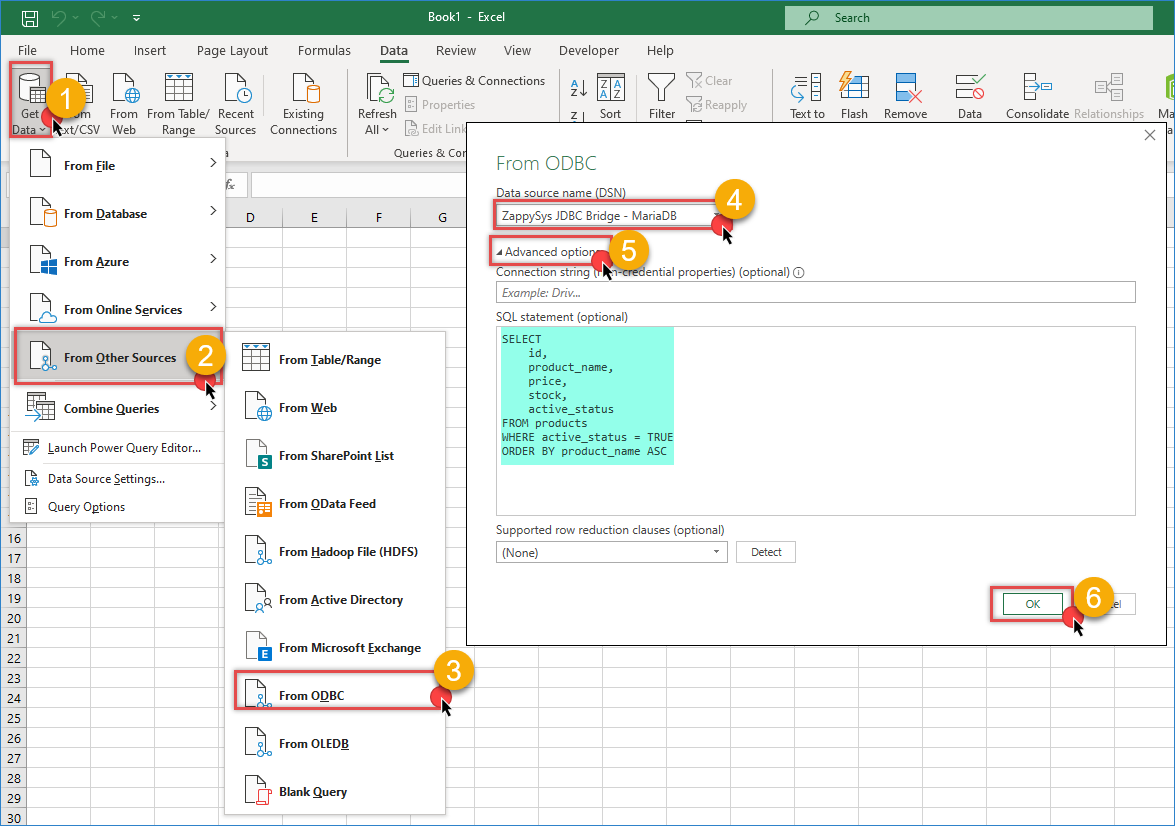
Open Microsoft Excel
-
Click the Data tab in the ribbon
-
Click Get Data (newer Excel versions) or From Other Sources (older Excel versions)
-
Select From ODBC
-
In the ODBC dialog, select your MariaDB ODBC DSN from the dropdown list
-
Click Advanced Options and paste the SQL query you want to execute
-
Click OK to establish the connection
-
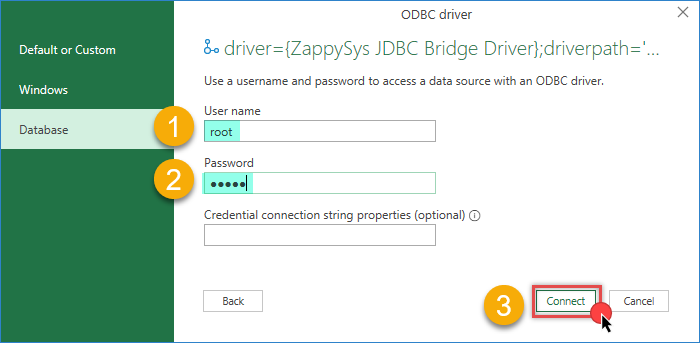
Enter the credentials used to connect to MariaDB if prompted
-
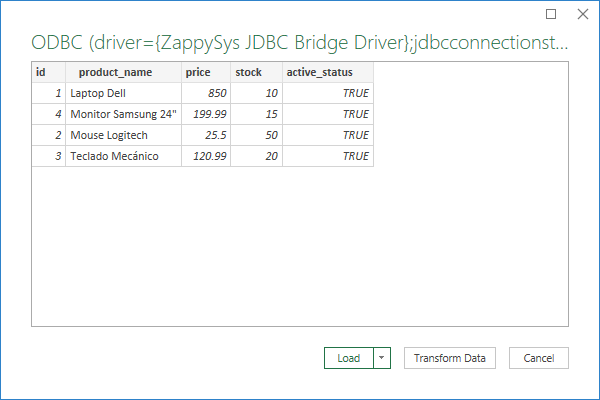
Excel will display the query results. Click Load to import the data into the worksheet
-
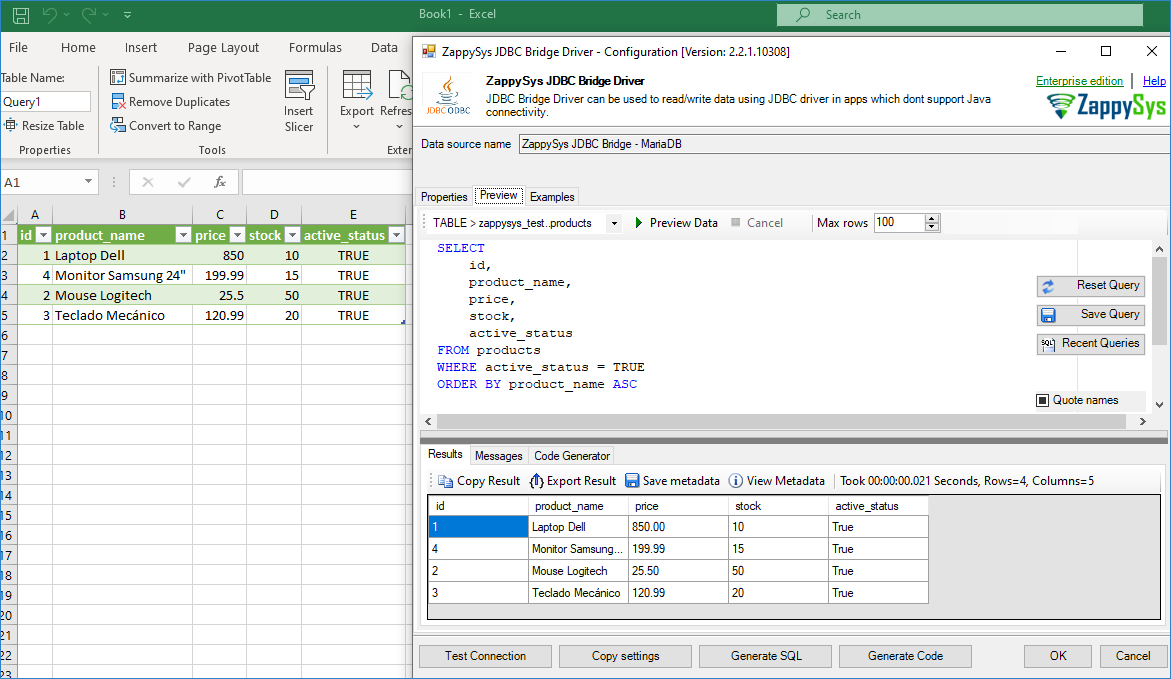
You can now create reports, charts, pivot tables, and dashboards using live MariaDB data
Troubleshooting Common Issues
Connection Failed — Verify that your MariaDB server is running and accessible. Check that the hostname, port number, username, and password are correct. Also ensure that firewall settings are not blocking the connection.
No Tables Visible — Verify that your MariaDB user account has SELECT permissions on the database and tables. Contact your database administrator if necessary.
Query Returns No Data — Review your WHERE clause filters and confirm that the table names and column names match your database schema exactly (MariaDB object names may be case-sensitive depending on the operating system configuration).
Very Slow Data Import — Use WHERE clauses to limit the number of rows returned. Consider importing smaller datasets or using filters for incremental loading scenarios.
Circular Reference Error — Ensure that Excel formulas do not reference the same cells being populated by imported data. Use helper columns if necessary.
Data Does Not Refresh — Verify that the ODBC connection is still valid and the MariaDB server is online. Check whether credentials or server settings have changed.
Excel Crashes During Refresh — Large datasets may consume significant memory. Consider splitting queries into smaller datasets or using Power Query to better handle large imports.
Conclusion
Connecting MariaDB to Excel using the ZappySys ODBC Driver allows you to create powerful reports and dashboards without requiring complex integrations or programming. By following the steps in this tutorial, you can query MariaDB data using standard SQL queries and build interactive spreadsheets for reporting, inventory tracking, analytics, and business intelligence.
Explore our ODBC PowerPack for more information and download and install it to start building smarter, faster, and more scalable solutions.
Need Help?
If you encounter any issues, our support team is here to help:
- Live Chat — Use the chat widget (bottom-right corner of this page)
- Email — support@zappysys.com
- Support Center — Visit the ZappySys Support Portal
- Community Forums — Post your questions in our community discussion boards