Introduction
The ZappySys Compression Task can compress and decompress files in formats such as ZIP and GZIP. They look similar but work differently: ZIP packs multiple files into a single archive, while GZIP compresses one file at a time. This article shows how to use each format with the Compression Task, with a video tutorial for each, and explains when to choose one over the other.
Prerequisites
- Download and install the ZappySys SSIS PowerPack.
Steps
Method 1: ZIP (many files into one archive)
-
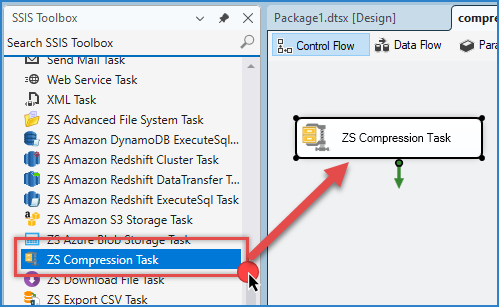
Drag a Compression Task onto the Control Flow and double-click it to edit.
-
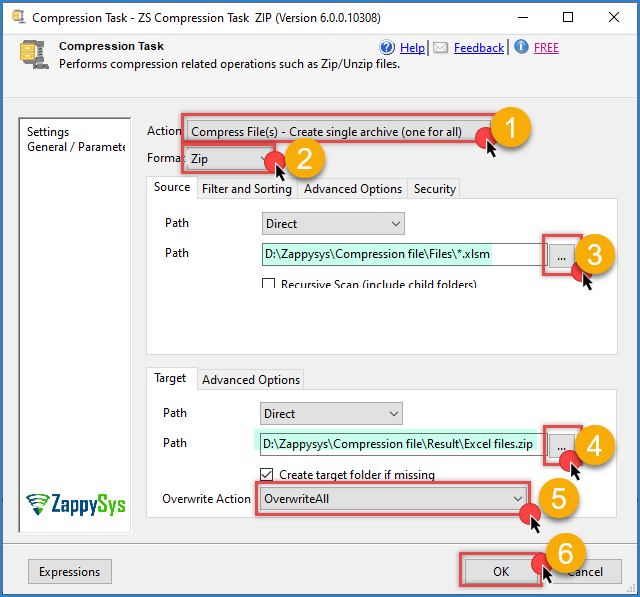
Choose the option to Create a single archive(one for all).
-
Select the source files using a wildcard, for example:
*.xlsm -
Set the destination folder and the archive name, for example:
Excel files.zip -
Choose the Overwrite action for when the ZIP already exists, then click OK to save.
-
Run the package and check that the ZIP file was created in the destination folder.
-
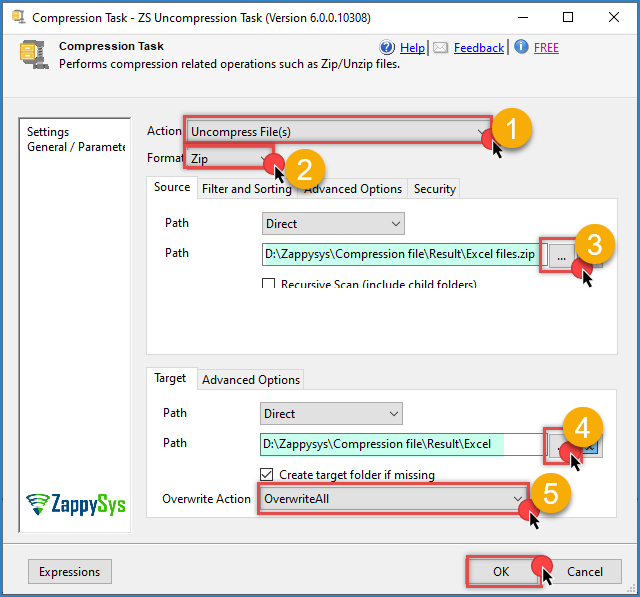
To decompress, switch the task to the decompress action, point it to the ZIP file, set the destination folder, and run the package again.
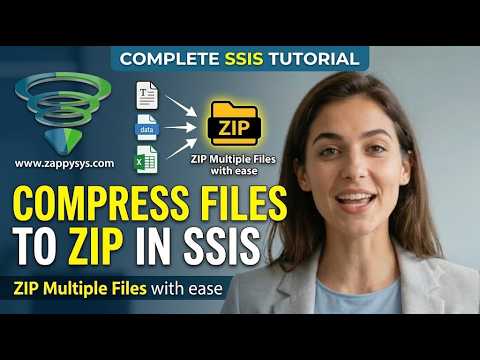
Video tutorial:
Method 2: GZIP (one compressed file per source file)
-
Drag a Compression Task onto the Control Flow and double-click it to edit.
-
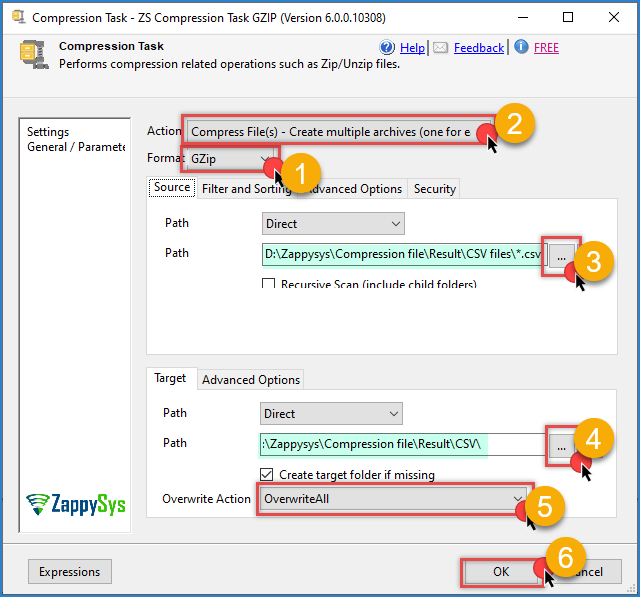
Change the format from ZIP to GZip. The action automatically changes to **Create multiple archives(one for each ).
-
Select the source files, for example, large CSV files:
*.csv -
Set the destination folder.
-
Click OK to save, then run the package. Each source file produces its own compressed file, for example,
Sales.csv.gz.
-
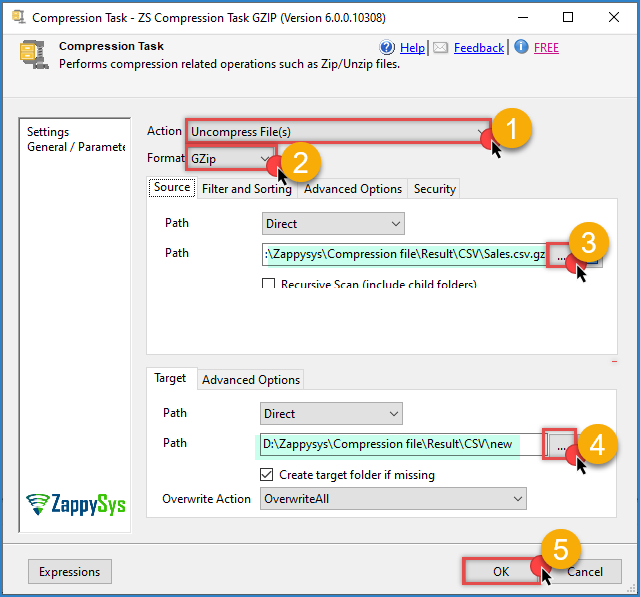
To decompress, use the decompress action, select the folder where the
.gzfiles are, and run the package.
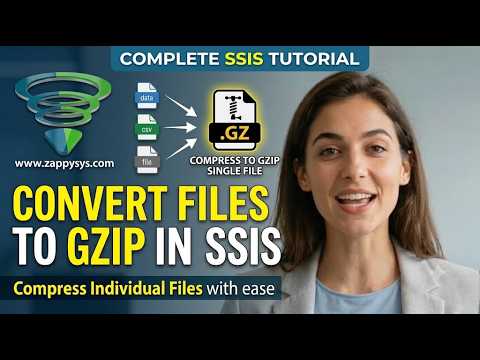
Video tutorial:
ZIP vs GZIP: key differences
- Multiple files: ZIP can store many files and folders in one archive. GZIP compresses a single file only, so 10 source files give you 10
.gzfiles. - Output name: ZIP lets you choose the archive name (for example,
Excel files.zip). GZIP keeps the original file name and adds.gz. - Password and encryption: ZIP supports password protection and encryption. GZIP does not have built-in password protection.
- Best use: ZIP is good for bundling and sending a set of files together. GZIP is good for shrinking large single files, such as big CSV, JSON, or log files, before storing or transferring them.
- Compatibility: Both formats are widely supported. Many APIs and tools accept
.gzfor single large files, while ZIP is more common for users who open archives manually.
Notes
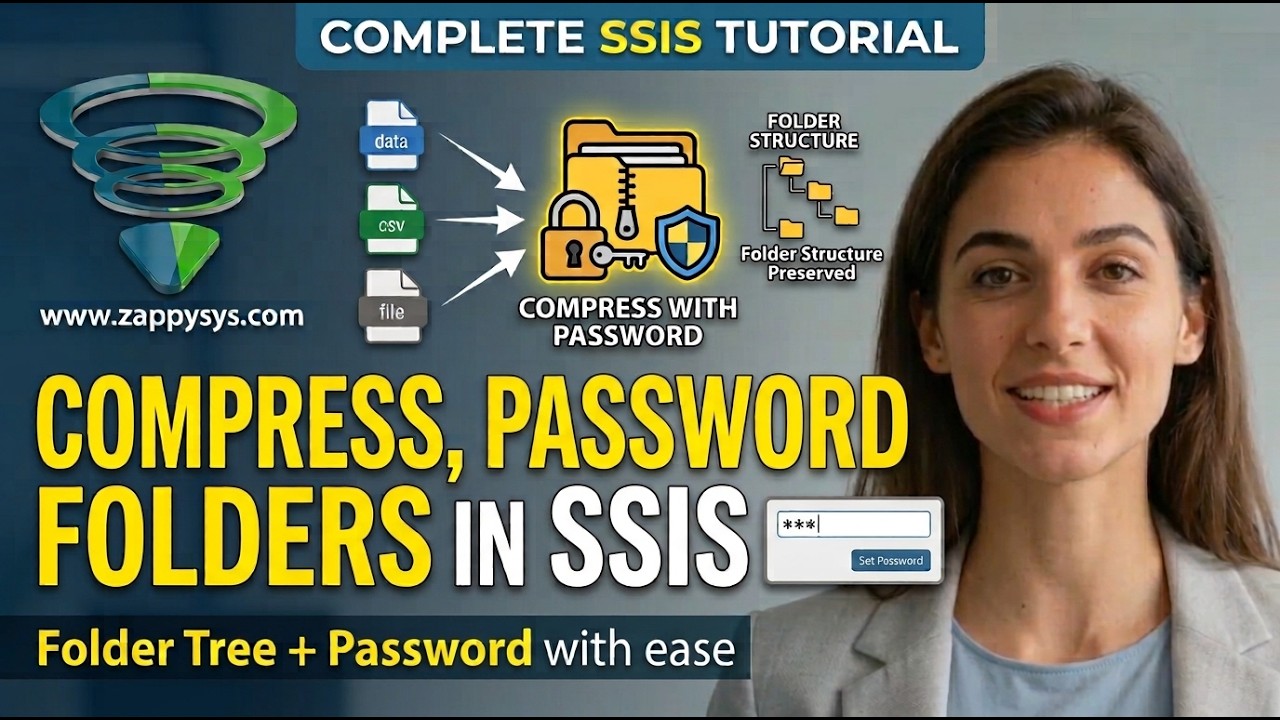
- If you need a folder structure inside a single archive, use ZIP. GZIP does not keep folders. Here is a video tutorial for this case:
- If a task needs one compressed file per source file (for example, to load each one separately later), GZIP is the simpler choice.
Conclusion
Use ZIP with the Compression Task when you want to bundle several files into one archive, optionally with a password. Use GZIP when you want to compress each file individually, especially large CSV or text files. In both cases, the same task handles compression and decompression; you just need to change the format.
Explore our SSIS PowerPack for more information and download and install it to start building smarter, faster, and more scalable solutions.
Still need help?
If you need assistance using the Compression Task, please get in touch with our support team:
- Live Chat: Open the chat widget (bottom right of this page)
- Email: support@zappysys.com
- Support Center: Support | ZappySys