If you want to gather more detailed information about an issue with ZappySys Data Gateway, follow the steps below to enable logging:
-
Open the ZappySys Data Gateway Configuration window.
-
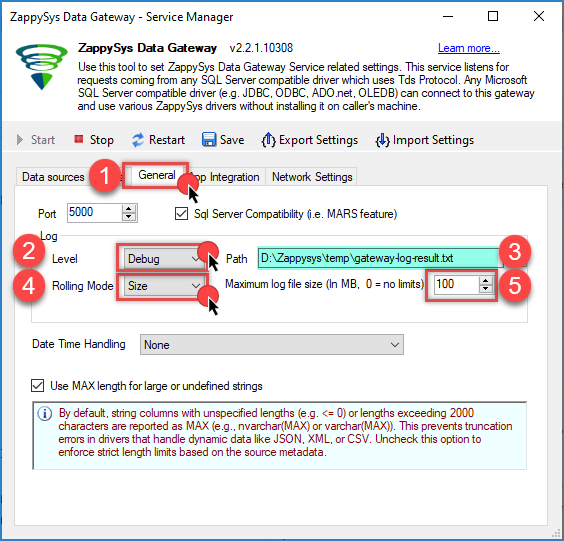
Click on the General tab.
-
Configure the logging options:
- Set Log Level to Debug.
- Enter a local file path where the log file will be saved.
- Rolling Mode choose between Size or Days.
- Specify the Maximum Log File Size (MB) or Max files to keep depending on the option from the Rolling Mode.
NOTE: After you finish troubleshooting, make sure to disable logging. Otherwise, log files may continue growing and fill up your disk space (this applies to older versions). Newer versions support rolling logs by day or by size (default: 100 MB and 90 days).
-
Press restart or Start the ZappySys Data Gateway. The gateway will generate detailed information in the specified log file.
-
If the connection test is successful, the log file should contain entries similar to the following:
SystemInfo: Is Server: False, Machine: xxxxxxxxxxxxx, Ver: 2025.12.17.11217, SSL: 1.0,, Date: Mar-03-2026, MachineHash=xxxxxxxxxxxxx
Command Line: "C:\Program Files (x86)\ZappySys\ZappySys ODBC PowerPack\ZappySys.TdsServer.WindowsService\ZsTdsService.exe"
License Files:
 >> C:\ProgramData\ZappySys\ODBCPowerPack\ODBC_PP_ENT.lic.xxxxxxxxxxxxx
 >> C:\ProgramData\ZappySys\ODBCPowerPack\ODBC_PP_TRIAL.lic.xxxxxxxxxxxxx
 >> C:\ProgramData\ZappySys\SSISPowerPack\SSIS_PP_ENT.lic.xxxxxxxxxxxxx
 >> C:\ProgramData\ZappySys\SSISPowerPack\SSIS_PP_TRIAL.lic.xxxxxxxxxxxxx
=== end of log ===
- If there is an issue, you may see an error similar to this:
05/03 11:18:06.884: Connection: System.Net.Sockets.SocketException (0x80004005): A blocking operation was interrupted by a call to WSACancelBlockingCall
   en System.Net.Sockets.Socket.Accept()
   en System.Net.Sockets.TcpListener.AcceptTcpClient()
   en MsSql.TDS.EndPoint.TDSServerEndPoint.JhU=()
=== end of log ===