You may need to verify that a remote server is listening on a specific port (for example, ZappySys Data Gateway on Port 5000). ZappySys Data Gateway is a tool for secure data access and integration—see official documentation for details. Here’s how to test this connectivity.
Step 1: Test Port Locally on the Remote Machine
First, verify the service is listening on the target port on the machine where it’s running:
-
Log in to the remote machine where the service is running
-
Open PowerShell
-
Run the command below, replacing
5000with your actual port number:
Test-NetConnection -ComputerName 127.0.0.1 -Port 5000
- If you see
TcpTestSucceeded : True, the service is listening on that port
Step 2: Test Remote Connection from Another Machine
Now test if you can connect to the remote service from a different computer:
-
Log in to another PC from which you need to access the remote service
-
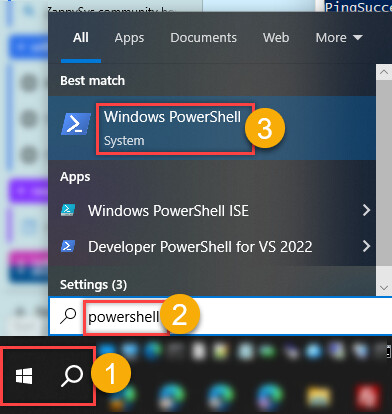
Open PowerShell (search for it in the Start menu)
- Run the command below, replacing
192.168.50.246with the remote server’s IP address and5000with the port:
Test-NetConnection -ComputerName 192.168.50.246 -Port 5000
- If you see
TcpTestSucceeded : True, the remote port is accessible and firewall rules are not blocking it
Successful connection example:

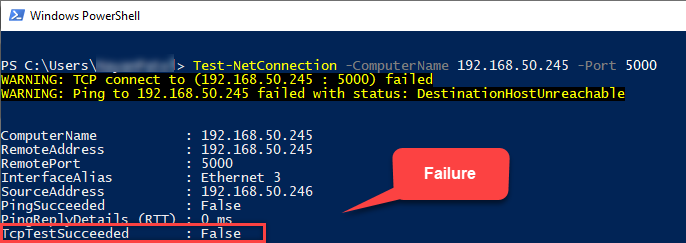
Failed connection example:
Step 3: If the Connection Fails—Create a Firewall Inbound Rule
If you cannot connect from the remote PC, the firewall is likely blocking inbound traffic. You’ll need to create an inbound firewall rule.
For example, to allow ZappySys Data Gateway traffic on Port 5000:
- Create the firewall rule in the service settings:

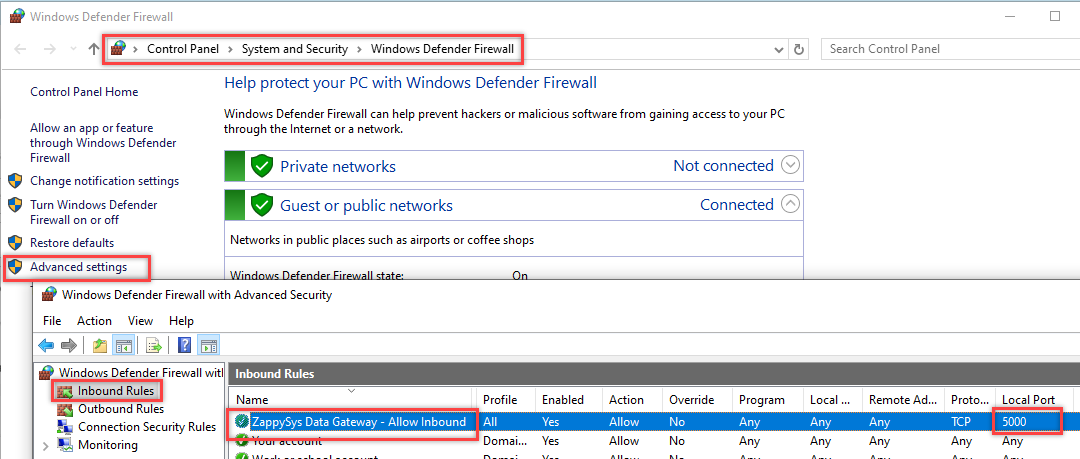
- Verify the inbound rule appears in Windows Firewall:
Step 4: Check if your Anti-Virus Software blocking Inbound Traffic
Sometimes its possible your Anti-Virus Software is calusing block so please confirm that.