When calling the Google PageSpeed Insights API from SSIS, you may occasionally see requests hang or fail with a timeout-style error, especially when looping through many URLs.
This article shows two settings you should configure in ZappySys SSIS PowerPack when using JSON Source (REST API or File) or a REST/API task to call Google PageSpeed Insights:
- Set a reasonable Request Timeout
- Configure Response Error Handling so the package can continue when a timeout message is detected
This is useful when your SSIS package loops through many websites and you do not want one slow or stuck PageSpeed API call to block the entire package.
Problem
A common package design is:
-
Read a list of website URLs from a table
-
Loop through each website
-
Build a Google PageSpeed Insights API URL dynamically
-
Call the API using ZappySys JSON Source (REST API or File) or a REST API task
-
Save the result to a database table
Example API pattern:
https://www.googleapis.com/pagespeedonline/v5/runPagespeed?url=https://example.com&strategy=desktop&key=YOUR_API_KEY
In some cases, the API works:
-
In a browser
-
In Chrome
-
In Preview mode inside the JSON Source UI
But during package execution, after a few loop iterations, the request may appear to hang or eventually fail with an error such as:
The operation has timed out
or similar timeout-related text.
The goal is usually not to fail the whole SSIS package. Instead, the package should skip that URL, optionally log the failed URL, and continue processing the next website in the loop.
Recommended Settings
Step 1 — Set Request Timeout
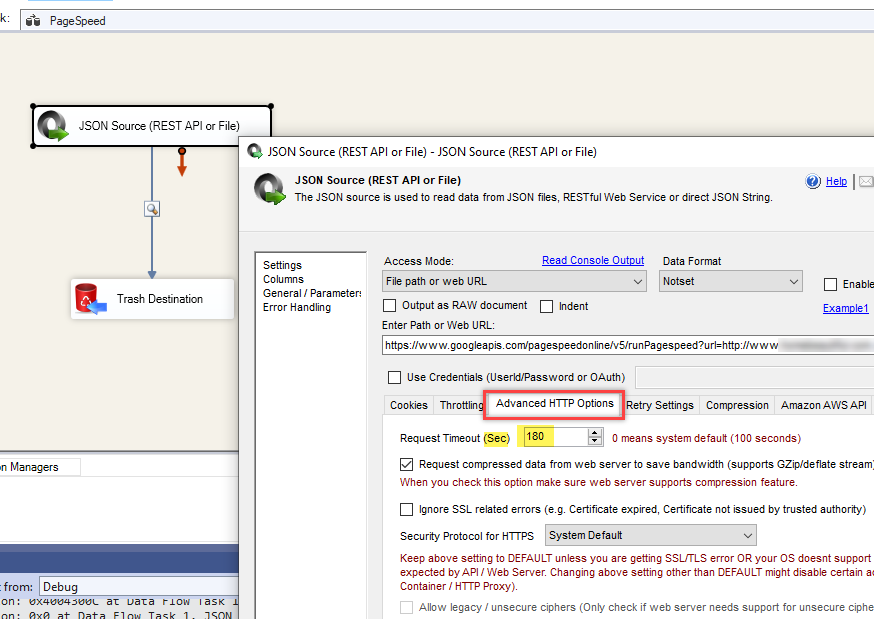
Open your JSON Source (REST API or File) component.
Go to:
Settings > Advanced HTTP Options
Set Request Timeout (Sec) to a reasonable value, for example:
180
Use a timeout value that makes sense for your package. For Google PageSpeed Insights, the API can sometimes take longer than normal, so you may want to test with values such as 30, 60, or 100 seconds depending on your business requirement.
Do not leave the timeout too high if your goal is to avoid long-running package hangs.
Screenshot Placeholder — Request Timeout
Step 2 — Continue When Timeout Error Message Is Found
Next, configure response error handling.
Go to:
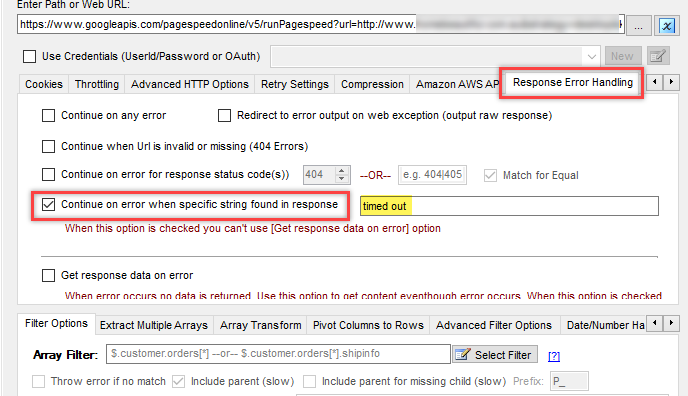
Settings > Response Error Handling
Enable:
Continue on error when specific string found in response
Then enter a timeout-related substring such as:
timed out
or more specific text such as:
operation timed out
This tells the component that when the error text contains the configured substring, the component should continue instead of failing the package.
Screenshot Placeholder — Response Error Handling
Suggested Configuration
For a PageSpeed API loop, a practical starting point is:
Request Timeout (Sec): 180

Continue on error when specific string found in response: Enabled

String to match: timed out
If you are testing aggressively and want fast failure during debugging, you can temporarily use:
Request Timeout (Sec): 5

String to match: timed out
For production, 5 seconds may be too low for PageSpeed Insights because the API can legitimately take longer than that for some pages.
Important Notes
1. Do not expose your Google API key
If you are posting examples in a support ticket, forum, community article, or screenshot, mask your API key.
Use this style instead:
https://www.googleapis.com/pagespeedonline/v5/runPagespeed?url=https://example.com&strategy=desktop&key=YOUR_API_KEY
Avoid posting the real key publicly.
2. Use a secure SSIS parameter or variable for the API key
Instead of hardcoding the API key directly in the URL, store it in a secure SSIS parameter, project parameter, environment variable, or another secure configuration source.
Example URL pattern:
https://www.googleapis.com/pagespeedonline/v5/runPagespeed?url={{WebsiteUrl}}&strategy=desktop&key={{GoogleApiKey}}
The exact variable syntax depends on how your package builds the final URL.
3. Log failed URLs
When using this approach in a loop, it is a good idea to log the URL that timed out.
For example, save the following details to a table:
WebsiteUrl

Strategy

ExecutionDateTime

Status

ErrorMessage
Example status values:
Success

TimedOut

Failed

Skipped
This allows you to retry only failed or timed-out URLs later instead of reprocessing everything.
4. Consider API limits and throttling
Google PageSpeed Insights can be slower or less consistent when many requests are fired in a short time. If your loop processes many URLs, consider adding throttling between requests.
In ZappySys components, review the available throttling/retry settings and adjust based on your use case.
For example:
Delay between calls

Retry count

Retry interval
This can reduce failures caused by temporary API delays or rate limiting.
Example Use Case
Suppose your package loops through these URLs:
https://www.site-1.com

https://www.site-2.com

https://www.site-3.com
For each URL, your package dynamically creates a PageSpeed Insights API URL like this:
https://www.googleapis.com/pagespeedonline/v5/runPagespeed?url=https://www.site-1.com&strategy=desktop&key=YOUR_API_KEY
If one URL times out, the package should not remain stuck for hours. With the timeout and error-handling settings configured, the package can continue to the next URL.
Troubleshooting Checklist
Use this checklist if the package still appears to hang:
-
Confirm the timeout is set under Advanced HTTP Options
-
Confirm the timeout value is not too high
-
Confirm Continue on error when specific string found in response is enabled
-
Try matching a broader substring such as
timed out -
Confirm your package is not hanging in another task before or after the API call
-
Test with fewer URLs first
-
Add logging before and after the API call to identify the exact loop item causing the delay
-
Consider adding throttling or retry delay between API calls
-
Confirm the API key is valid and has quota available
-
Confirm the generated URL is correct during runtime, not just in Preview mode
Final Recommendation
For Google PageSpeed Insights API calls inside an SSIS loop, do not rely only on the default behavior. Configure both:
Advanced HTTP Options > Request Timeout
and:
Response Error Handling > Continue on error when specific string found in response
Use a timeout-related substring such as:
timed out
This gives the package a better chance to continue processing the next URL instead of failing or appearing stuck on a single API request.
Related Products
This approach applies to ZappySys SSIS PowerPack components such as:
-
JSON Source (REST API or File)
-
REST API Task
-
Other HTTP/REST-based components where timeout and error-handling options are available