Accessing data from ODBC data sources in SQL Server is a common requirement, especially when working with third-party systems, legacy databases, or SaaS platforms. While SQL Server provides a native way to connect to ODBC sources using Linked Servers (MSDASQL), this approach often leads to compatibility issues, driver limitations, and cryptic errors.
Overview: ODBC Access Options in SQL Server
There are two common approaches to access ODBC data from SQL Server:
- Direct ODBC Linked Server (MSDASQL)
- ZappySys Data Gateway (recommended)
Although the first option looks simple, it is often unstable in real-world scenarios.
Why Direct ODBC Linked Servers Often Fail
When you create a linked server using MSDASQL and an ODBC DSN, SQL Server relies on the OLE DB–ODBC bridge, which is known to be fragile.
Common Errors
Below is a simple example error when attempting to read data from Oracle using a SQL Server Linked Server configured with an ODBC DSN, the following error may occur:
Msg 7399, Level 16, State 1, Line 1
The OLE DB provider "MSDASQL" for linked server "LS_TO_ORACLE_IN_GATEWAY"
reported an error. The provider did not give any information about the error.

Msg 7303, Level 16, State 1, Line 1
Cannot initialize the data source object of OLE DB provider "MSDASQL"
for linked server "LS_TO_ORACLE_IN_GATEWAY".
Root Causes of These Errors
These errors are typically caused by one or more of the following:
- ODBC driver not fully compatible with OLE DB
- 32-bit vs 64-bit driver mismatch
- DSN created under a different Windows user context
- SQL Server service account cannot access the DSN
- Driver does not support required metadata calls
- Poor error reporting from MSDASQL
- Limited support for modern authentication (OAuth, tokens, SSL)
As a result, even a correctly configured DSN may fail unpredictably.
Why Use ZappySys Data Gateway Instead
ZappySys Data Gateway acts as a robust abstraction layer between SQL Server and ODBC data sources.
Key Advantages
- Does not rely on MSDASQL
- Handles driver quirks and metadata mismatches
- Supports modern ODBC drivers and authentication
- Works reliably under SQL Server service accounts
- Provides clearer error handling and logging
- Production-ready and easier to troubleshoot
In short, it avoids the fundamental limitations of SQL Server’s native ODBC bridge.
Architecture: How ZappySys Data Gateway Works
- SQL Server connects to ZappySys Data Gateway
- ZappySys Data Gateway connects to the ODBC DSN
- Data is returned to SQL Server using a stable provider interface
This separation eliminates most compatibility and initialization issues.
Prerequisites
Before you begin, ensure the following:
- Download and install ODBC PowerPack.
- Required ODBC driver is installed (64-bit recommended)
- ODBC DSN is created and tested
- SQL Server service account has access to the DSN
- Proper permissions are granted on SQL Server
Step-by-Step: Access ODBC DSN Using ZappySys Data Gateway
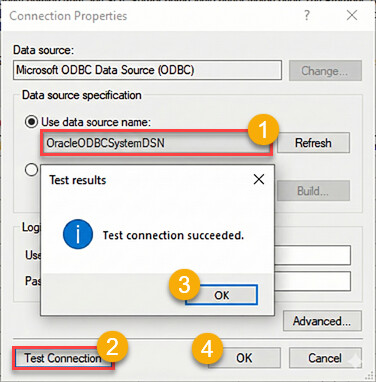
Step 1: Create or Verify the ODBC DSN
- Open ODBC Data Sources (64-bit)
- Create a System DSN
- Test the connection successfully
Important: Always use a System DSN, not a User DSN.
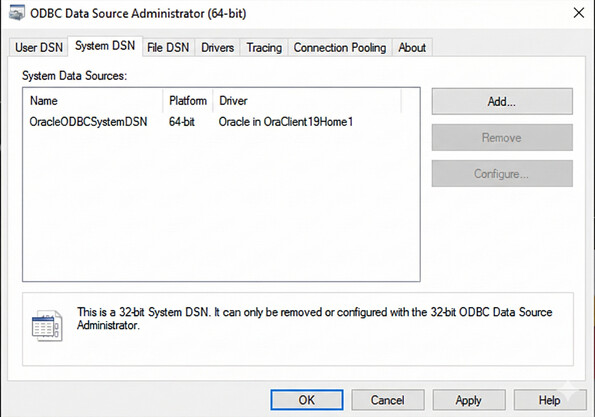
Step 2: Configure ZappySys Data Gateway
-
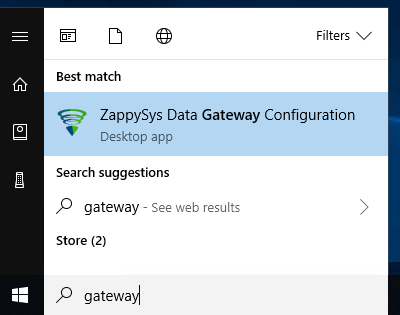
Search for
gatewayin Windows Start Menu and open ZappySys Data Gateway Configuration:
-
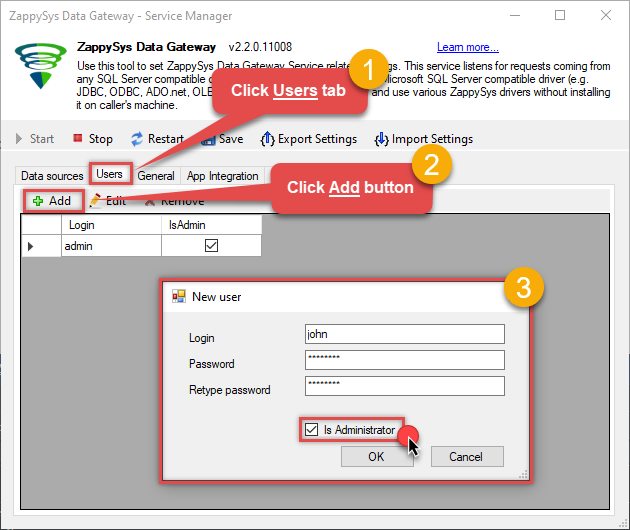
Go to Users tab and follow these steps to add a Data Gateway user:
- Click Add button
- In Login field enter username, e.g.,
john - Then enter a Password
- Check Is Administrator checkbox
- Click OK to save
-
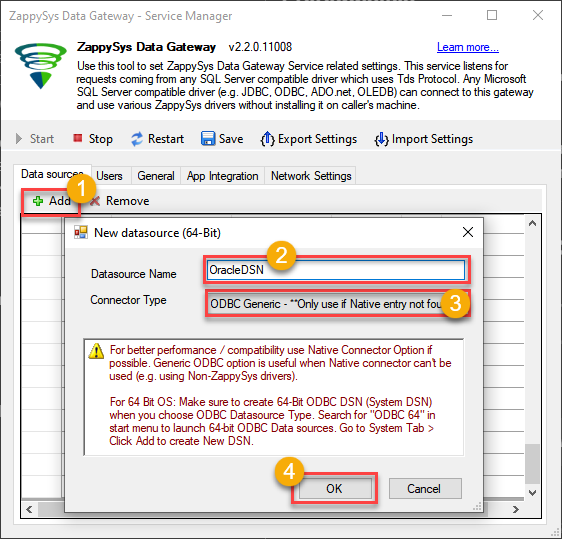
Now we are ready to add a data source:
- Click Add button
- Give Datasource a name (have it handy for later)
- Then select ODBC Generic
- Finally, click OK
-
Now, we need SalesForce Connection. Lets create it.
- Select your desired ODBC DSN
- Test the Connection
- Finally, click OK
-
That’s it, the ODBC generic data source is created in the Zappysys Data Gateway
-
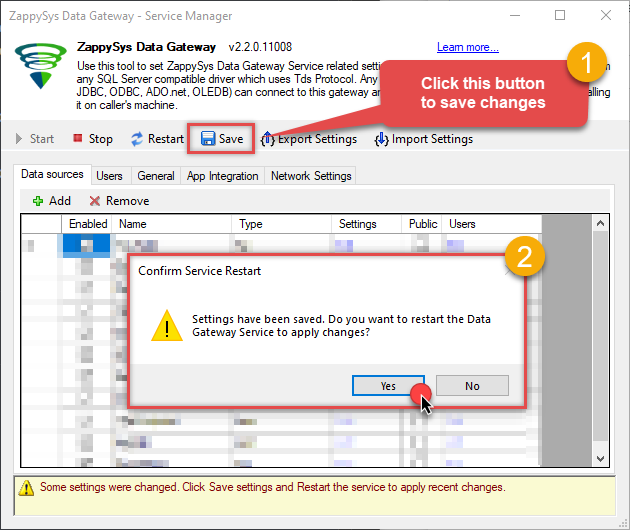
Crucial step. Now, after creating or modifying the data source make sure you:
- Click the Save button to persist your changes.
- Hit Yes, once asked if you want to restart the Data Gateway service.This will ensure all changes are properly applied:
Step 3: Create Linked Server to ZappySys Gateway
In SQL Server, create a linked server pointing to ZappySys Data Gateway, not directly to the ODBC driver.
The fastest and most reliable way to create the Linked Server is to use the SQL Script generated by the Data Gateway. This ensures all settings are applied correctly with minimal manual steps.
-
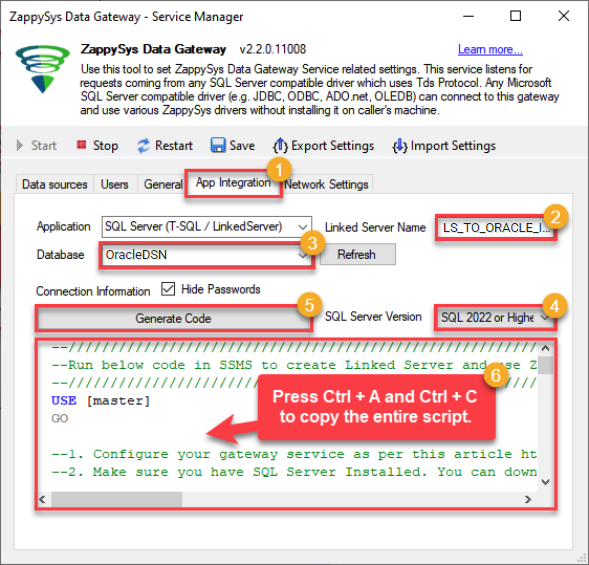
In the Data Gateway, open the App Integration tab.
-
Update the prefilled Linked Server Name if you want to use a custom name.
-
Select the SalesforceDSN data source which we created earlier as the Database.
-
Choose the correct SQL Server version for your environment.
- SQL 2019 or Lower (
@provider='SQLNCLI11') - SQL 2022 or Higher (
@provider='MSOLEDBSQL')
- SQL 2019 or Lower (
-
Click Generate Code.
-
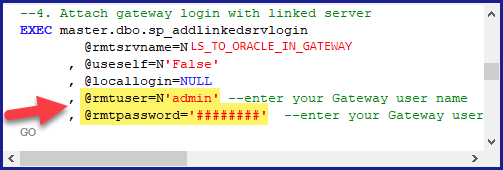
In the generated script scroll down to 4. Attach Gateway login with linked server step, enter your Data Gateway admin username and password.
-
Press Ctrl + A and Ctrl + C to copy the entire script.
-
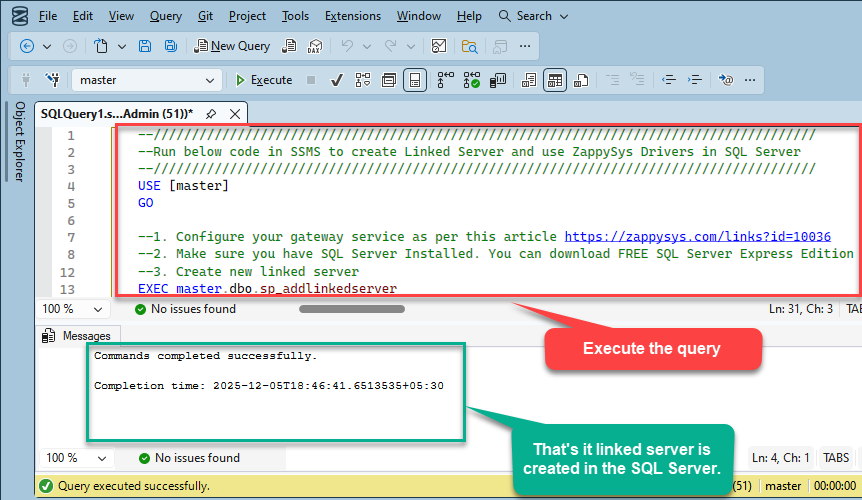
Paste the script into SQL Server Management Studio (SSMS) and run it.
-
That’s it, the linked server is created in the SQL Server.
Step 4: Query the ODBC Data Source from SQL Server
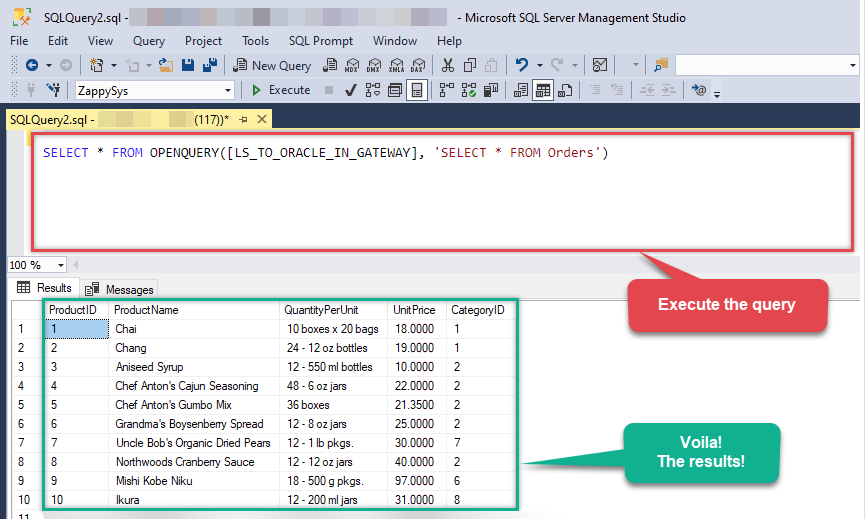
SELECT *
FROM OPENQUERY(LS_TO_ORACLE_IN_GATEWAY,
               'SELECT * FROM Orders');
This approach is significantly more stable than MSDASQL.
Comparison: Direct ODBC vs ZappySys Data Gateway
| Feature | Direct ODBC Linked Server | ZappySys Data Gateway |
|---|---|---|
| Uses MSDASQL | Yes | No |
| Driver compatibility | Limited | High |
| Error diagnostics | Poor | Clear |
| Modern auth support | Weak | Strong |
| Recommended for enterprise |  |
 |
Best Practices
- Always prefer ZappySys Data Gateway for ODBC integrations
- Avoid MSDASQL for business-critical workloads
- Use 64-bit drivers with SQL Server
- Run SQL Server service under a controlled domain account
- Test queries using
OPENQUERYfor best performance
Conclusion
While SQL Server technically supports ODBC access via Linked Servers, real-world usage often leads to errors like Msg 7399 and Msg 7303 due to limitations of MSDASQL.
Using ZappySys Data Gateway provides a reliable, scalable, and production-ready solution for accessing ODBC DSNs in SQL Server—eliminating driver mismatches, initialization failures, and opaque error messages.
If you are working with external systems, SaaS platforms, or non-SQL databases, ZappySys Data Gateway is the recommended approach.