In SQL Server, a Linked Server is treated like a secured database object. By default, Non-Admin users do not have permission to use a Linked Server connection. While a SysAdmin typically connects successfully using their current security context, regular users or service accounts will often trigger a connection failure.
Error:
OLE DB provider “SQLNCLI11” for linked server “ZappySysLink” returned message “Unable to open a logical session”.
Msg -1, Level 16, State 1, Line 0 SMux Provider: Physical connection is not usable [xFFFFFFFF].
OR
Error:
Msg 7416, Level 16, State 2, Line 1
Access to the remote server is denied because no login-mapping exists.
The Solution: Mapping Logins
To fix this, you must explicitly map the local SQL Server login (the user running the query) to a valid user account defined inside the ZappySys Data Gateway.
The @rmtuser and @rmtpassword in the script below refer to the ZappySys Gateway User credentials you created in the “Users” tab of the ZappySys Data Gateway Configuration tool.
1. (Optional) Remove Existing Mapping
If you need to reset a user’s access, drop the old mapping first:
EXEC sp_droplinkedsrvlogin
    @rmtsrvname = 'ZappySysLink',
    @locallogin = 'MyDomain\User1';`
2. Create the New User Mapping
Run the following script to grant the local user access using the Gateway Admin credentials:
-- Map local Windows/SQL user to ZappySys Gateway credentials
EXEC sp_addlinkedsrvlogin
    @rmtsrvname  = 'ZappySysLink',      -- Your Linked Server name
    @useself     = 'false',             -- Must be 'false' to use remote credentials
    @locallogin  = 'MyDomain\User1',    -- The local user calling SQL Server
    @rmtuser     = 'gateway_Admin',     -- The ZappySys Gateway Admin User Login
    @rmtpassword = 'gateway_pass123';   -- The Password defined in ZappySys Gateway`
Using the SQL Server Management Studio (SSMS) Interface
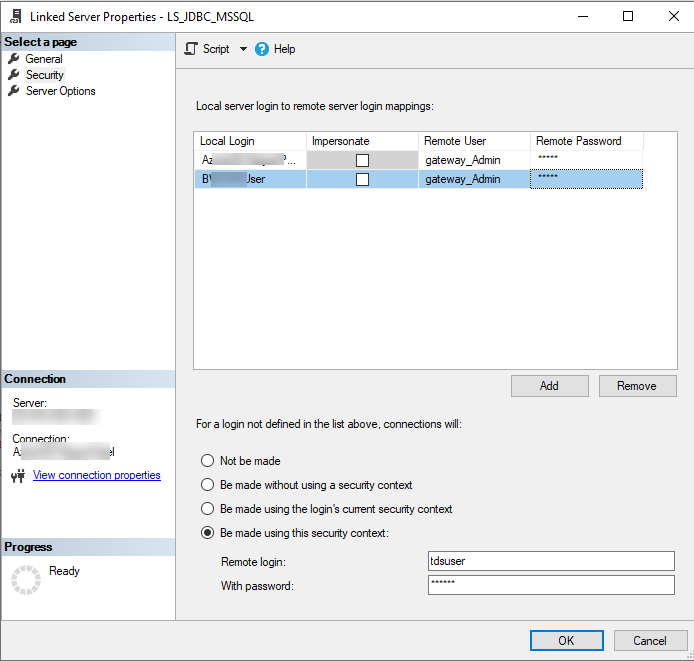
If you prefer using the graphical interface instead of running scripts, you can configure these mappings directly in the Linked Server properties:
- In Object Explorer, expand Server Objects > Linked Servers.
- Right-click your ZappySys Linked Server and select Properties.
- Go to the Security tab.
- For Specific Users: Click Add in the top section to map individual local logins to the
gateway_Adminremote user. - For Global Access: In the bottom section, select “Be made using this security context” and enter your ZappySys Gateway credentials. This acts as a fallback for any user not explicitly listed in the top grid.
Understanding the Parameters
| Parameter | Description |
|---|---|
| @useself | Set to false. This tells SQL Server not to pass the user’s Windows token, but to use the @rmtuser instead. |
| @locallogin | The specific user who needs access. If set to NULL, this mapping applies to all users who don’t have a specific mapping. |
| @rmtuser | This is the Gateway Login created in the ZappySys Data Gateway “Users” tab. |
| @rmtpassword | The password associated with that Gateway user. |
Pro Tip: Global Mapping
If you want all non-admin users to use the same ZappySys Gateway account, you can set @locallogin = NULL. This acts as a “catch-all” for any user who isn’t a SysAdmin.
Conclusion
Managing security for SQL Server Linked Servers can be tricky, especially when transitioning from a SysAdmin environment to a production setting with Non-Admin users. The “Unable to open a logical session” error is almost always a signal that SQL Server doesn’t know which credentials to pass to the remote provider.
By explicitly mapping your local users to the ZappySys Data Gateway using sp_addlinkedsrvlogin, you bridge the security gap and ensure reliable data access without compromising server-level permissions.
Quick Recap:
- Identify the Error: Look for the “Logical Session” or “Physical connection” message.
- Map the User: Use the
@localloginparameter for your Windows/SQL user. - Verify Credentials: Ensure the
@rmtuserand@rmtpasswordmatch your ZappySys Gateway Admin settings.