Introduction
When working with Excel files, it’s common to receive workbooks containing multiple worksheets (tabs). In many ETL scenarios, you may need to:
- Import data from all worksheets dynamically.
- Avoid hardcoding sheet names.
- Track which worksheet each row originated from.
In this article, we’ll demonstrate how to dynamically read data from all Excel sheets using ZappySys Excel Source and capture the corresponding Sheet Name as an additional column in the output.
Problem Statement
Consider an Excel workbook containing multiple sheets:
1. MySheet1
2. MySheet2
3. MySheet3
...
You need to:
- Read data from every worksheet.
- Avoid manually updating the package whenever a new sheet is added.
- Add the sheet name to every imported record.
Desired Output
| SheetName | Column1 | Column2 | Column3 |
|---|---|---|---|
| MySheet1 | Value1 | Value2 | Value3 |
| MySheet2 | Value1 | Value2 | Value3 |
| MySheet3 | Value1 | Value2 | Value3 |
Solution Overview
The approach consists of two phases:
Phase 1 – Retrieve Sheet Names
Use Excel Source to query the special metadata table:
SELECT *
FROM [__SheetList__]
This returns:
- SheetName
- SheetOrder
Store the results in an SSIS Object Variable using a Recordset Destination.
Phase 2 – Loop Through Each Sheet
Use a ForEach Loop Container to iterate through the sheet list and:
- Read data from the current worksheet.
- Add the current SheetName as a new column.
- Load data into the destination.
SSIS Package Design
Control Flow
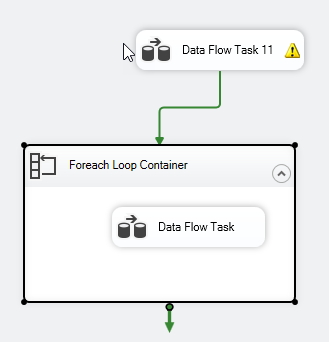
The package contains:
- Data Flow Task – Get Sheet List
- ForEach Loop Container
- Data Flow Task – Read Sheet Data
Step 1 – Get All Sheet Names
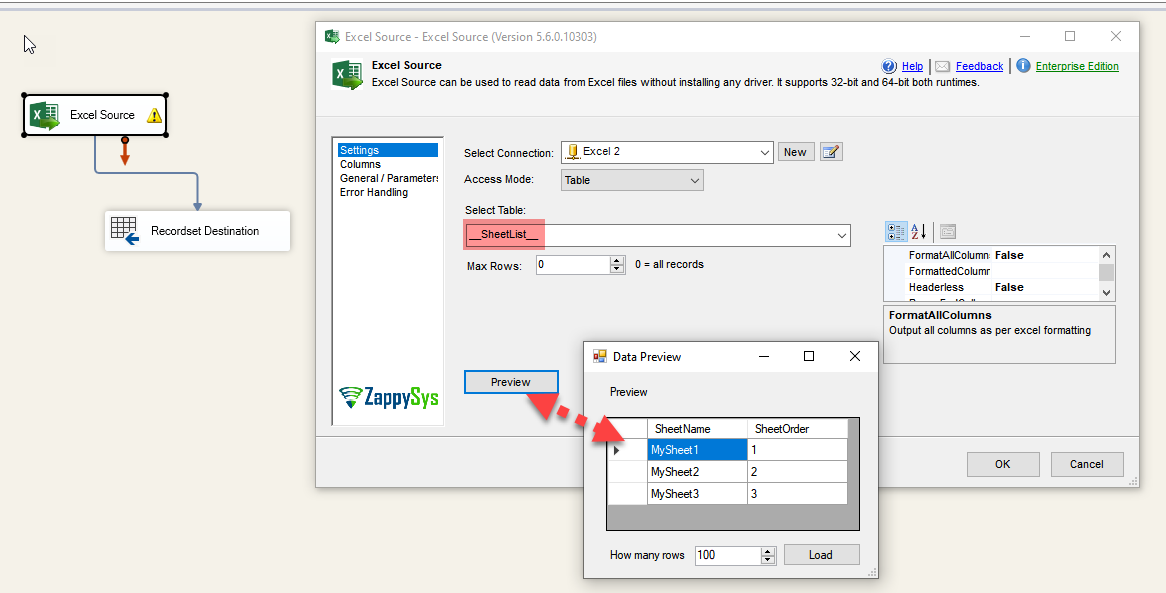
Add a Data Flow Task.
Configure Excel Source
Set the source query as:
SELECT *
FROM [__SheetList__]
Preview output:
| SheetName | SheetOrder |
|---|---|
| MySheet1 | 1 |
| MySheet2 | 2 |
| MySheet3 | 3 |
Step 2 – Store Sheet List in an Object Variable
Add a Recordset Destination.
Create an SSIS Object Variable:
User::objSheetList
Configure Recordset Destination to store the sheet list into this variable.
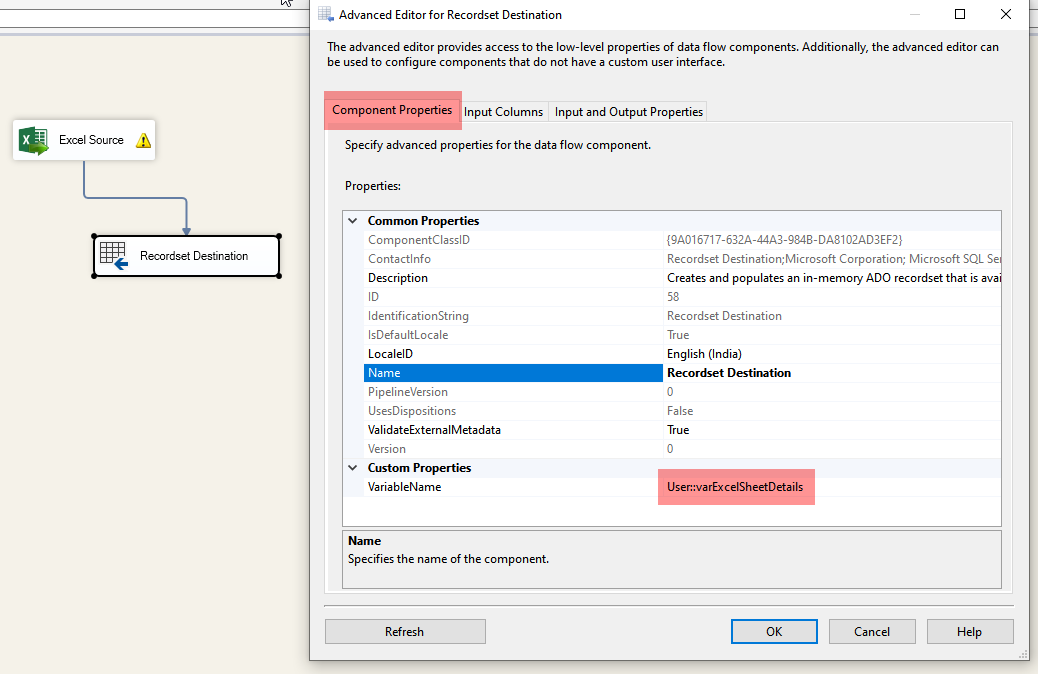
Recordset Destination Settings
- Variable Name: User::objSheetList
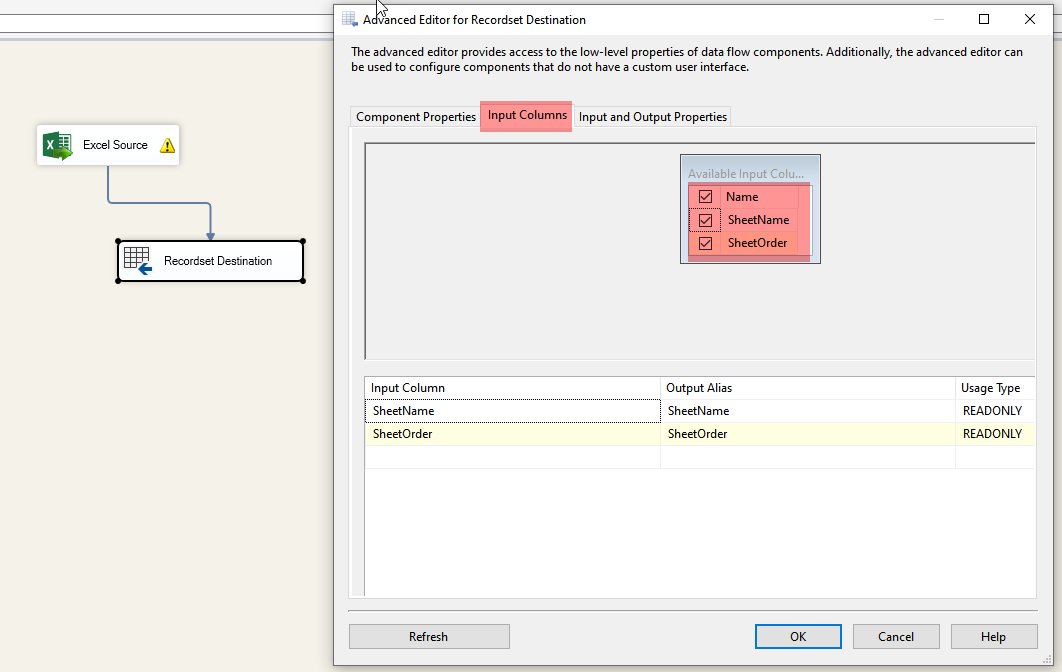
Map:
- SheetName
- SheetOrder
Step 3 – Configure ForEach Loop Container
Add a ForEach Loop Container.
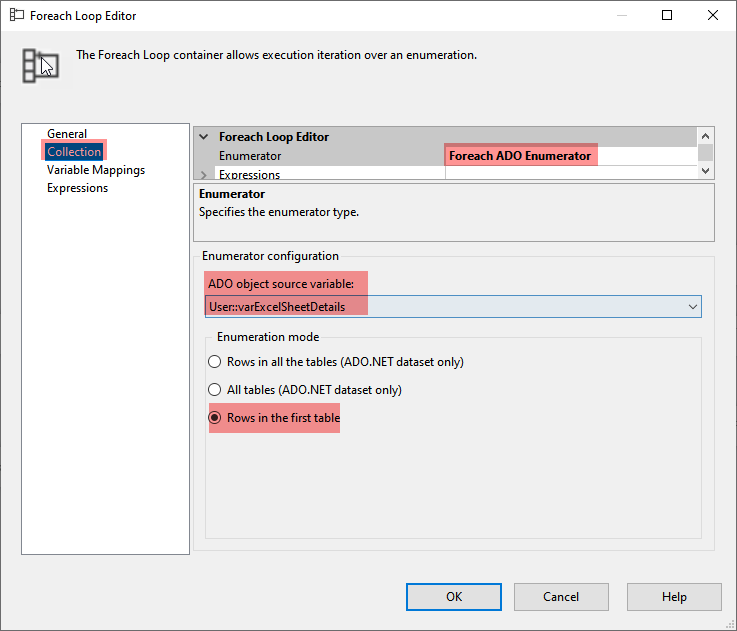
Collection Tab
Configure:
- Enumerator: ForEach ADO Enumerator
- Source Variable: User::objSheetList
Variable Mappings
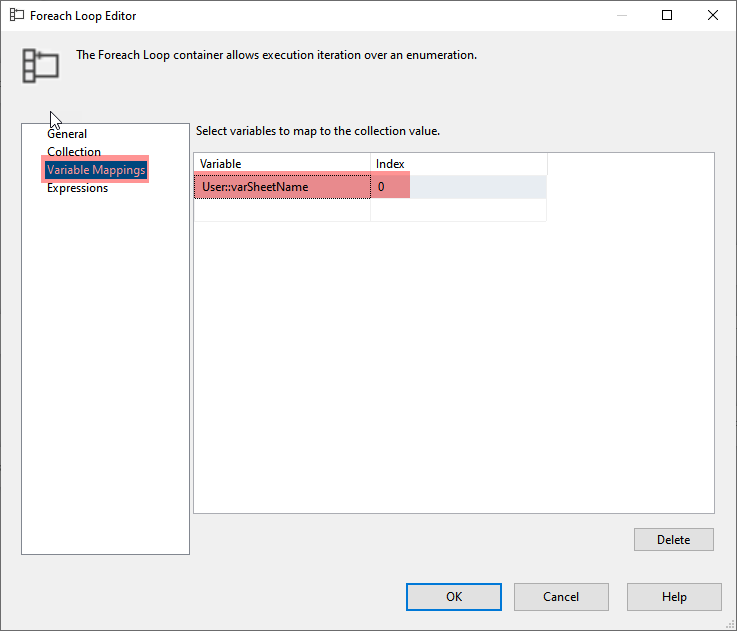
Create variables:
User::SheetName
User::SheetOrder
Map:
| Variable | Index |
|---|---|
| SheetName | 0 |
| SheetOrder | 1 |
Step 4 – Read Data from Current Sheet
Inside the ForEach Loop, add a new Data Flow Task.
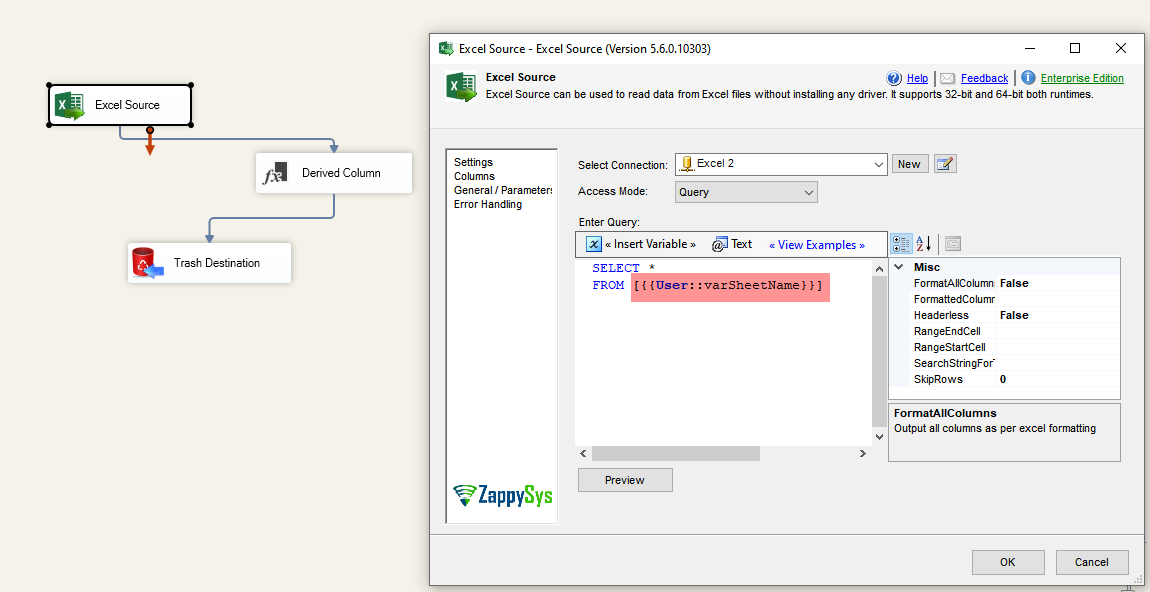
Configure Excel Source
Switch to Query Mode and use:
SELECT *
FROM [?]
Click Insert Variable and select:
User::SheetName
This allows Excel Source to dynamically query the current worksheet during each loop iteration.
Step 5 – Add Sheet Name to Output
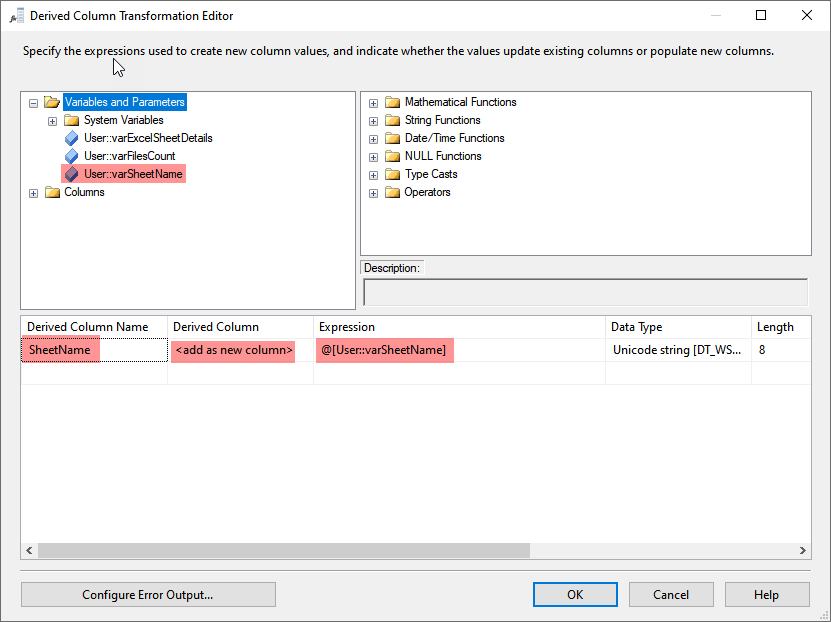
Add a Derived Column Transformation.
Create a new column:
SheetName
Expression:
@[User::SheetName]
This appends the worksheet name to every row returned from the current sheet.
Step 6 – Load Data into Destination
Connect the Derived Column transformation to your desired destination:
- SQL Server
- CSV File
- Azure SQL
- Snowflake
- Any supported destination
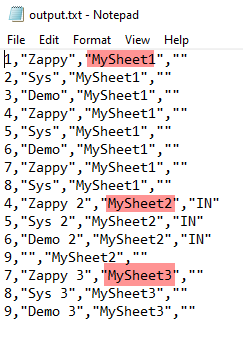
Example Output
Excel Workbook
1. MySheet1
2. MySheet2
3. MySheet3
Result
| SheetName | Name | Country |
|---|---|---|
| MySheet1 | John Smith | IN |
| MySheet1 | Jane Doe | US |
| MySheet2 | Michael Brown | UK |
| MySheet3 | Sarah Wilson | AU |
Benefits of This Approach
 No hardcoded sheet names
Automatically handles newly added worksheets
Easy to maintain
Captures source worksheet information
Works with any number of sheets
Ideal for dynamic ETL processes
Conclusion
Using the special __SheetList__ metadata table along with a ForEach Loop Container, you can dynamically process every worksheet in an Excel workbook and capture the corresponding sheet name for each record.
This approach is particularly useful when workbook structures change frequently or when business users add new worksheets regularly.
If you’re using ZappySys Excel Source, this method provides a flexible and scalable way to load data from all tabs without modifying your SSIS package whenever sheet names change.