Introduction
If you have an Azure-SSIS IR instance, it doesn’t necessarily mean you are using it all the time. This means you don’t want to pay money for the service you aren’t using. I will show you a little trick you can use to schedule your Azure-SSIS IR instance to start and stop automatically, when you don’t need it. Right inside an ADF Pipeline! Enough of talking, let’s roll!
Steps
Create Pipeline
You start by going to Azure Data Factory Studio page, where you see your pipelines, and create a new pipeline with these activities:
- Web activity
- Execute SSIS package activity
- Web activity
The first Web activity will start the IR, the second one will stop the IR. And in between you will execute an SSIS package. Isn’t it wonderful? Think about the trees you will save when you stop the IR! OK, let’s not get distracted. Connect them, and here’s how it should look like:
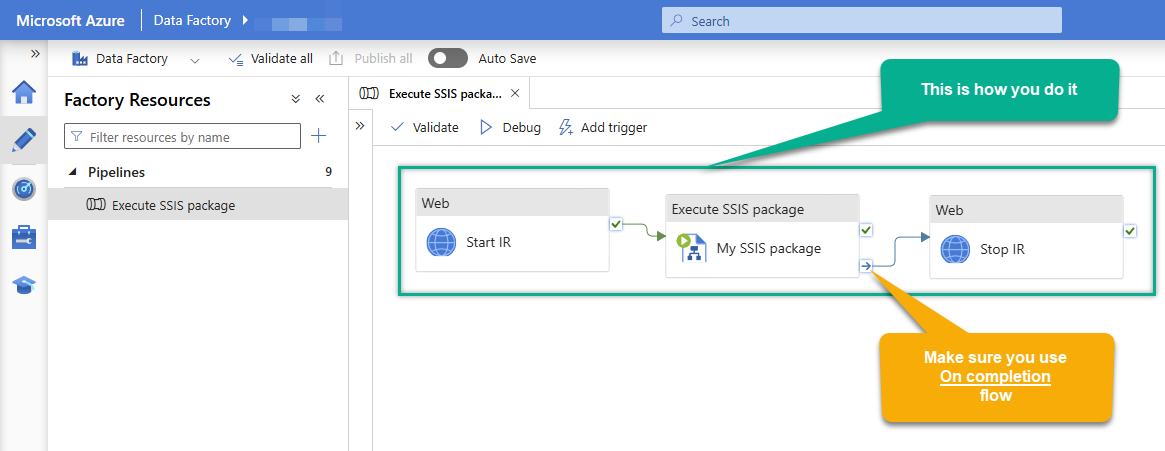
Make sure you use
On completionflow inExecute SSIS packageactivity, otherwise, if the package fails, the Azure-SSIS IR will fail to stop too, and you will pay big bucks to Microsoft!
Configure “Start IR” Web activity
It will start your SSIS IR using Azure API:
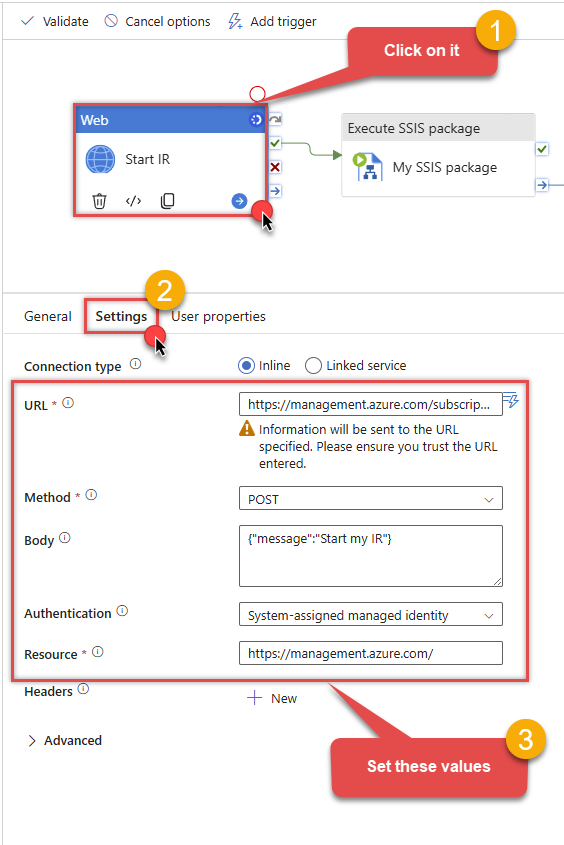
Use these values:
-
URL:
https://management.azure.com/subscriptions/{aaaaaaaa-bbbb-cccc-dddd-eeeeeeeeeeee}/resourceGroups/{my-resource-group}/providers/Microsoft.DataFactory/factories/{my-data-factory-name}/{my-ssis-runtime-name}/start?api-version=2018-06-01 -
Method:
POST -
Body:
{"message":"Start my IR"} -
Authentication:
System-assigned managed identity -
Resource:
https://management.azure.com/
Configure “Execute SSIS package” activity
Just configure it to run your package! You know how to do it, it’s not the first time, isn’t it? Isn’t it?.. If it is, don’t worry, just open the support chat and we will help you.
Configure “Stop IR” Web activity
It will stop your Azure-SSIS IR using Azure API. Configure it the same way you configured the previous Web activity - “Start IR”, except for these properties:
-
URL:
https://management.azure.com/subscriptions/{aaaaaaaa-bbbb-cccc-dddd-eeeeeeeeeeee}/resourceGroups/{my-resource-group}/providers/Microsoft.DataFactory/factories/{my-data-factory-name}/{my-ssis-runtime-name}/stop?api-version=2018-06-01 -
Body:
{"message":"Stop my IR"}
Set up permissions
If you think previous steps were all we needed, you are so wrong! Now comes the worst part - authentication! Because if you want to schedule starting and stopping Azure-SSIS runtime, Azure will use system-assigned managed identity, which is created automatically, when you create Azure Data Factory, which… drumroll… doesn’t have permissions to start or stop ADF instance! Yep, you’ve heard it right. Azure creates it automatically for you, but it doesn’t grant permissions automatically, because, you know, Security!
But I have good news: actually, it will be quite easy and simple! Just do this:
-
Open Azure Portal
-
Go to your Data Factory resource
-
Click on Managed identities in Settings
-
Make sure System assigned tab is selected
-
Hit Azure role assignments button
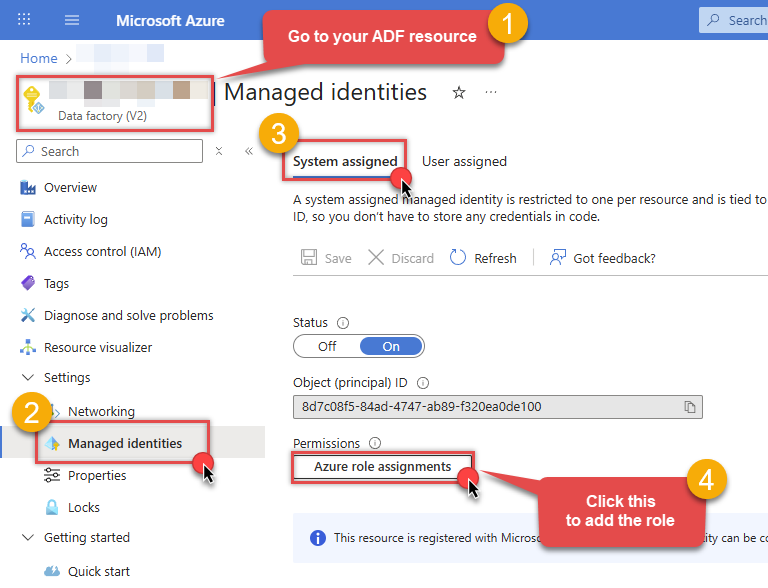
And then, do this:
-
Click Add role assignment button
-
Set Scope to
Resource group -
Select your Subscription
-
Select the Resource group, which your Data Factory belongs to
-
Select
Data Factory Contributorrole in Role field

You should see something like this:
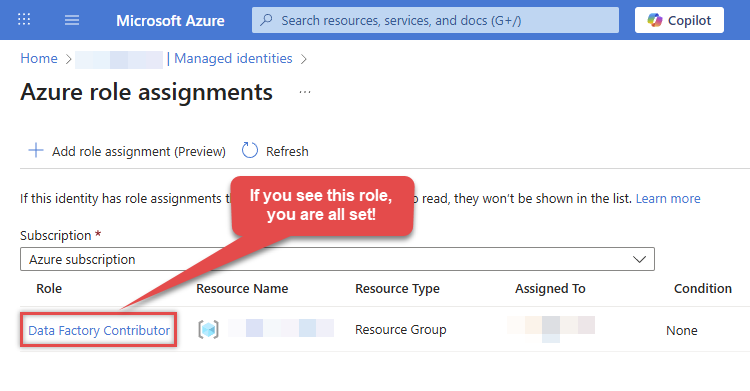
If you see that, wonderful! Now we can move on and finally create a new trigger to schedule the Pipeline execution.
Add new Trigger
Go back to your pipeline and do this:
-
Click Add trigger button
-
Hit New/Edit button
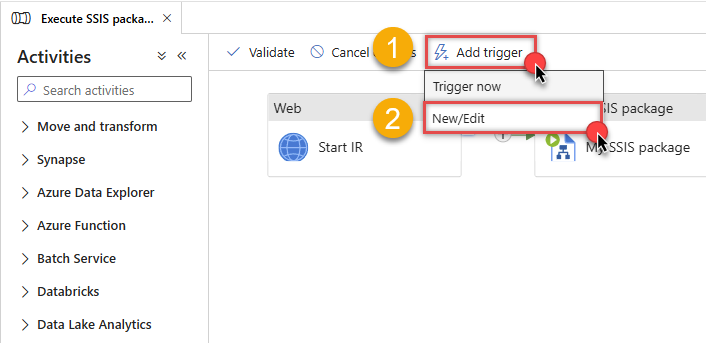
A side pane shows up, and then set the trigger up:
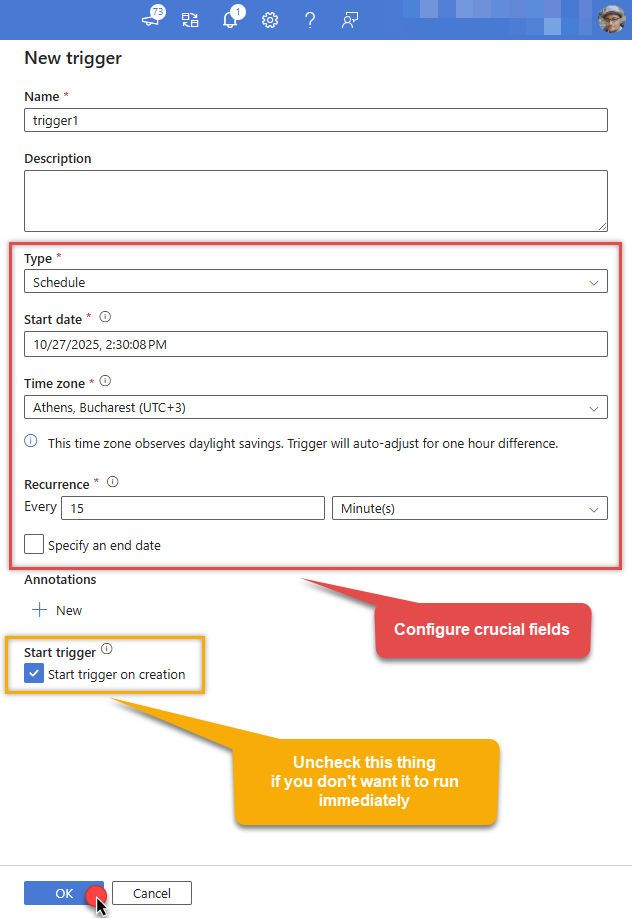
If you think we are finished, you are wrong! Again! We still have to publish the pipeline. Even if you published it before! But don’t worry, it will be a walk in the beautiful park (this time for real).
If you make a minor change to the Pipeline and add the Trigger, you have to publish it again.
Publish Pipeline
Just click the button which requires attention; that is, Publish all:
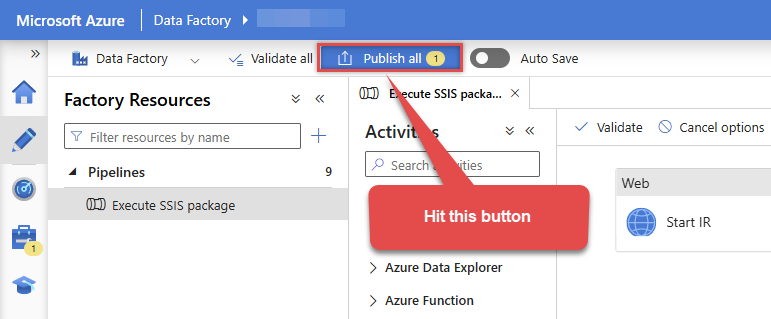
Once, it’s published, Debug the Pipeline or wait until Trigger executes it, and you will see all green:
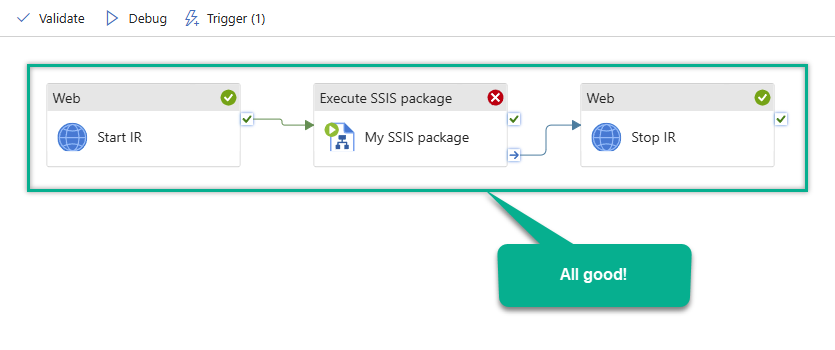
OK, maybe not all green, because our package failed here, but we are proving a point here too:
The Azure-SSIS IR was successfully stopped even the SSIS package failed
Remember the On completion data flow exit point we used before? It did its job. What more could you ask for?
Well, you could ask for all-green lights, so here it is:
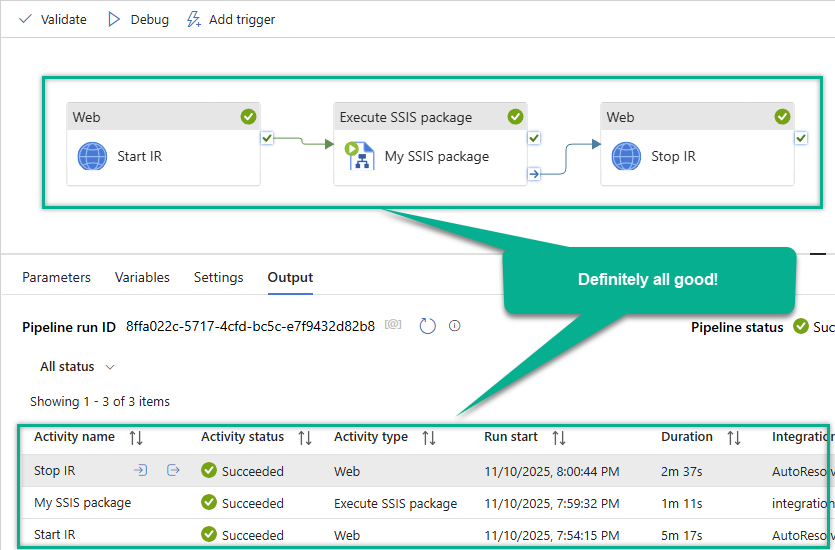
You get all-green lights when package executes successfully.
Conclusion
Conclusion is, we had a great time, didn’t we? And also, we learned how to schedule the starting and stopping of Azure Data Factory SSIS Integration Runtime to save a little bit of money and reduce the CO2 (Azure-SSIS IR is not spinning idly and not warming the server room anymore).
If it happens you use SSIS connectors in your package that come with SSIS PowerPack, don’t forget to upload the installer and setup main.cmd to start it in the Azure-SSIS IR VM.
If for some reason you don’t use SSIS PowerPack, you should give it a try (still can’t believe you never used it)! It has some really powerful connectors to connect to REST APIs, Salesforce, No-SQL instances (e.g. MongoDB) to mention a few. Not to mention SFTP and JSON/XML/CSV file manipulation!
See you next time in bigger endeavors!
References
-
Integration Runtimes - Start - REST API (Azure Data Factory) | Microsoft Learn
-
Integration Runtimes - Stop - REST API (Azure Data Factory) | Microsoft Learn
-
Schedule an Azure-SSIS integration runtime - Azure Data Factory | Microsoft Learn
Contact us
If you encounter any issues or have specific questions, reach out to our support team via live chat or support ticket using our email support@zappysys.com.